Your ideal video recording software for PC and Mac should make it easy to capture video, webcam footage, and audio with a workflow that matches how you actually work. Some apps are better for all-around recording, some are stronger for making tutorials, and others are built for fast sharing or free use. In this guide, we will describe various video recording software and focus on their platform support, core recording features, ease of use, and how well each tool fits a specific workflow.
Video Recorder Software at a Glance
Here’s a quick comparison of the top video recording apps for PC and Mac, including free options, sign-up requirements, and standout features.
| Software | Platforms | Free option | Standout feature |
| Bandicam | Windows, Mac | Yes | Annotation and AI transcription |
| OBS Studio | Windows, Mac, Linux | Yes | Scene and audio control |
| TapRecord | Mac | Yes | Simple Mac recording |
| Camtasia | Windows, Mac | Yes — sign-up required | Built-in editing |
| Loom | Windows, Mac, Chrome | Yes — sign-up required | Instant sharing |
| Movavi Screen Recorder | Windows, Mac | Yes — 7-day trial | Scheduler and mouse highlights |
Best Video Recorder Apps Reviewed
Below, we review the top video recording apps for PC and Mac, with a closer look at their features, pros, and limitations.
1. Bandicam: A Strong All-Around Video Recorder for PC and Mac
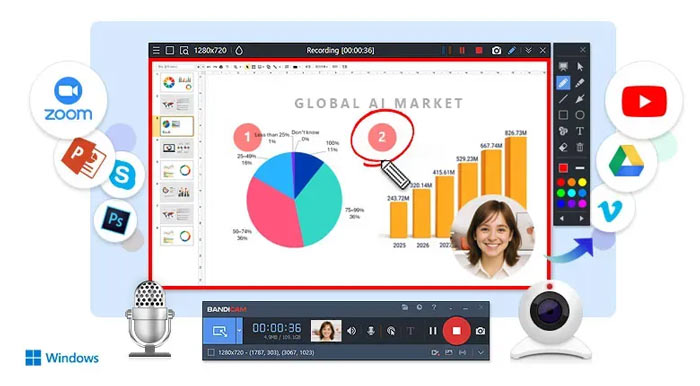
Bandicam is a versatile choice for users who want to capture video, webcam footage, and audio without a complicated setup. On Mac, it supports screen recording up to 5K at 60 FPS, flexible capture areas, webcam overlay, AI-powered video-to-text, live screen annotation, and built-in trimming. The Mac version also supports capturing system audio and microphone input together.
Best for: Users who want a balanced mix of recording quality and ease of use
Available on: Windows, Mac
Key features: Screen recording, webcam overlay, system audio capture, AI transcription, live annotation, and built-in trimming
Pros
- Easy to download and start right away
- Supports screen, webcam, and audio recording
- Available on both Windows and Mac
Cons
- Less suitable for complex audio setups
- No built-in live streaming support
Why we picked it
We picked Bandicam for its quick setup and ease of use, along with full support for screen, webcam, and audio recording on both PC and Mac.
2. OBS Studio: Best Free Video Recorder
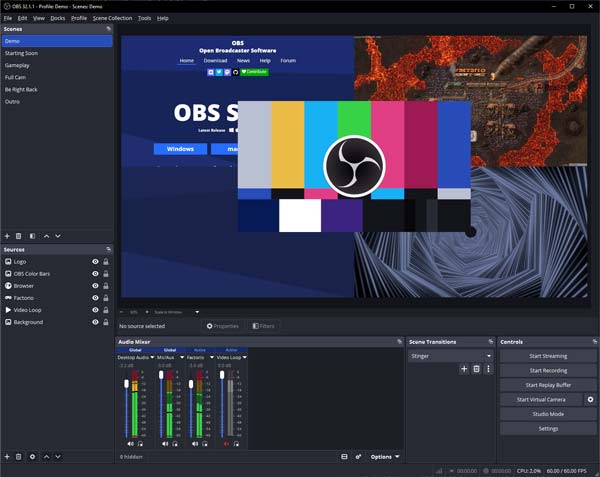
OBS Studio is one of the strongest free choices for users who want deeper control over their recordings. It supports real-time video and audio capturing and mixing, scenes built from multiple sources such as windows, images, text, browser windows, webcams, and capture cards, plus an unlimited number of scenes and detailed audio controls.
Best for: Users who want a powerful free recorder
Available on: Windows, Mac, Linux
Key features: Multi-source scenes, unlimited scenes, audio mixer, filters, and detailed configuration options
Pros
- Free to use and open-source
- Flexible scenes for advanced workflows
- Strong source and audio control
Cons
- Harder to learn at first
- Requires more setup than simpler recorders
Why we picked it
OBS Studio earns its place here because it offers serious recording power without a paid plan, making it the best free option for users who want more than basic capture.
3. TapRecord: Best Free Video Recorder for Mac
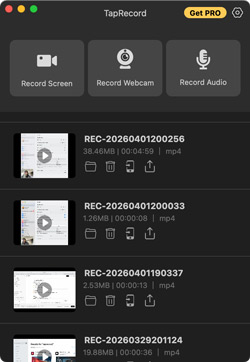
TapRecord is a simple Mac video recorder for users who want an easy way to capture screen, audio, and webcam without a complicated setup. It supports HD recording up to 4K, system sound capture, trimming, offline recording, and quick sharing, which makes it a practical choice for straightforward recording tasks on Mac.
Best for: Mac users who want a simple free recording tool
Available on: Mac
Key features: Screen, audio, and webcam recording, HD capture up to 4K, system sound capture, and simple trimming
Pros
- Simple to use on Mac
- Supports screen, audio, and webcam
- Includes trimming and offline recording
Cons
- No live annotation tools
- Free version limited to 5 minutes
- Only available on Mac
Why we picked it
TapRecord works well as the simpler Mac-only choice in this list, especially for users who want easy recording without moving into more advanced software.
4. Camtasia: Best Video Recorder for Tutorials and Training Videos
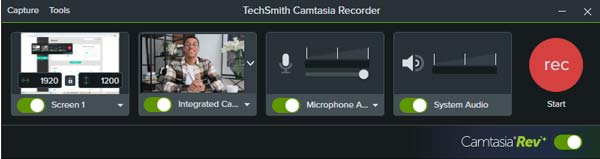
Camtasia is a strong option for tutorials, training videos, and educational content because it combines screen recording with built-in editing. It supports multitrack recording for screen, camera, system audio, and microphone, and comes with AI transcription and text-based editing tools for a more polished workflow.
Best for: Tutorials, training videos, and polished educational content
Available on: Windows, Mac
Key features: Screen and webcam recording, editing workflow, AI transcription, and training-focused use cases.
Pros
- Strong for tutorials and training videos
- Recording and editing in one app
- Includes AI transcription tools
Cons
- More than what basic users need
- Free exports include a watermark
- Heavier workflow than simpler tools
Why we picked it
Camtasia is one of the clearest choices for users who care more about polished tutorial workflows than about simple one-click capture.
5. Loom: Best Video Recorder for Fast Sharing
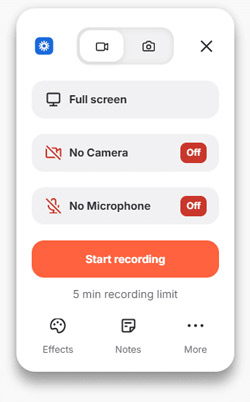
Loom is a good fit for users who want to record and share quickly. It supports screen and audio capture on Mac, Windows, and Chrome, and also lets you record your screen, webcam, or both at once. Instant share links, quick browser edits, comments, captions, and drawing tools make the software especially useful for team updates, walkthroughs, and asynchronous communication.
Best for: Fast recording and instant sharing
Available on: Mac, Windows, Chrome
Key features: Screen and audio capture, screen-and-camera recording, instant links, quick edits, comments, and annotations
Pros
- Fast to record and share
- Screen, webcam, or both
- Strong for team communication
Cons
- Chrome version is more limited
- Sign-in required
- Automatically uploads recordings to your account
Why we picked it
Loom earns its place because it makes recording and sharing feel almost immediate, which is ideal for updates, walkthroughs, and team communication.
6. Movavi Screen Recorder: Best Video Recorder for Beginners
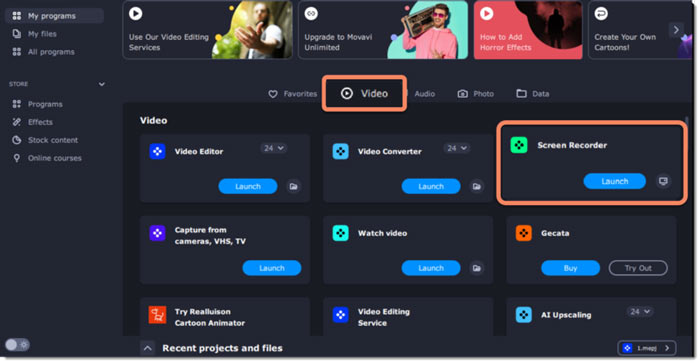
Movavi Screen Recorder is a good fit for beginners who want an easy way to record video, webcam footage, and audio without a steep learning curve. It supports full-screen or custom-area recording, webcam capture, real-time drawing tools, mouse and keystroke highlights, audio capture, and recording schedules. These features make Movavi a practical choice for creating tutorials, presentations, webinars, and everyday screen recordings.
Best for: Beginners who want an easy desktop recorder
Available on: Windows, Mac
Key features: Screen recording, webcam and audio capture, and beginner-friendly workflows
Pros
- Easy to learn and use
- Supports screen, webcam, and audio
- Includes drawing and scheduling tools
Cons
- Not suitable for game recording
- Free trial adds a watermark
- Trial version limited to 7 days
Why we picked it
Movavi fits this roundup well as an approachable option for users who want useful recording features without a steeper learning curve.
FAQs
Yes. OBS Studio is one of the best free video recording options if you want more control over your recordings. Bandicam also offers a free version that you can download and try right away, while TapRecord is a useful option for Mac users who want a simpler recording tool.
Yes. Many video recorder tools support recording your screen and webcam together. This is especially useful for making tutorials, presentations, online lessons, and walkthrough videos. Bandicam, Loom, Movavi Screen Recorder, and Camtasia all support screen-and-camera recording in different workflows.
That depends on what you need. TapRecord is a simple option for basic Mac recording, while Bandicam is a stronger choice if you want more features such as live annotation, webcam overlay, audio capture, AI-powered video-to-text, and built-in trimming.
Yes. If you want to record online without installing software, FreeScreenRecorder.com is a strong option. It works in your browser, supports screen, webcam, and audio recording, requires no installation, and processes recordings locally for better privacy.
Summary
Choosing the best video recording software comes down to your needs. Some users may want a simple tool for screen, webcam, and audio recording, while others may need more advanced controls, editing features, or quick sharing options. The tools in this list cover a range of use cases across PC and Mac, so the best choice will depend on your recording style and workflow.