How to edit DVD or WebM files
DVD/VOB/WebM/TS/MPEG Cutter
Edit DVD (VOB) or WebM files without losing quality
The latest version of Bandicut allows users to cut WebM files as well as MPEG videos (MPEG, MPG, DAT, VOB, TS, TP, TRP, M2T, M2TS, MTS, VOB) with High-Speed mode. This allows you to edit DVD (VOB) and WebM videos quickly while maintaining the quality of the original video. Please download the setup file from the official website of Bandicut to edit your video files.
Download Bandicut (Free)
To edit DVD (VOB) or WebM files, please follow the steps below:
1. Import the DVD (VOB) or WebM file.
Download the free version of Bandicut, start Bandicut, and import the DVD or WebM file.
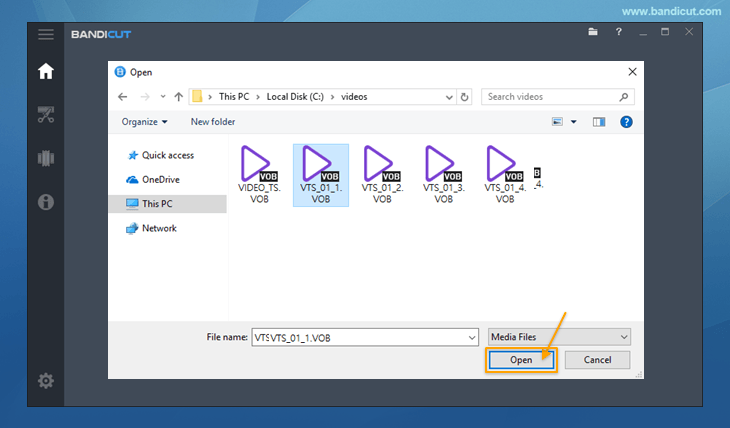
2. The 'Preparing your file(s) for editing' message will be displayed.
If the index/time information is not properly analyzed by Bandicut, it will automatically rebuild the index/time data and create a new video file in the output folder with the correct information.

3. The newly created video file will be added automatically.
For example, if the original file name is "VTS_01_1.vob," a new file named "[Bandicut]VTS_01_1.vob" will be added to Bandicut.
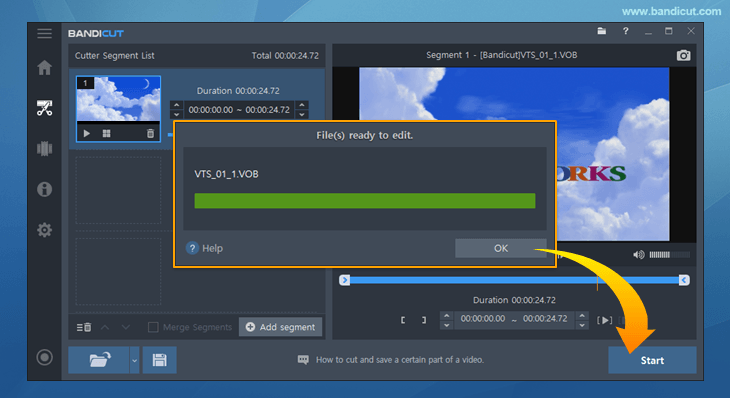
4. You will now be able to edit the DVD (VOB) or WebM files.
Click the 'Start' button and choose [High-Speed mode] for original quality or [Encoding mode] to convert the format. Refer to the "What is the Difference between [High-Speed mode] and [Encoding mode]?" page for details.

How to Convert DVD to MP4
1. How to convert DVD / VOB files to MP4
The VOB file format is most commonly used for DVD. However, many media players and mobile devices don't support the VOB file format. In this case, you will have to convert VOB to MP4 through a video converting program. If you use the "Encoding mode" of Bandicut, you can convert VOB to MP4, AVI, MKV or WebM file formats. To convert/extract a VOB file and save it as an MP4 video, import the VOB file and select the 'MP4' extension from [Encoding mode] of Bandicut.

2. How to save DVD as MP4 if you have a problem with Bandicut
Some DVDs cannot be converted to MP4 through Bandicut. In this case, record the DVD video with Bandicam as it is playing on your computer. You will then be able to save the DVD video as an MP4 file.

How to Convert WebM to MP4
If you need to convert WebM to MP4 for better compatibility with mobile devices or other media players, Bandicut is the perfect solution. By using [Encoding mode], you can easily convert your WebM files to MP4, AVI, or MKV while preserving the best possible video quality.
Simply import your WebM file, click the [Start] button, and select the 'MP4' file format in the Encoding mode settings to save your video in a more versatile format.

Last Updated on