Recording your screen is one of the easiest ways to explain something visually. Whether you’re creating a tutorial, reporting a bug, or sharing a presentation, screen recordings help communicate ideas clearly. In this guide, you’ll learn how to record your screen online for free using a browser-based screen recorder, without installing any software.

In the past, recording your screen usually required installing dedicated software. Today, many tools allow you to record your screen online directly from your browser, without downloading or installing additional programs.
Table of contents
Why Record Your Screen Online?
Recording your screen online has become increasingly popular because it removes many of the barriers associated with traditional recording software.
No installation required
You can start recording immediately without installing applications or browser extensions.
Works across various devices
Because the recorder runs in your browser, it works across Windows, macOS, and Linux.
Quick and convenient
Online screen recording is ideal for creating quick tutorials, product demonstrations, or walkthroughs for troubleshooting.
For many everyday tasks, recording your screen online is simply the fastest way to create and share a video.
However, like any tool, online screen recorders also have some limitations compared to desktop screen recording software. Here are the main advantages and disadvantages of online screen recorders:
| Advantages | Disadvantages |
|---|---|
| – No software installation required – Works directly in your browser – Quick and easy to start recording | – Limited advanced recording features – Depends on browser permissions – May not support high-performance recordings |
How to Record Your Screen Online in 4 Simple Steps
If you’re looking for a quick way to record your screen online, you can do it directly from your browser using an online screen recorder.
To get started, you’ll need a tool that works directly in your browser. For example, you can try the Bandicam Online Screen Recorder to start recording instantly without installing any software.
- Open the online screen recorder.
Open the online screen recorder in your browser and click Start Screen Recorder to begin.

- Select what you want to record.
You can choose to record a tab, a specific window, or your entire screen. If needed, enable audio sharing to capture sound.

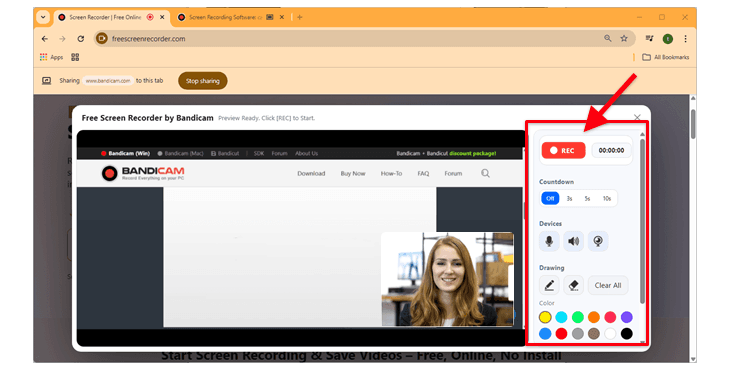
- Start recording and use the controls.
Click the REC button to start recording. You can turn the microphone, speaker, or facecam on or off during recording, and use the drawing tools to highlight parts of the screen.
- Stop recording and save the video.
When you’re finished, click Stop to end the recording. You can then click Record again to start over or download the video by clicking on Save as .webm.

When to Use an Online Screen Recorder
Online screen recording can be useful in many everyday situations.

Creating tutorials
Screen recordings are commonly used to explain software features or guide users through a tutorial.
Reporting bugs or technical issues
Instead of typing out a long explanation, you can screen record the issue and share the video with developers or support teams.
Recording presentations or demos
Screen recordings make it easy to capture product demonstrations, presentations, and online lessons.
Sharing quick explanations
Sometimes recording a short video is easier than writing a long message or email.
Privacy Considerations for Screen Recording
When it comes to using online tools, many users may wonder whether their recordings are stored on external servers.
Some browser-based recorders upload videos to cloud storage before allowing users to download them. If your recording contains sensitive information, this may raise privacy concerns.
Because of this, it’s important to choose tools that clearly explain how recordings are handled and where your data is stored.
Some tools process recordings locally within the browser environment, allowing you to save the video directly to your computer. For example, the Bandicam Online Screen Recorder processes recordings locally rather than sending them to external servers.
Frequently Asked Questions
While some online screen recorders add watermarks to videos created with free plans, the Bandicam Online Screen Recorder allows you to record your screen without watermarks.
Yes. Browser-based screen recorders allow you to record your screen directly in modern browsers like Chrome or Edge without installing additional programs.
It depends on the tool you use. Some services upload recordings to cloud servers, while tools like Bandicam process recordings locally and allow you to save the video directly to your computer.
Conclusion
Learning how to record your screen online is easier than ever thanks to modern browser-based recording tools. Instead of installing large software programs, you can capture tutorials, presentations, and demonstrations directly from your browser.
If you need more advanced screen recording features, you can also use desktop screen recording software. Desktop recorders typically provide higher video quality and more recording options than browser-based tools. To learn how to record your screen using desktop software, see these guides: