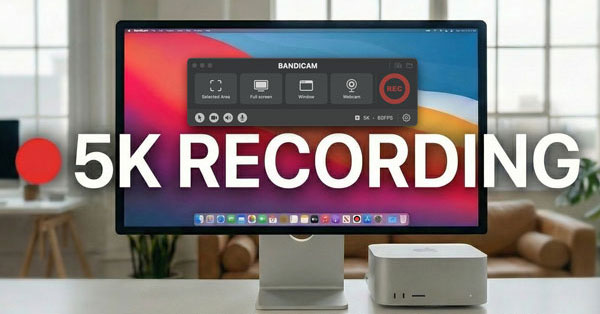
Do you want to record your Mac’s Retina display in its full glory? Mac users often struggle to find a screen recorder that captures the stunning clarity of 5K Retina displays without sacrificing performance. While built-in tools like QuickTime are convenient, they often lack the ability to record high-resolution internal audio or offer limited editing features.
This guide covers 5K screen recording: what it is, when to use it, and how to record your Mac screen in true 5K without losing quality.
Why 5K Recording Matters for Creators
5K screen recording means capturing your display at a resolution of 5120 × 2880 pixels. If you are using an iMac or Apple Studio Display, your screen resolution is likely 5K. Recording in native 5K resolution offers a significant advantage for content creators:
- Lossless Zoom-in: When you record in 5K, you can zoom in up to 200% during editing, and the output will still be crisp 4K or 1080p.
- Sharp Text Details: For tutorials involving coding or design (Figma, Photoshop), 5K recording ensures that even the smallest text remains readable.
- Superior Video Quality: Recording in 5K allows you to export to 4K or 1440p while maintaining excellent visual quality.
How to Record 5K on Mac with System Audio
Bandicam for Mac is optimized for Apple Silicon (M1, M2, M3, M4 chips), allowing you to record high-resolution screens without lag.
To record screen in 5K on Mac, follow these basic steps:
- Download and install Bandicam from the Mac App Store.
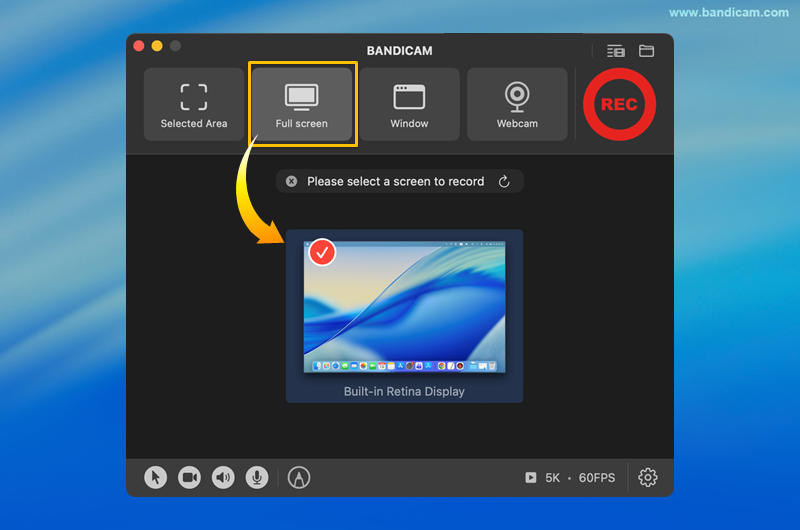
- Choose ‘Full screen’ to capture your entire 5K display.
Bandicam automatically records at the highest detected resolution, up to 5K and 60 FPS.
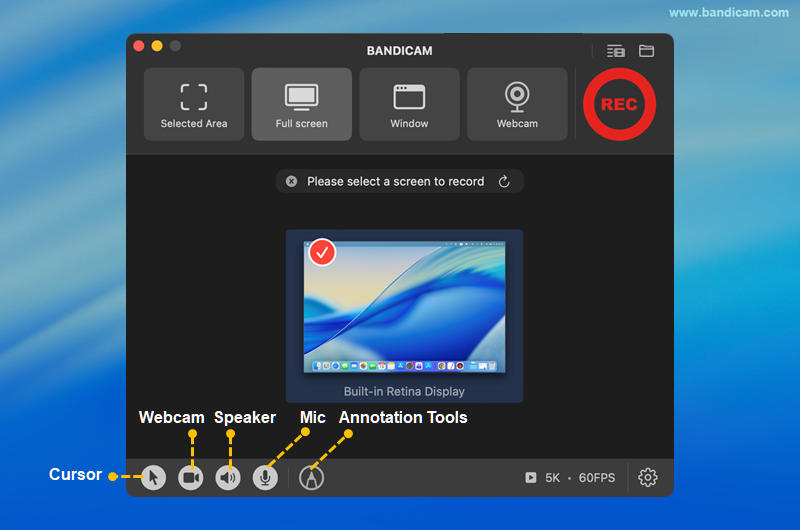
- Check audio settings.
Unlike other Mac recorders, Bandicam can simultaneously record your system audio and microphone input without complex plugins.
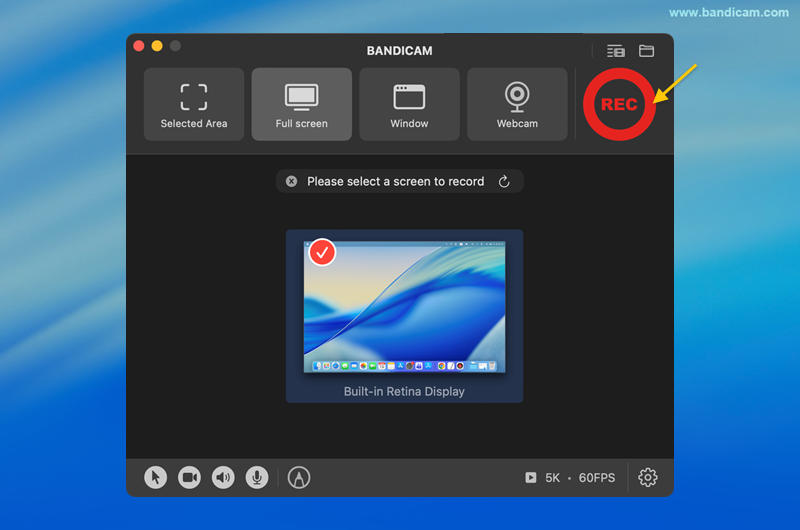
- Click the ● REC button to start recording
- Stop recording and review the recorded video file.
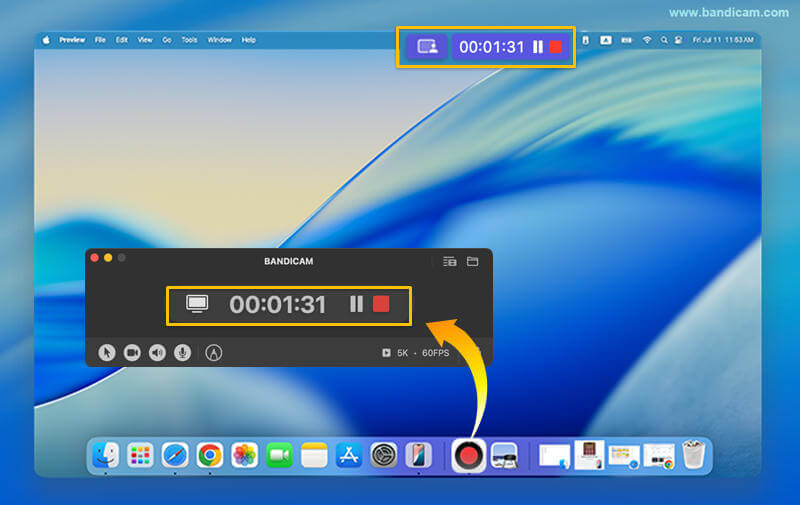
By following these steps, you can record your screen in ultra-high resolution with Bandicam for Mac, capturing up to 5K quality while maintaining performance and visual clarity.
FAQs About 5K Screen Recording on Mac
To record your Mac screen in 5K (5120 × 2880), both your display and screen recording software must support that resolution. Some recorders may automatically downscale to 4K, so make sure your software—such as Bandicam—explicitly supports 5K screen recording on macOS.
5K screen recording offers more detail than 4K, especially for text-heavy content, design workflows, and tutorials. If you plan to crop, zoom, or downscale your footage later, recording your screen in 5K can result in sharper final output—even if you export in 4K.
While YouTube doesn’t support native 5K playback, 5K recordings can still be uploaded. Recording in 5K and exporting to 4K is common, as it enhances clarity and sharpness over direct 4K recording.
Yes. To record your screen in 5K, your Mac must be running a 5K display resolution.
If your display is limited to 4K or lower, the recording will be capped at that resolution, regardless of the software used.
Final Thoughts
As ultra-high-resolution displays become more common, knowing how to record your screen in 5K on Mac is increasingly important.
Whether you’re creating tutorials, recording design workflows, or producing high-quality video content, 5K screen recording ensures maximum clarity and long-term flexibility. Choosing the right 5K screen recorder can make a noticeable difference in the quality of your videos.