In 2026, managing a growing library of video files can be overwhelming. Converting them one by one is not just tedious; it’s a huge waste of time.
Whether you need to compress high-quality 4K footage to save space, or simply convert incompatible formats to MP4 for smooth playback on any device, you don’t always need expensive software.
Here are the best Batch Video Converters—ranging from powerful free open-source tools to professional editors—that let you process hundreds of files automatically with a single click.
Table of contents
6 Best Batch Video Converters at a Glance
| Software | Batch Conversion | Platform | Speed | Best For |
| 1. Bandicut | Excellent | Windows | Fast | Batch Cutting & Converting |
| 2. HandBrake | Excellent (Queue) | Win / Mac / Linux | Fast | Prosumers & Quality |
| 3. AVC Free | Good (Simple) | Win / Mac | Medium | Beginners & Ease of Use |
| 4. VLC Player | Yes (Clunky) | Win / Mac / Linux | Medium | Multi-Purpose (Player & Converter) |
| 5. Shutter Encoder | Excellent (Queue) | Win / Mac / Linux | Fast | Professionals & Editors |
| 6. CloudConvert | Yes (Limited) | Online (Web) | Slow (Upload) | No Installation Needed |
1. Bandicut: The Best for Batch Cutting & Converting
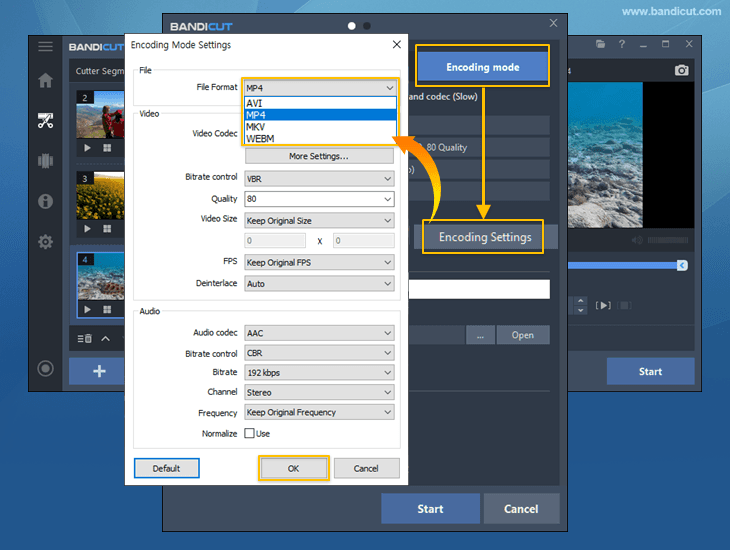
Bandicut is a high-speed video tool that excels at cutting, joining, and converting. It lets you load multiple video files, set precise cut points for each one, and batch convert all segments in a single workflow. Unlike most tools that require trimming and saving each video separately before converting, Bandicut combines everything into one seamless process. Thanks to hardware acceleration (NVIDIA, Intel, AMD), it delivers fast performance —ideal for users who want speed and control without the hassle.
New Update: Hardware Acceleration Added
Bandicut now supports Hardware Decoding. By using your GPU to read video files, it ensures lag-free previews even for 4K videos and boosts the overall speed when processing multiple files at once.
- Platform: Windows
- Best For: Users who prioritize speed and need to batch-process files (changing format, size, etc.)
Pros:
– Trim and convert videos in one seamless process
– Fast conversion speeds (hardware-accelerated)
– Also works as a high-quality video cutter/joiner
Cons:
– Only available on Windows
2. HandBrake
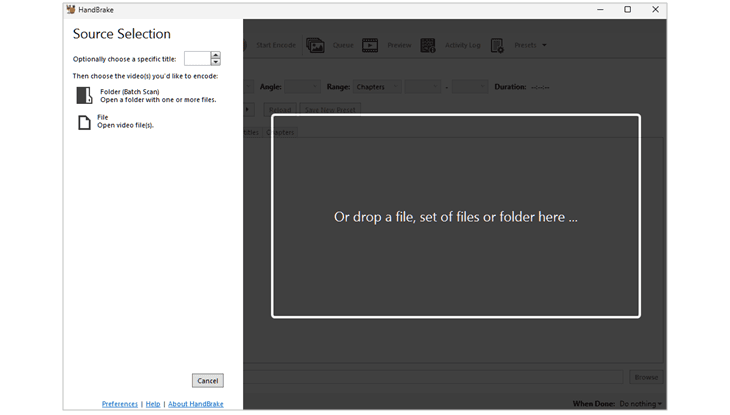
If you ask any tech enthusiast for a free converter, they’ll say “HandBrake,” and there’s a good reason for this. It’s 100% free, open-source, and incredibly powerful. It has no ads, no malware, and no watermarks or hidden limits. Moreover, its batch conversion feature is the most robust on this list. You can add an entire folder of videos, and HandBrake will process them all using its powerful “Queue” system.
- Platform: Windows, Mac (Intel & M1/M2), Linux
- Best For: Tech-savvy users, converting large files (like 4K)
Pros:
– Powerful batch “Queue” system
– Tons of presets for iPhone, Android, web, etc.
– 100% free, no watermarks
Cons:
– The interface can be intimidating for absolute beginners
– Only two output formats: MP4 and MKV
– No real-time preview before encoding
3. Any Video Converter (AVC)
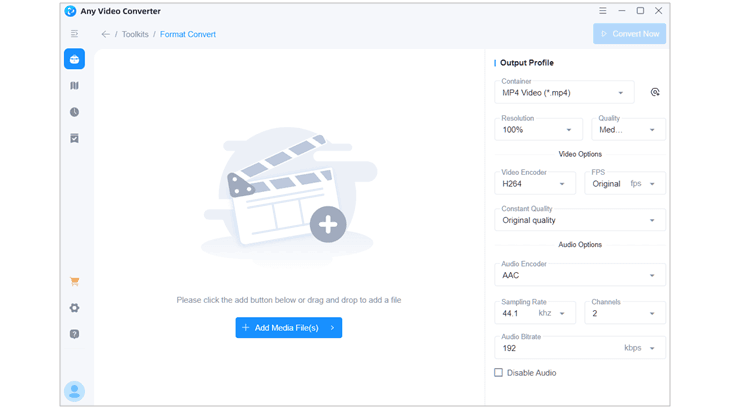
If HandBrake looks too complicated, Any Video Converter (AVC) is your best bet. It balances powerful features with a simple, user-friendly interface. The truly free version clearly supports batch conversion (just drag and drop all your files) and, most importantly, does not add a watermark for basic conversions. It guides you through the process, making it ideal for those who want to complete the task quickly.
- Platform: Windows, Mac
- Best For: Beginners, quick conversions, ease of use
Pros:
– Very intuitive drag-and-drop interface
– No watermarks on the free version
Cons:
– The free version will occasionally prompt you to upgrade to the Pro version
– Trimming is not available directly within the format conversion mode; it must be set separately in the editing panel
4. VLC Media Player
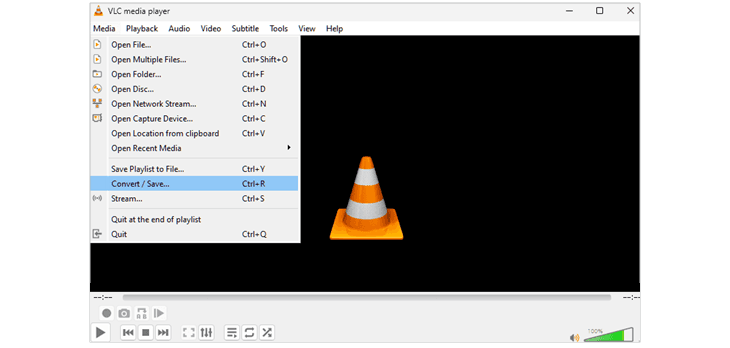
VLC Media Player is a free, open-source multimedia player that also offers basic video conversion capabilities. VLC can handle batch conversions, though the feature is a bit hidden. It’s not as straightforward as a dedicated converter, but it’s perfect if you need to convert a few files in a pinch and don’t want to install new software. And, of course, it’s 100% free with no ads or watermarks.
- Platform: Windows, Mac, Linux
- Best For: Users who already have VLC, and quick and simple jobs
Pros:
– No cost, no ads, and no limitations
– Quick conversions with minimal setup
Cons:
– Not ideal for converting multiple files at once
– Slower conversion speeds for large files (No hardware acceleration)
5. Shutter Encoder
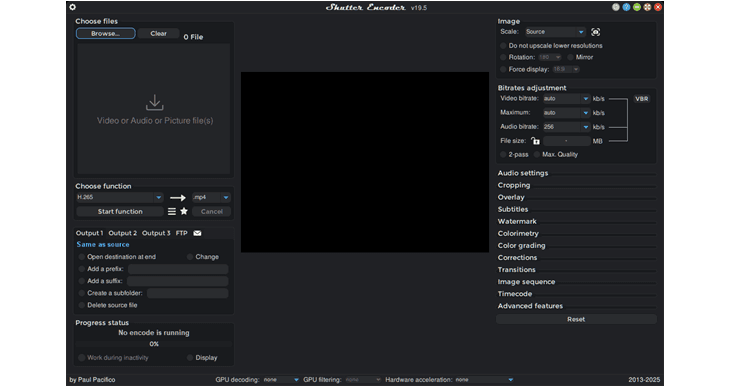
Shutter Encoder is a hidden gem for video professionals, editors, and advanced users. Like HandBrake, it’s free, open-source, and has no watermarks. It’s built around a more professional workflow and its batch processing is fantastic. You can drop in multiple files, choose your function (e.g., “H.264” for MP4), and start the queue. The program gives you immense control over codecs, bitrates, and even color correction.
- Platform: Windows, Mac, Linux
- Best For: Video editors, pro-users, converting to professional formats
Pros:
– Incredibly powerful and feature-rich
– Handles professional codecs, not just common ones
Cons:
– The interface may feel overwhelming for beginners due to its dense layout
– Real-time preview is not available for trimmed or filtered content
– You can batch convert multiple files, but trimming must be set manually for each file
6. CloudConvert: Best Online Batches
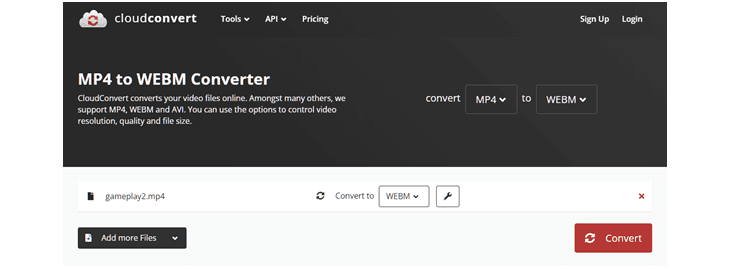
What if you don’t want to install software? Online converters are an option, but most are bad for large batch conversions due to long upload/download times and small file size limits. However, if you only have 5-10 small files, CloudConvert is the best online option. Its free tier allows for batch conversions (up to 25 conversions per day) and doesn’t add watermarks.
- Platform: Web (Online)
- Best For: Small files, users who can’t install software
Pros:
– No installation needed
– Supports over 200 formats
Cons:
– Not for large files (e.g., 4K)
– Long upload/download times
– Free plan has limits
Quick Guide: How to Batch Convert with Bandicut
Bandicut makes batch video conversion easy by allowing you to convert multiple files at once with just a few clicks. Here’s a step-by-step guide on how to batch convert videos using Bandicut:
- Launch Bandicut.
Open the Bandicut application on your computer.
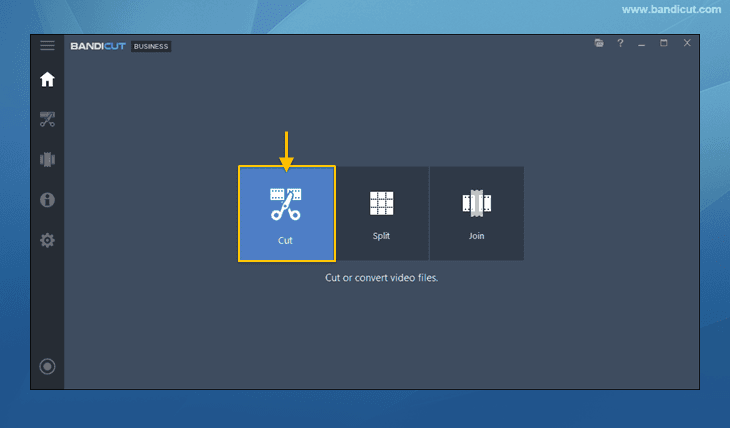
- Click the “Cut” mode.
Click the [Cut] button from the main menu. This mode allows you to load multiple files for batch processing.
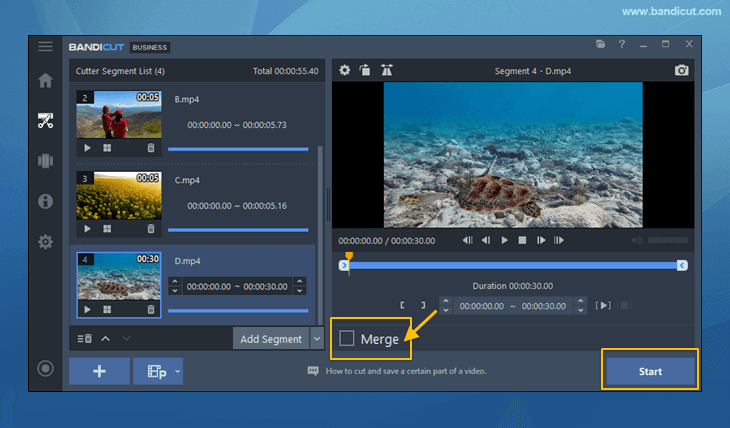
- Set trimming points, uncheck the “Merge” option and click “Start.”
For each video, set your preferred start and end points for trimming. Make sure the [Merge] option is unchecked so that each video is processed individually.
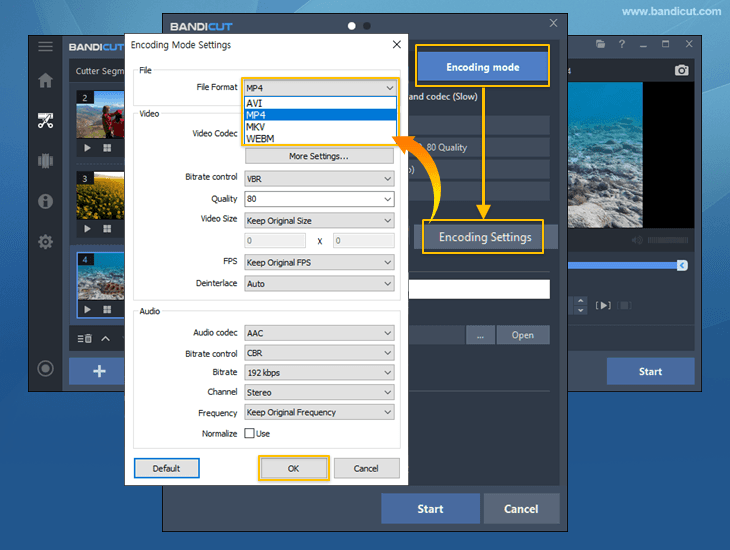
- Choose an output format and start batch conversion.
In the conversion settings window, select your desired output format (e.g., MP4, AVI, MKV, WEBM) under [Encoding Settings] and click [Start] again to begin converting all selected videos in batch.
FAQ (Frequently Asked Questions)
The easiest way is to use a program with a “batch” or “queue” feature. For example, in HandBrake, you can add an entire folder of videos, set your preset (like “Fast 1080p30”), and then click “Add to Queue” -> “Add All.” Bandicut also has a powerful “Encoding Mode” for processing multiple files.
No, Windows does not have a built-in tool for batch video format conversion. The simple “Video Editor” app is for basic trimming and cannot convert formats. You will need to use one of the third-party apps listed above.
Batch conversion speed usually depends on hardware acceleration (using your GPU). From our list, Bandicut and Shutter Encoder are known for their extremely fast performance because they are built to leverage this technology effectively.
Conclusion
For pure power, flexibility, and a truly 100% free experience with no watermarks, HandBrake is the king of batch video converters. If you find its interface scary and just want a simple drag-and-drop tool that works without a watermark, Any Video Converter Free is the perfect solution. And if your goal is not just to convert, but to batch-cut specific segments from multiple files with the fastest speed, Bandicut is in a class of its own on Windows.