Splitting large MP4 video files into smaller segments has never been easier. Whether you’re trimming out ads, shortening long recordings, or preparing vertical clips for social media, a good MP4 splitter can save both time and storage. However, with 4K and 8K content becoming the standard, simply “cutting” a video isn’t enough anymore—you need to do it without losing that crystal-clear quality.
In this guide, we’ve ranked the best MP4 splitter tools available in 2026, covering high-speed lossless options for Windows, Mac, and even quick browser-based solutions for smaller files.
Table of contents
MP4 Splitter Comparison Table (2026)
| Tool | Operating System | Free Version | Ease of Use | Key Features |
|---|---|---|---|---|
| Bandicut | Windows | O | Easy | Lossless split, batch mode |
| Adobe Premiere Pro | Windows/Mac | X | Advanced | Professional editing suite |
| iMovie | macOS | O | Easy | Simple timeline-based editing |
| Clideo | Online | O | Very Easy | Browser-based, quick trim |
| Avidemux | Win/Mac/Linux | O | Moderate | Frame-accurate, open-source |
| Shotcut | Win/Mac/Linux | O | Moderate | Advanced timeline, open-source |
| DaVinci Resolve | Win/Mac/Linux | O | Advanced | Studio-level editing |
| VLC Media Player | Win/Mac/Linux | O | Hard | Basic manual split |
| VEED.io | Online | O | Easy | Online timeline, drag-and-drop |
| OpenShot | Win/Mac/Linux | O | Easy | Basic timeline editor |
1. Bandicut
Bandicut is a lightweight MP4 splitter for lossless cutting without re-encoding in High-Speed mode, ideal for quickly splitting large files while preserving original quality. Bandicut provides options for splitting a video into a specified number of segments or segments of a set duration. Its user-friendly interface also allows for batch processing.

- ✅ Pros: Lossless splitting, fast performance, user-friendly interface
- ❌ Cons: Windows only, watermark in free version
2. Adobe Premiere Pro
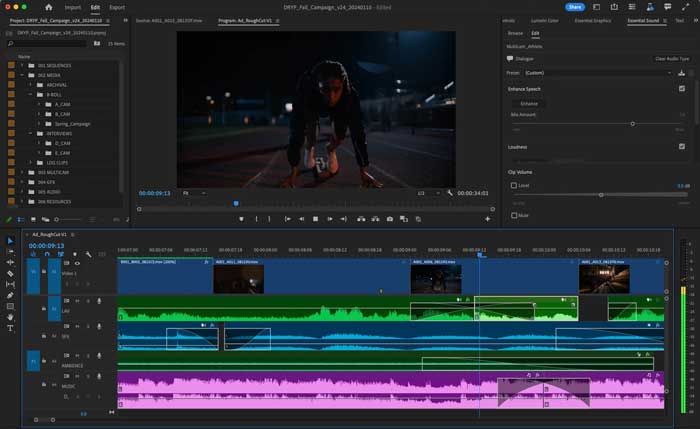
Adobe Premiere Pro is a professional-grade video editing suite offering precise MP4 splitting capabilities. It features timeline editing, keyframe adjustments, and comprehensive export settings, making it well-suited for advanced users needing multi-track editing, effects, and detailed export control. Nevertheless, its subscription model and significant learning curve are potential disadvantages.
- ✅ Pros: Industry-standard features, timeline precision, wide format support
- ❌ Cons: Expensive, not beginner-friendly
3. iMovie (macOS)
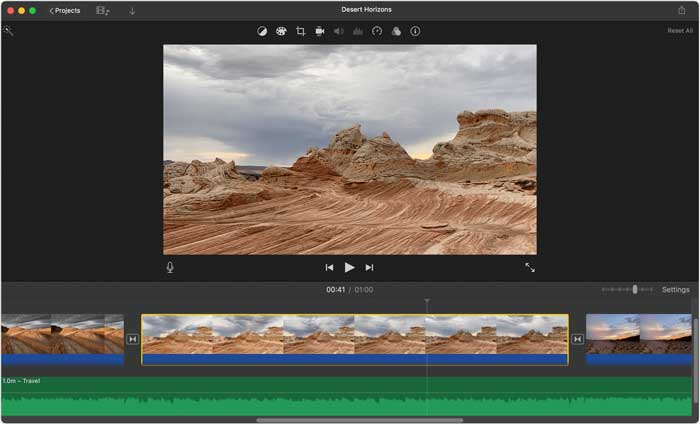
iMovie is a free video editing tool for Mac users that provides a simple and effective way to split MP4 files. It offers drag-and-drop timeline editing, transitions, titles, and audio tools, all wrapped in an intuitive interface. Since it’s optimized for macOS, performance is smooth and exports are of high quality. However, it lacks features for batch splitting or advanced customization.
- ✅ Pros: Free on Mac, high-quality output, easy to use
- ❌ Cons: macOS-only, limited advanced features
4. Clideo (Online)
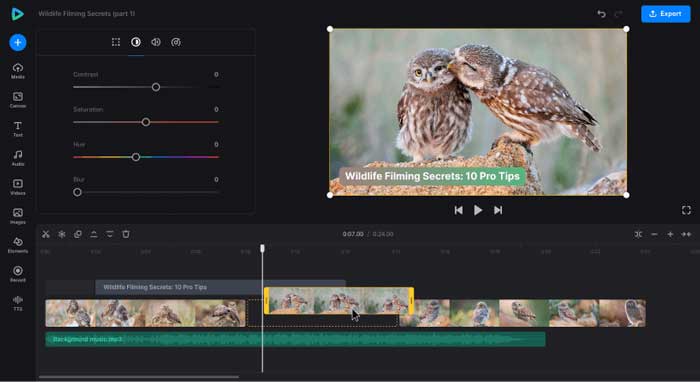
Clideo is a browser-based MP4 splitter that lets you upload, trim, and download videos directly online without installing any software. It’s a convenient solution for quick edits on any device—Windows, Mac, or mobile. Clideo is especially helpful for occasional users and those who need to split videos on the go. However, it has a file size limit of 500MB on the free plan, and the exported videos include a watermark.
- ✅ Pros: Web-based, simple UI, cross-platform
- ❌ Cons: 500MB limit, watermark on the free version
5. Avidemux
Avidemux, a free and open-source video editor, offers frame-accurate MP4 splitting, scripting capabilities, filters, and support for numerous output formats. The community actively updates this lightweight software. However, its user interface appears dated and might be challenging for those new to video editing.

- ✅ Pros: Free and open-source, frame-accurate cuts, multi-platform
- ❌ Cons: Outdated interface, not intuitive for beginners
6. Shotcut
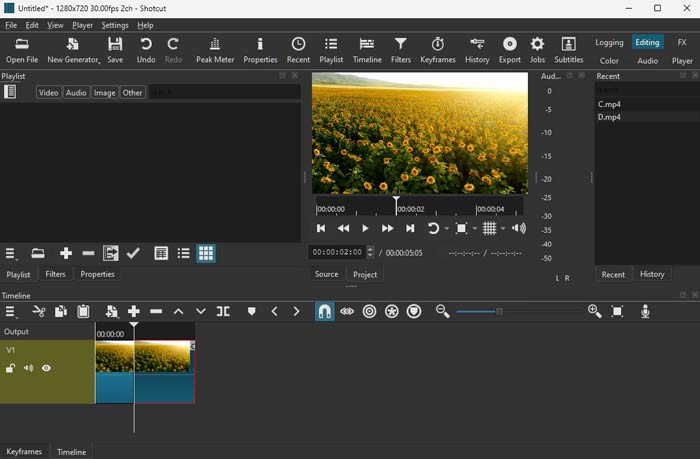
Shotcut is another open-source editor that delivers powerful features for users looking to split or edit MP4 videos. It offers a modern timeline interface, full format support, and customizable filters and transitions. It’s suitable for both casual and intermediate users who want control without the cost of a premium editor.
- ✅ Pros: Fully featured and free, timeline editing, good format compatibility
- ❌ Cons: Prone to bugs and crashes, interface may feel overwhelming
7. DaVinci Resolve
DaVinci Resolve, a professional video editing and color grading tool favored in the film industry, allows MP4 splitting using its timeline and media management. The free version provides extensive features like multi-track editing and high-quality exports, suitable for complex projects that need precise clip splitting. However, it demands a powerful computer and a considerable learning curve.

- ✅ Pros: Professional-grade features, powerful free version, precise control
- ❌ Cons: Demands high system resources, steep learning curve for beginners
8. VLC Media Player
VLC is a popular, free media player that also includes basic MP4 trimming through its record feature. While it wasn’t designed as a full-fledged editor, it allows users to manually start and stop recording a video to extract a desired segment. This makes it a handy last-resort tool if you don’t want to install an editor. However, it lacks a timeline, preview tools, and any form of precise control.

- ✅ Pros: Lightweight, free, widely available on all platforms
- ❌ Cons: Manual and imprecise, no editing UI, not suited for advanced tasks
9. VEED.io (Online)
VEED.io is a web-based MP4 editor with a friendly timeline interface for splitting and trimming videos. It supports text, filters, captions, and more, making it great for creating shareable social media content. The interface is simple enough for beginners but powerful enough for semi-pro users. It’s ideal for quick edits without having to install software. However, free exports include a watermark, and large file handling may require a paid plan.

- ✅ Pros: No installation needed, beginner-friendly interface, supports extra features like subtitles
- ❌ Cons: Watermark on free plan, limitations for long or large files
10. OpenShot
OpenShot is a cross-platform, open-source video editor with drag-and-drop support and timeline-based MP4 splitting. It’s a great entry-level tool for basic video editing and segmenting. The UI is clean and accessible, and it supports many video formats. However, it sometimes lags or crashes with complex projects or long videos. Regular updates continue to improve stability and performance.

- ✅ Pros: Free and open-source, suitable for beginners, supports major OS platforms
- ❌ Cons: Performance issues under load, lacks some pro-grade tools
How to Split MP4 Files
Bandicut supports hardware-accelerated editing, batch splitting, and lossless output, making it ideal for YouTubers, educators, and content creators. If you’re using Windows and want a fast, high-quality way to split MP4 videos, Bandicut is your best option. Follow the steps below to split MP4 video files.
Step-by-Step Guide:
- Install Bandicut and run it.
- Choose “Split” and select the MP4 file you want to split.

- Set the segments you want to split by duration or count.

- Click “Start” to begin the splitting process.

- Choose High-Speed mode when possible; otherwise, use Encoding mode.
To adjust video settings like format and size, go to Encoding mode -> Encoding settings. Upon adjusting the settings, click on the OK button and Start.

- Once the process is complete, click “Open” to view the split video files.

Frequently Asked Questions (FAQs)
Bandicut is one of the best free MP4 splitters for Windows, offering lossless cutting, fast processing, and a user-friendly interface.
Yes. Tools like Bandicut and Avidemux allow lossless MP4 splitting, meaning your video will not lose quality after trimming or cutting.
Use software like Bandicut to automatically divide large MP4 files into equal segments by duration or number of parts with just a few clicks.
Yes, VLC allows basic MP4 splitting by recording segments manually, but it’s not user-friendly and lacks precise editing tools or visual timelines.
Summary
Discover the 10 best MP4 splitter tools of 2026, tailored for anyone needing to trim, cut, or segment videos. This guide offers a detailed review of options, ranging from advanced desktop applications to convenient online tools. Whether it’s for social media, storage, or personal use, find the perfect solution here. Our comparison considers operating system compatibility, user-friendliness, and essential features to help you choose the tool that best meets your needs.