How to Batch Edit Multiple Videos

Need to convert, resize, or edit multiple videos quickly? With the new Bandicut 2025 update, batch video editing is easier than ever. Whether you're trimming clips, changing formats, extracting audio, or adjusting speed, Bandicut lets you apply changes to multiple files in one go.
This article will provide instructions on how to batch convert, resize, adjust video speed, and extract or remove audio from multiple files at once.
Try Bandicut Video Batch Converter!
Common Steps for All Batch Editing Tasks
Bandicut 2025 introduces a batch editing workflow that reduces repetitive tasks and increases productivity. Most batch tasks in Bandicut follow a common process:
- Install Bandicut 2025 and open the program.
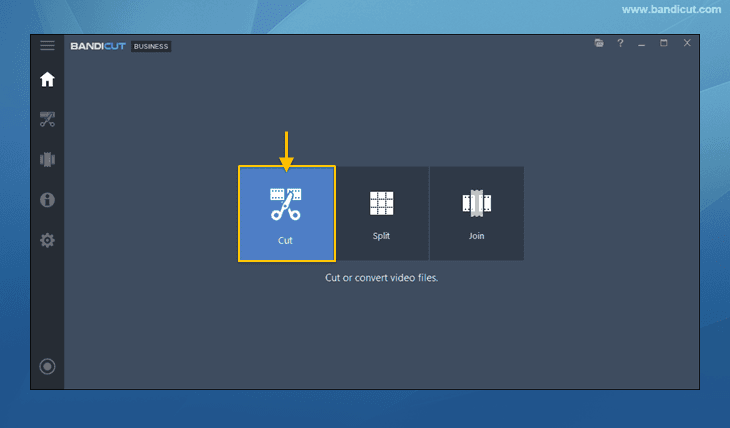
- Click the Cut button and select your video files.
- (Optional) Set the start and end points for trimming.
- Uncheck the Merge option and click Start.
- Afterward, you can proceed with your desired task, such as converting video formats, resizing videos, converting videos to MP3, removing audio, or adjusting playback speed.


How to Batch Convert Video Formats
Different platforms, devices, and software have specific video format preferences (e.g., MP4, AVI, MKV, WEBM). You might need to convert videos for compatibility or to switch to a more editing-friendly format. Follow the steps below to convert multiple videos to MP4/AVI/MKV/WEBM:
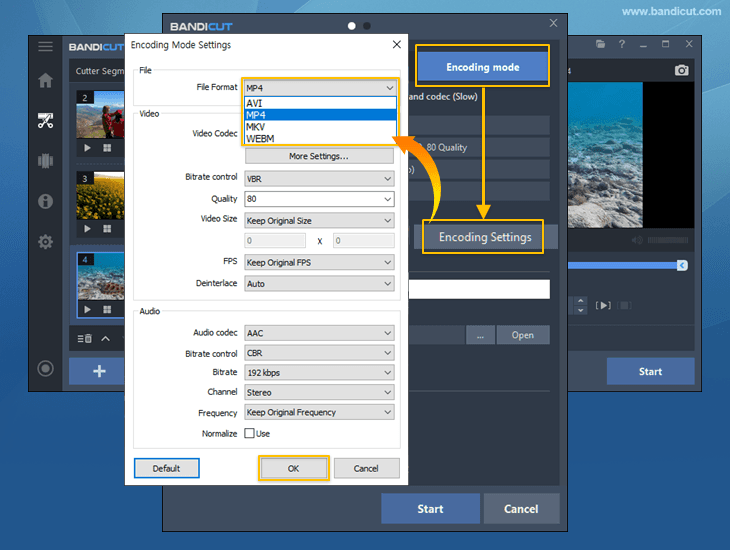
- After following the common steps, go to Encoding mode > Encoding Settings.
- Select your desired output format, such as MP4, AVI, MKV, or WEBM, and then click 'OK.'
- Start the batch conversion and click 'Open' when the process is complete.
How to Resize Videos in Bulk
Bandicut provides the ability to adjust the resolution of multiple selected video files simultaneously. Resized videos can be saved in formats optimized for platforms like YouTube, ensuring better compatibility.
To resize the resolution of multiple videos, follow the steps outlined below:
- Note: Complete the batch editing setup before resizing.
- Proceed to Encoding Settings -> under Video Size, select a resolution, and click 'OK.'
- Click 'Start' to begin processing.

Batch Convert Videos to MP3
It's useful to extract the audio track from a video file for various purposes, such as obtaining soundtracks, producing podcasts from video conversations, or simply saving music from video clips. The MP3 format is a widely compatible choice for this audio.
- Note: Start with the common setup steps before extracting audio.
- Select the 'Extract audio tracks (.mp3)' option, then start the process.

How to Remove Audio from Multiple Videos
Sometimes, the original audio in a video is unwanted–perhaps it's noisy, irrelevant, or you plan to add a new voiceover or background music track. Removing audio in bulk saves you from muting each video individually.
To remove audio from multiple videos at once, follow these steps:
- Note: Make sure you’ve done the initial steps before removing sound.
- Select the 'Remove audio tracks' option, and then start processing.

How to Adjust Video Speed in Bulk
Adjusting video playback speed offers creative possibilities like timelapse and slow-motion, and it's often necessary to correct unintended recording speeds. Bandicut enables users to modify video playback speed from 0.1x to 99.9x within its Encoding mode.
To apply the same speed modification across multiple video clips, follow the steps below:
- Note: Don’t forget the basic setup before adjusting the speed.
- Navigate to Encoding mode > Playback Speed.
- You can select a speed from the dropdown menu or enter a specific number from 0.1x to 99.9x.
- Confirm settings and begin encoding.

Last Updated on