Restore Your Bandicam Pro Purchase on Mac
If you've already purchased Bandicam Pro but still see the “GET PRO” button in the Bandicam app, please follow these troubleshooting steps in order.
Step 1: Retry Restoring Your Bandicam Pro Purchase
First, please ensure the restoration process is executed correctly with a stable internet connection.
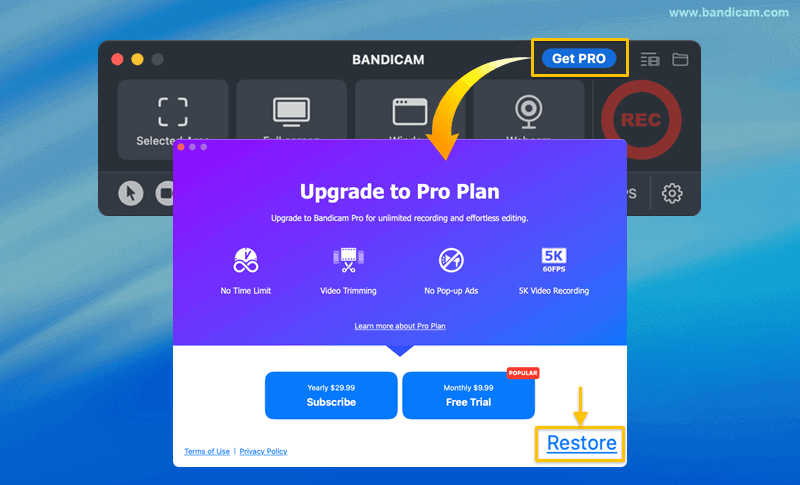
- Install Bandicam from the Mac App Store and open it.
- Click "Get Pro" and select "Restore" in the pop-up window.
- If prompted, enter the Apple ID and password you used to purchase Bandicam Pro.
If this process works, your Bandicam Pro purchase will be activated immediately. If it fails, please proceed to Step 2.
Step 2: Verify Your Apple ID and Purchase Status
This step helps confirm that your Apple ID holds an active, valid Bandicam purchase.

- Go to System Settings and click on your [Apple ID / Your Name] at the top of the sidebar.
- Navigate to the Media & Purchases section.
- Next to "Subscriptions," click the "Manage..." button.
- Look for your Bandicam Mac purchase in the list and verify that its status is "Active."
If your Bandicam subscription is listed as "Active" here, but the app still won't restore, proceed to Step 3.
Step 3: Reinstall the Application
A fresh installation can resolve activation issues caused by a corrupted local application file.
- Drag the Bandicam icon from your Applications folder to the Trash.
- Restart your Mac.
- Install Bandicam from the Mac App Store and open it.
- Once the app is freshly installed, open it and immediately attempt the Restore process from Step 1 again.
Still Not Working?
If you have tried all three steps and are 100% certain you are using the correct Apple ID (the one with the "Active" subscription), please reach out to Apple Support for further assistance.