How to record Zoom meetings on Mac
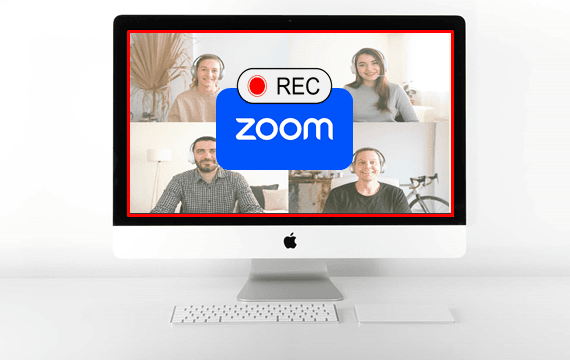
Mastering how to record Zoom meetings on your Mac with audio is an invaluable skill. It lets you save important presentations and discussions effortlessly—and it's much simpler than you might think.
In this guide, we'll compare three easy methods to record Zoom meetings on Mac, highlighting the pros and cons of each. Whether you're the host or just a participant, you'll learn how to capture both Zoom video and full audio with ease.
Comparing Zoom Meeting Recorders for Mac
| Zoom's Built-in Recorder | QuickTime Player | Bandicam for Mac | |
|---|---|---|---|
| Recording privileges | Only host | Both host and participants | Both host and participants |
| Record Audio from Others? | ✔ Yes | X No | ✔ Yes |
| Capture Your Microphone? | ✔ Yes | ✔ Yes | ✔ Yes |
| Secret Recording Possible? | X No | ✔ Yes | ✔ Yes |
| Built-in Video Editor? | X No | ✔ Yes | ✔ Yes |
Record Zoom Meetings with Zoom's Built-in Recorder
The most official way to record a meeting is with Zoom's built-in feature. While it works well, however, it comes with one major limitation: you must be the host or have the host's permission to record the Zoom meeting.

Follow these steps to record Zoom meetings with its built-in recording feature:
- Start the Meeting: As the host, begin your Zoom call.
- Click 'Record': In the bottom toolbar, click the Record button.
- Stop and Save: After the meeting, Zoom automatically converts the recording into an MP4 file.
The Drawbacks: Permission Requirements and Visible Alerts
- If you're not the host, you can't record the meeting without permission.
- Zoom notifies participants that a recording is in progress with a visible label, a red dot, and an audio alert.
This method is most suitable for recording official meetings where you are the host. However, recording Zoom meetings without permission or notification requires the use of third-party applications, such as Bandicam.
Record Zoom Meetings on Mac with QuickTime Player
Your Mac comes with a free, built-in screen recorder: QuickTime Player. It's a great option for recording without host permission, but it has a key limitation regarding audio.

Follow these steps to record Zoom meetings with QuickTime Player:
- Open QuickTime Player: Find it in your "Applications" folder.
- Start a New Screen Recording: From the top menu, click File > New Screen Recording.
- Select Microphone: Before you record, click the small arrow next to the Record button and select "Microphone."
- Click Record: Choose to record the entire screen or drag to select the Zoom window.
The Drawback: Audio Limitation
- QuickTime only records your microphone, not internal Zoom audio (the other participants' voices).
This free tool is ideal for quickly recording meetings, capturing video and your own voice. For comprehensive recordings that capture other participants' audio, Bandicam is recommended.
Record Zoom Meetings on Mac with Audio (Best Option)
For users who need to reliably record Zoom meetings without limitations, Bandicam for Mac is the perfect solution. It solves the permission and audio problems of the other methods mentioned above.
Bandicam allows you to record discreetly—it does not require host permission and does not notify other participants that you are recording. Most importantly, it can capture both your microphone and the internal audio simultaneously, allowing for a complete recording of the entire conversation.
Additional Tip: Are you a Windows user? Check out our guide for recording Zoom on Windows.
-
Install and launch Bandicam Mac Screen Recorder.
Open the App Store by clicking the 'Bandicam Free Download' button below, and then click 'Get' and 'Install.'
-
Choose your desired recording mode and configure the audio options.
- Select either Selected Area or Full screen—we recommend Full screen recording since screen sharing in Zoom can shift the layout and cause selected areas to be missed.
- To record the Zoom meetings with audio, enable both the system audio and the microphone.
![record Zoom with audio]()
-
Start and stop recording.
- To record, click the ● REC button. You can use the ❚❚ pause button as needed and click the ■ Stop button when the meeting concludes.
- While recording in Full screen mode, you can use the Mac's top menu bar or switch to the Bandicam window to pause or stop.
![pause or stop Zoom recording]()
-
When you’re done, review the Zoom recording.
Upon completing the recording, the Output Video List window will automatically appear.
- With Bandicam’s built-in trimmer, you can immediately edit Zoom recordings by clicking the "Trim Video" button.
- After editing, you can quickly share your Zoom video using "Send via AirDrop" or the "Share" button.
![recorded Zoom meetings]()
-
Turn Your Zoom Recording into Text or Subtitles
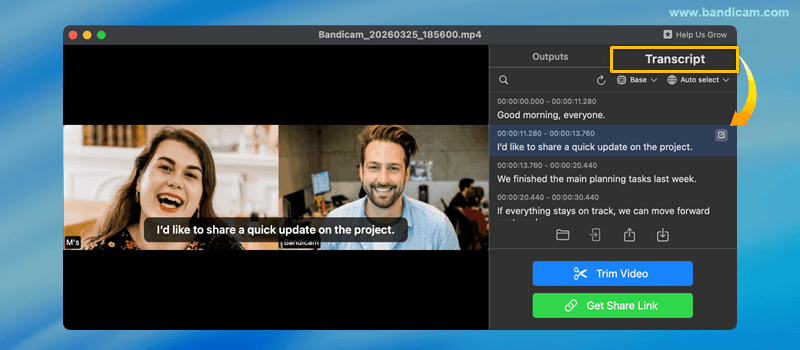
After recording your Zoom meeting with Bandicam, you can also turn the recording into text or subtitles. Open the Transcript tab to generate a transcript, save it as TXT, or create an SRT subtitle file. See our guide on how to transcribe Zoom recordings.
![transcribe zoom meetings]()


Bandicam Troubleshooting: No audio on your Zoom recording?
This is usually caused by a settings mismatch. Here's an easy fix: open Bandicam's Video Settings and match your devices:
- Microphone: Select the same microphone in Bandicam that you use in Zoom.
- Speaker: Ensure your Mac's sound output and Zoom speaker are set to the same speaker device. Simply click the Sound Settings link in Bandicam to open your Mac's sound options.

Bandicam and Mac sound settings

Zoom audio settings
Frequently Asked Questions (FAQ)
1. Can I record Zoom meetings on Mac without the host's permission?
By default, Zoom only allows the host or co-host to record. If you're a participant, you will need permission from the host. However, third-party tools like Bandicam will enable you to record Zoom on Mac without host permission.
2. How do I record Zoom with audio on Mac?
Zoom’s built-in recorder captures system and mic audio only for the host, and QuickTime Player records only mic audio. Therefore, Bandicam for Mac is the best option to record Zoom meetings with both your voice and other participants’ audio.
3. Will Zoom notify others if I record a meeting?
Yes, if you use Zoom's built-in recorder, all participants will be notified when recording begins. However, if you use Bandicam for Mac or QuickTime Player, participants in the meeting will not be notified.
4. Where are Zoom recordings saved on Mac?
- Zoom's built-in recorder: Documents > Zoom folder for local recordings, or your Zoom account for cloud recordings.
- QuickTime Player: Default save location is Desktop (you can change this).
- Bandicam for Mac: You can select a custom output folder under Settings.
5. What is the best way to record Zoom meetings on Mac?
For hosts, Zoom's built-in recorder is simple. QuickTime Player offers free basic screen capture. However, for full functionality—including recording Zoom meetings with audio on Mac without host permission or notifications—Bandicam for Mac is the best choice.
Last Updated on