How to Mirror Your iPhone to a Mac

Looking to display your iPhone screen on your Mac? Many users believe iPhone to Mac screen mirroring is a complex process, but it's actually much simpler than you might think.
This guide will show you two primary methods built right into your Apple devices: the new iPhone Mirroring feature in macOS and the classic AirPlay. Additionally, we'll demonstrate how to record your mirrored iPhone screen using Bandicam Screen Recorder on your Mac.
Method 1: iPhone Mirroring in macOS
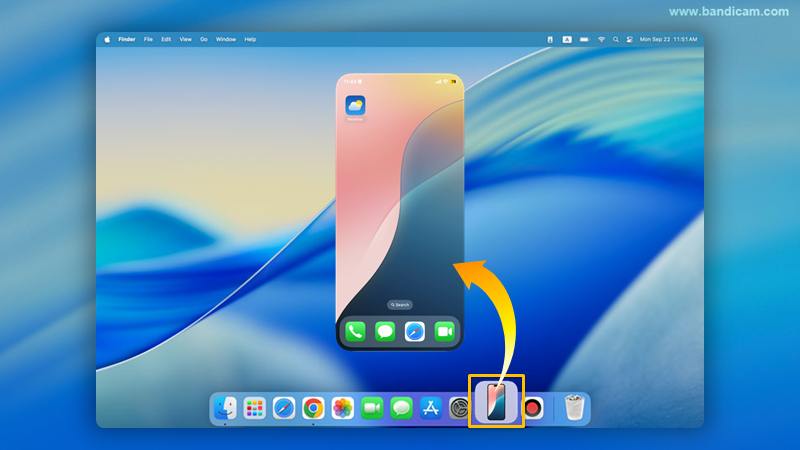
Starting with macOS Sequoia, Apple introduced a powerful new feature called iPhone Mirroring. This is more than just viewing your screen; it allows you to fully control your iPhone directly from your Mac.
Key Features of iPhone Mirroring:
iPhone Mirroring enables you to control your iPhone directly from your Mac. You can use your Mac's keyboard and trackpad to navigate your iPhone, open apps, and reply to messages. You can also effortlessly move files and photos between your iPhone and Mac.
How to Use iPhone Mirroring:
- Ensure both your iPhone and Mac are logged into the same Apple ID.
- Make sure Wi-Fi and Bluetooth are enabled on both devices.
- On your Mac, open the iPhone Mirroring app from your Dock or Applications folder.
- Your iPhone screen will instantly appear on your Mac, ready for you to control.
Method 2: Screen Mirroring with AirPlay
If you're using an earlier version of macOS or need a quick way to cast your iPhone to your Mac, AirPlay is the perfect solution. It's a reliable feature for streaming content or mirroring your entire screen.
How to AirPlay from iPhone to Mac:

- Make sure your iPhone and Mac are connected to the same Wi-Fi network.
- On your iPhone, swipe down from the top-right corner to open the Control Center.
- Tap the Screen Mirroring icon (two overlapping rectangles).
- A list of available devices will appear. Tap on the name of your MacBook or iMac.
- Your iPhone screen will now be mirrored to your Mac. To stop, simply tap "Stop Mirroring" from the Control Center.
Troubles connecting to AirPlay?
Ensure both your iPhone and Mac are on the same Wi-Fi. On Mac, go to System Settings > General > AirDrop & Handoff. Then, confirm "AirPlay Receiver" is on and "Allow AirPlay for" is set to "Anyone on the Same Network." If problems persist, restart both devices.

How to Record Your Mirrored iPhone Screen on Mac
Recording your mirrored iPhone screen on your Mac can come in handy—like when you're demonstrating an app, showing off a game session, or saving a video chat. With Bandicam for Mac, it's easy to get started.
Step-by-Step Guide to Recording iPhone on Mac:
-
Install and launch Bandicam Mac Screen Recorder.
Open the App Store by clicking the 'Bandicam Free Download' button below, and then click 'Get' and 'Install.'
-
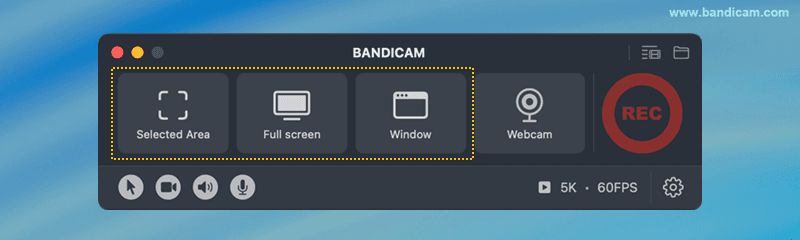
Choose a recording mode that matches your mirroring method for optimal capture.
- For iPhone Mirroring: This appears in a window, so use 'Selected Area' or 'Window.'
- For AirPlay: This typically fills your display, so the 'Full screen' mode is the best and easiest option.
![record iphone screen on mac]()
-
Start mirroring the iPhone on your Mac.
Use either the iPhone Mirroring or AirPlay method above to get your iPhone screen displaying on your Mac.
-
For example, select the iPhone window in the Window option and click the ● REC button.
![record iphone screen on mac]()
-
To pause or resume the recording, click the ❚❚ pause button. To finish, press the ■ Stop button.
These controls can be found in your Mac's top menu bar or by returning to the Bandicam window and clicking the corresponding Pause/Stop button.
![pause/stop recording]()
-
Stop recording and review the recorded video file.
Upon completing the recording, the Output Video List window will automatically appear.
- Manage Videos: Select a video and utilize the icons at the bottom to "Open in Finder," "Delete," "Send via AirDrop," or "Share."
- Trim Videos: Click the "Trim Video" button to save only wanted sections.
![recorded iphone screen]()


Additional Tip: Mirror Your iPhone to Windows
You can easily mirror an iPhone to a PC using free applications such as LonelyScreen or 5KPlayer. Share your screen wirelessly for video playback and streaming. » Learn how to mirror iPhone to Windows
Frequently Asked Questions (FAQ)
1. How do I mirror my iPhone to my MacBook?
You can mirror your iPhone to a Mac in two ways. On macOS Sequoia and later, open the iPhone Mirroring app on your Mac. For earlier macOS versions, use AirPlay by opening the Control Center on your iPhone.
2. What is iPhone Mirroring on macOS Sequoia?
It’s a new app that lets you mirror and control your iPhone directly from your Mac, including opening apps and transferring files.
3. How do I record my iPhone screen on Mac?
After mirroring, you can use Bandicam for Mac or QuickTime to record your screen. Bandicam records in higher quality with audio and extra features like video trimming.
Last Updated on