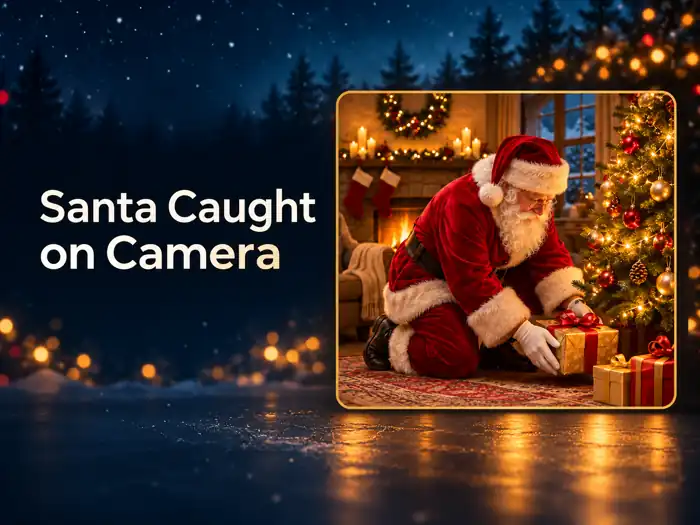
A Santa caught on camera video can make Christmas morning feel even more magical. Instead of filming or editing the scene yourself, you can use photos of your room, a toy, a wrapped present, or a sleeping child to create a short AI Santa video.
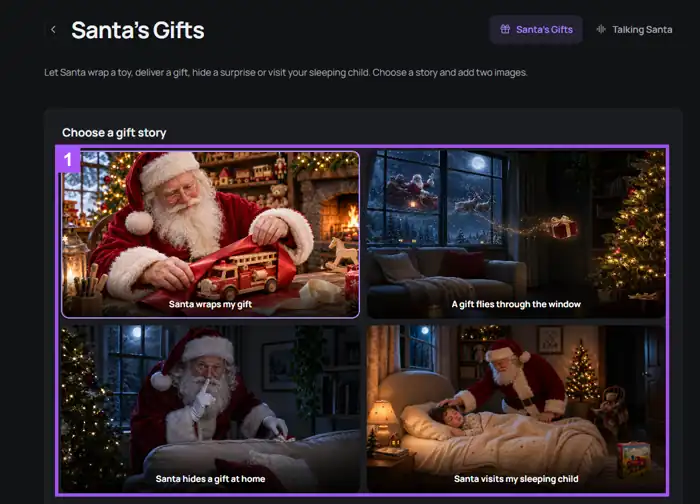
Santa’s Gifts in Bandicam AI Studio offers four ready-made Christmas stories. Choose a story, upload two matching images, and let AI create a 15-second scene of Santa wrapping, delivering, or hiding a gift. The finished result is an AI-generated Christmas surprise rather than real footage.
Choose a Santa Gift Story
The images you need depend on the Santa story you select.
- Santa wraps my gift: Upload a photo of the toy and another photo of the wrapped gift.
- A gift flies through the window: Upload a living room photo and a wrapped gift photo.
- Santa hides a gift at home: Add a photo of your room and the gift Santa should hide.
- Santa visits my sleeping child: Upload a gift photo and a photo showing the sleeping child and bedroom.
If you want Santa to say a child’s name or read a custom greeting, use the personalized Santa video generator instead.
How to Make a Santa Caught on Camera Video With AI
Follow these steps to create an AI Santa gift video from your photos.
Step 1: Open Santa’s Gifts
Open the AI Santa video generator and select Santa’s Gifts in Bandicam AI Studio.
Step 2: Choose a Santa Story
Select one of the four Christmas stories. The required image fields will change according to the selected story.
Step 3: Prepare and Upload Two Photos
Upload the two images shown on the screen. Santa’s Gifts supports JPG, PNG, and WebP files of up to 10 MB per image.
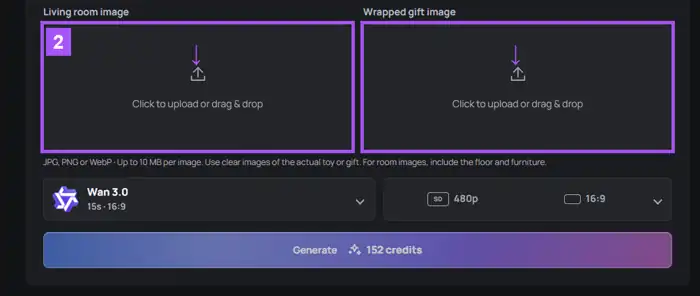
For a room photo, include enough floor, furniture, and surrounding space for Santa to move naturally. For a toy or gift photo, use a clear image with a simple background.
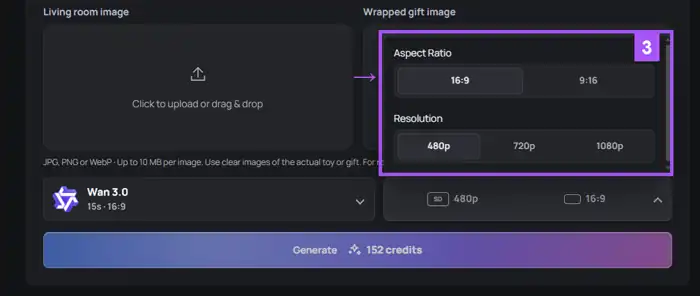
Step 4: Select the Video Settings
Review the AI model, resolution, and aspect ratio before generating the video. Choose 16:9 for TVs, computers, or YouTube, or 9:16 for phones and social media.
Step 5: Generate and Download the Video
Click Generate and wait for the Santa video to finish. Preview the result and check the room, gift, Santa’s movements, and important details before downloading it.
If the gift or room changes too much, try again with clearer images taken from a similar angle.
Tips for a Realistic Santa Caught on Camera Video
Use a wide room photo
Take the photo from a doorway or corner so the room, floor, tree, and furniture are visible. Leave enough empty space for Santa and the gift scene.
Use clear gift images
Make sure the toy and wrapped gift are easy to identify. Bright lighting and an uncluttered background help the AI preserve their appearance.
Match the toy and wrapped gift
When using the gift-wrapping story, photograph the actual toy and its finished wrapped version from similar angles. This helps the transition look more consistent.
Frequently Asked Questions
Use Santa’s Gifts in Bandicam AI Studio. Choose a story, upload the two required photos, select the video settings, and generate the AI Santa video.
Yes. Bandicam AI Studio turns two photos—such as your room and a wrapped gift—into a short AI Santa video.
Yes. Upload a clear room photo to Santa’s Gifts in Bandicam AI Studio and choose a story featuring Santa delivering or hiding a present.
No. Santa’s Gifts in Bandicam AI Studio creates the video from your room and gift photos, so no CCTV, doorbell camera, or filming is required.
Summary
You can create a Santa caught on camera video without filming Santa or manually editing a Christmas scene. Choose a gift story, upload two clear photos, select the video settings, and review the AI-generated result before sharing it.
With Santa’s Gifts in Bandicam AI Studio, your own room and gift photos can become a short Christmas surprise featuring Santa wrapping, delivering, or hiding a present.