
Looking for a free screen recorder for Mac that delivers high-quality videos without a watermark? We’ve tested the most popular tools on macOS Sequoia (Apple Silicon) and compared how well they capture sound, maintain quality, and handle real-world recording tasks.
Here’s what we found — including the best free options and the one tool that perfectly balances quality, simplicity, and audio capture.
Quick Comparison (2026)
| App | System + Mic Audio | Quality Control | Ease of Use | Watermark | Best For |
|---|---|---|---|---|---|
| 1. Bandicam for Mac | Yes (system + mic) | Granular | ★★★★☆ | No | Tutorials, meetings, classes |
| 2. QuickTime Player | Mic only (no system audio) | Basic | ★★★★★ | No | Simple built-in captures |
| 3. OBS Studio | Yes (manual setup) | Advanced | ★★☆☆☆ | No | Streaming, multi-source scenes |
| 4. Loom | Yes | Basic | ★★★★☆ | No (can’t download videos with free plan) | Quick cloud sharing |
| 5. ScreenPal | Yes | Moderate | ★★★★☆ | No | Education, training videos |
Tested on macOS Sequoia (Apple Silicon, M1–M4).
Why This List Matters
QuickTime Player is Apple’s default screen recorder that comes pre-installed with macOS. It’s simple, reliable, and great for quick recordings when you don’t need advanced settings. While it can’t capture system audio directly, its ease of use and zero setup make it perfect for basic tasks.
1. Bandicam for Mac (Pro Quality & Audio)
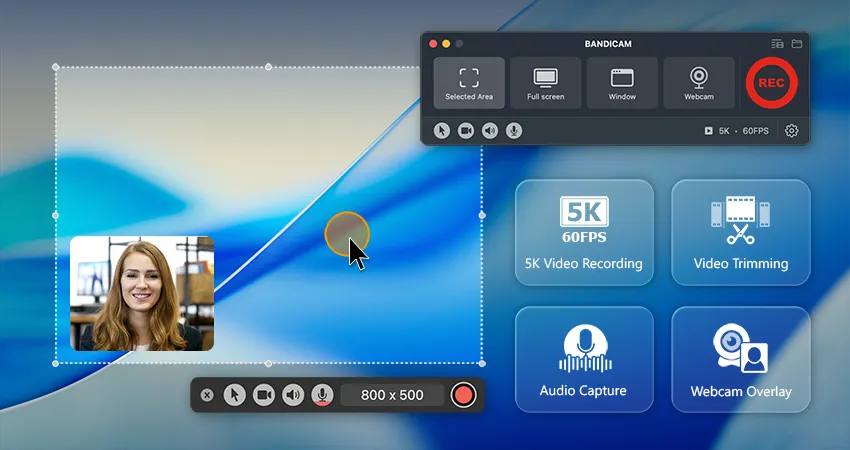
Bandicam for Mac provides an ideal balance between simplicity and high-performance recording. It’s designed for Mac users who want to capture both system sound and microphone with crisp 5K quality. With Apple Silicon optimization and an intuitive interface, Bandicam delivers stable, smooth, and professional results.
Key Features
• Records both system audio and microphone simultaneously — no extra drivers needed
• Fine-grained quality controls (resolution, FPS, codec, bitrate) for sharp output
• Smooth 5K/60FPS recording
• Cursor highlight and click effects for tutorial videos
• Optional webcam overlay to record screen + face together
Pros
– System + mic audio recording supported
– No watermark on the free plan
– Built-in basic video editor
Cons
– 5-minute recording limit on free version
Best for: Tutorials, online classes, Zoom or FaceTime recordings, and professional presentations
2. QuickTime Player (Built-in)
QuickTime Player comes pre-installed on every Mac and is ideal for capturing quick screenshots. It’s easy to start: just open QuickTime → File → “New Screen Recording.”

Key Features
• Pre-installed on every Mac — no download needed
• Supports full-screen, window, or region capture (⌘ + Shift + 5 shortcut)
• Selectable microphone input (system audio not supported natively)
• Exports in H.264 MOV format with simple trimming tools
Pros
– Free and watermark-free
– Supports basic video rotation
– No installation required
Cons
– Can’t record internal sound (only microphone)
– Limited settings (no FPS, bitrate, or quality control)
– Cannot record webcam and screen simultaneously
Best for: Short clips, silent tutorials, or mic-only recordings.
3. OBS Studio (Free & Open Source)
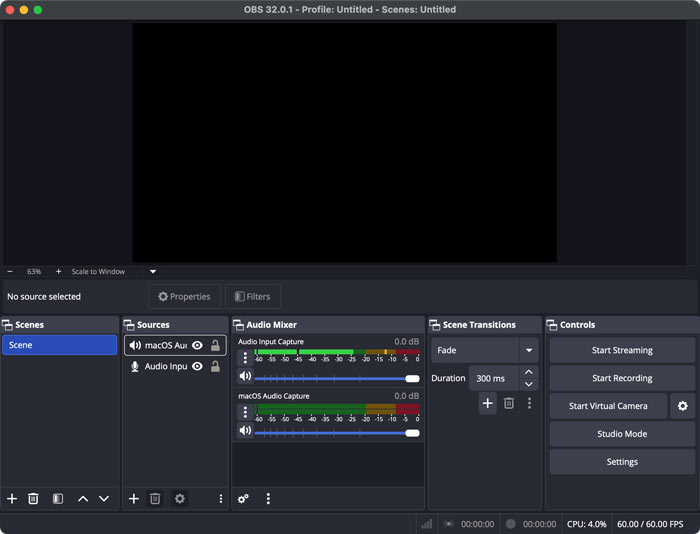
OBS Studio is a professional-grade recorder and live-streaming tool used by creators worldwide. It offers immense flexibility for combining multiple sources like webcam, screen, and overlays in one project. Although it can look intimidating at first, OBS remains one of the most powerful free options available.
Key Features
• Multi-source capture (screen, webcam, audio, images, text) with custom scenes
• Advanced encoding controls (resolution, FPS, bitrate, keyframes)
• Built-in audio mixer with gain control, noise gate, and compressor filters
• Live streaming via RTMP (YouTube, Twitch, Facebook, etc.)
Pros
– Free and watermark-free
– Advanced settings for resolution, bitrate, and sources
– Scene management and filters for professional users
Cons
– Complex interface for beginners
– Manual setup required for system audio
– Steeper learning curve
Best for: Streaming, multi-input recordings, advanced video projects
4. Loom (Fast Cloud Sharing)
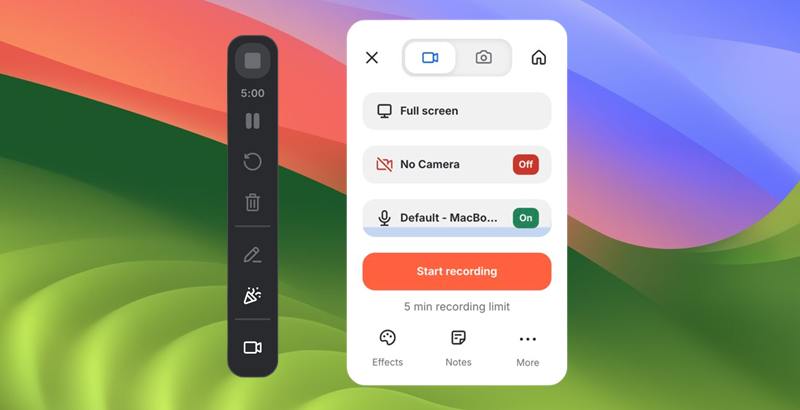
Loom is a cloud-based recording app that’s all about speed and convenience. It automatically uploads your recordings and generates a shareable link — perfect for teams and remote collaboration. While the free plan has time limits, Loom’s seamless sharing workflow makes it incredibly popular for business communication.
Key Features
• Screen + webcam recording with automatic cloud upload and shareable link
• Basic editing (trimming, thumbnail selection, captions)
• Viewer analytics and comment threads (for paid plans)
• Emoji reactions and feedback tools for collaboration
Pros
– Instant upload & sharing
– No watermark on free plan (time-limited)
– Browser and desktop versions
Cons
– Internet required for saving videos
– Free plan limited to 5-minute videos
– No fine control over quality
– No custom capture area in free version
Best for: Workplace updates, quick tutorials, asynchronous communication
5. ScreenPal (Education-Friendly)
ScreenPal, formerly Screencast-O-Matic, is a trusted screen recorder widely used by educators and trainers. It focuses on accessibility and clear communication with captions, highlights, and step-by-step annotations. While it’s not the most advanced tool, its reliability and simplicity make it perfect for classroom and tutorial use.

Key Features
• Beginner-friendly UI for screen + webcam + mic recording
• Built-in caption and annotation tools for clear tutorials
• Simple timeline editor for trimming, text, and subtitle import
• Zoom-in and pointer highlight to focus attention
• Local or cloud saving options for schools and support teams
Pros
– Subtitles and annotations supported
– Affordable paid plans for schools and educators
Cons
– Limited quality control on the free plan
– Interface feels dated compared to modern tools
Best for: Teaching, tutorials, training sessions, customer support guides
How to Choose the Right Free Screen Recorder
1. Need to capture internal audio? Choose a recording program that captures system sound natively. Bandicam for Mac makes it easy — no plugins or rerouting required.
2. Care about quality? Look for tools that offer FPS, bitrate, or resolution settings. OBS and Bandicam give you the most control.
3. Prefer simplicity? QuickTime and Loom are great for quick captures, but Bandicam is better for professional results.
4. Want to save videos without watermark? QuickTime and OBS are watermark-free. Bandicam’s trial is great for testing, and the full version ensures watermark-free output at maximum quality.
FAQs
The best option depends on your goal. QuickTime Player is ideal for simple, silent recordings. OBS Studio offers full control for advanced creators. For most users who want to record both system audio and microphone in high quality on macOS Sequoia (Apple Silicon), Bandicam for Mac provides the most reliable and balanced performance.
Only a few can. macOS restricts internal-sound recording, so most basic tools record microphone only.
Bandicam for Mac and OBS Studio can capture system audio + mic simultaneously, making them the best options for Zoom, FaceTime, YouTube, and tutorial videos.
QuickTime and OBS Studio are completely watermark-free. Loom recordings are also watermark-free, but downloading to a Mac requires a paid plan. ScreenPal allows local downloads on Mac without watermarks, though 4K export is limited to paid plans. Bandicam for Mac offers watermark-free recording on the free plan, with support for up to 5K resolution.
Final Thoughts
If you want something simple and built-in, QuickTime Player works. OBS Studio offers the most customization for power users. ScreenPal and Loom are great for teachers and teams. For high-quality 4K recording with system audio on Apple Silicon, Bandicam for Mac is a top free pick. All of these tools are safe, watermark-free, and optimized for macOS Sequoia — so try one or two to see what fits your needs.


