Are you struggling to record system audio on your Mac? Recording internal audio on Mac can be tricky due to system restrictions, but several apps make it possible — from free open-source tools to all-in-one recorders. Here are the best apps to record internal audio on Mac, complete with their pros, cons, and key features.
Comparison at a Glance: Best Mac Audio Recorders for Mac
| App Name | Best For | Records Screen? | Built-in Editing? | Ease of Use |
| Bandicam | Easy, all-in-one recording | Yes | Yes (Basic Trim) | ⭐⭐⭐⭐⭐ (Easy) |
| Audacity | Free audio recording & editing | No | Yes (Advanced) | ⭐⭐⭐ (Moderate) |
| OBS Studio | Streamers & free video recording | Yes | No | ⭐⭐ (Hard) |
| Audio Hijack | Professional, app-specific capture | No | Yes (Basic Trim) | ⭐⭐⭐⭐ (Easy) |
| BlackHole | Enabling other free apps | N/A | N/A | ⭐⭐ (Technical) |
1. Bandicam for Mac (Best All-in-One Solution)
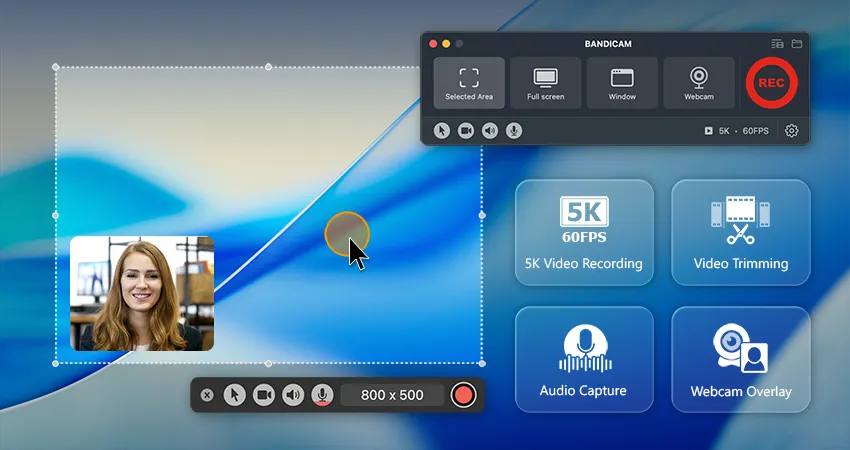
Long known on Windows, Bandicam is now officially on macOS. It’s the easiest solution for users searching ‘how to record internal audio on Mac‘ because it requires no extra drivers. It’s designed to screen record Mac with internal audio right out of the box, making it perfect for quickly capturing gameplay, meetings, or lectures.
Main Features:
- Records system audio, microphone, and screen at the same time
- Simple, user-friendly interface designed for quick recording
- Includes a built-in function to trim unwanted parts from videos
- Allows users to extract audio from video files
Pros ✅
– Captures internal audio without needing extra virtual drivers
– Perfect all-in-one tool for tutorials, meetings, and gameplay
– Can quickly trim videos or extract audio
Cons ❌
– Editing tools are basic
2. Audacity
Audacity is a free, open-source audio editor. While it cannot record Mac system audio on its own, it becomes a powerful recording studio when paired with a free driver like BlackHole. This combination is the most popular free solution to capture computer audio on Mac if you also need advanced editing tools.

Main Features:
- Advanced multi-track audio editing and mixing
- Huge library of effects (noise reduction, EQ, compression)
- Exports to various high-quality audio formats (WAV, MP3, FLAC)
Pros ✅
– 100% free and open-source
– Offers powerful, advanced audio editing features
– Cross-platform (Mac, Windows, Linux)
Cons ❌
– Requires an external driver (like BlackHole) to record system sound
– User interface can feel dated and complex for beginners
3. OBS Studio
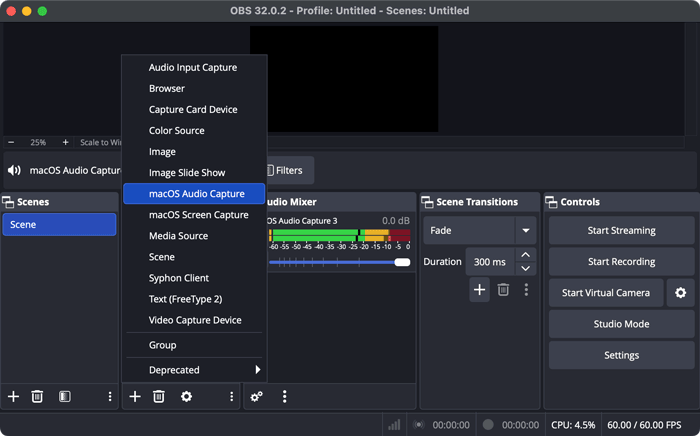
OBS Studio is the standard for live streaming, but it’s also a powerful free tool to screen record on Mac with internal audio. Unlike Audacity, recent versions of OBS can capture system audio on Mac natively without using extra drivers. It’s the best choice if you need to mix multiple sources like your screen, webcam, and system sound for professional videos.
Main Features:
- Captures and mixes multiple audio/video sources in real-time
- Recent versions have native macOS desktop audio capture
Pros ✅
– Provides professional-grade features for free
Cons ❌
– Steep learning curve; can be overwhelming for simple tasks
– Designed for live mixing, not post-production (no built-in editor)
4. Audio Hijack
Audio Hijack is the ultimate premium solution to record system audio on Mac with professional control. Its killer feature is “hijacking” audio from specific apps, letting you record a Zoom call while ignoring all other sounds. Using its own stable driver and a simple visual interface, Audio Hijack is the gold standard for podcasters and professionals who need flawless audio capture.

Main Features:
- App-Specific Recording: Capture only Zoom or Spotify, ignoring other sounds
- Visual, block-based interface for building complex audio pipelines
- Basic editing tools (trim, split) for recorded files
Pros ✅
– Reliable and intuitive for professional use
– Includes its own stable driver and basic editing tools
Cons ❌
– Expensive (premium price tag)
– Audio-only; does not screen record
5. BlackHole (Free Virtual Audio Driver)
BlackHole is not a recorder but an essential free utility that solves the core ‘record internal audio on Mac’ problem. It acts as a virtual audio cable, letting you route your Mac’s system sound (output) into the input of another app, like QuickTime or Audacity. This is the technical, but 100% free, way to enable recording on apps that don’t support it natively.

Main Features:
- Routes audio between applications with virtually no latency
- Compatible with Apple Silicon (M1/M2/M3) Macs
Pros ✅
– Completely free and open-source
– Provides high-performance, low-latency audio routing
Cons ❌
– Requires another app (like QuickTime or Audacity) to record
– Setup in “Audio MIDI Setup” can be technical and confusing
FAQs
macOS blocks internal audio recording by default for privacy. You must use third-party software (like Bandicam) or a virtual driver (like BlackHole) to bypass this.
No, by default, QuickTime only records your microphone. You must first install BlackHole and select it as the microphone source in QuickTime to capture system sound.
The easiest method is to use an app like Bandicam for Mac, which records both screen and internal audio without any complex setup.
Summary
Choosing the right tool depends entirely on your specific needs. If you want the simplest, “it just works” solution to record both your screen and system sound on Mac, Bandicam is your best bet, as it also includes basic trimming and audio extraction for quick edits.
For those on a budget who need to record and perform advanced edits on audio, the combination of Audacity and BlackHole is unbeatable. Streamers should stick to OBS Studio for its live broadcasting features, while audio professionals needing precise control and simple built-in editing will find Audio Hijack worth every penny.


