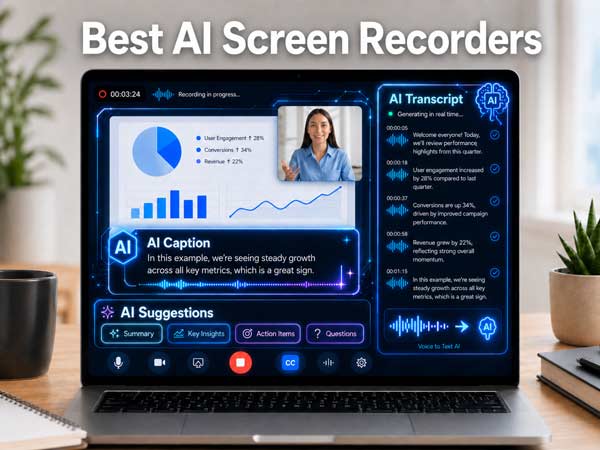
Screen recording is no longer just about capturing what happens on your screen. In 2026, many users want an AI screen recorder that can also transcribe videos, generate subtitles, summarize recordings, and make tutorials easier to edit and share.
An AI screen recorder is a screen recording tool that uses artificial intelligence to streamline tasks you usually do after recording. Depending on the software, these tasks may include automatic transcription, AI-generated subtitles or step-by-step guides, text-based video editing, meeting summaries, and searchable notes.
In this guide, we’ll compare the best AI screen recorders of 2026 for different workflows, including video tutorials, online courses, product demos, meeting recordings, training videos, and screen recordings with subtitles.
Best AI Screen Recorders of 2026
1. Bandicam for Mac: Best for recording, annotation, and AI subtitles
Bandicam for Mac is a strong choice if you want an AI screen recorder that prioritizes practical recording features, and then helps you convert recorded audio into text or subtitles.
It is especially useful for users who create tutorials, software demos, lecture videos, reaction videos, or training content. You can record your screen, webcam, microphone, and system audio, add a webcam overlay, draw on the screen while recording, trim your video, and then use AI video-to-text features after recording.
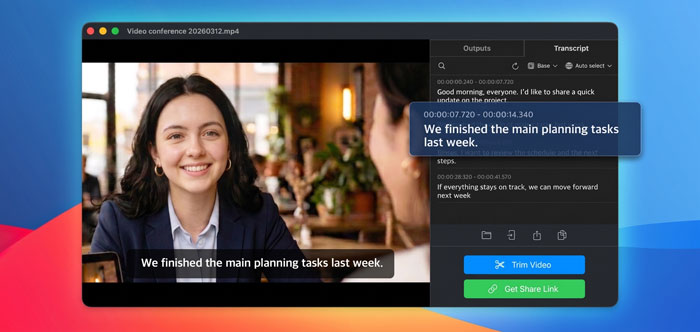
Bandicam for Mac supports AI video-to-text transcription, which can automatically generate an SRT subtitle file from the audio of your video. You can also edit the transcript, copy the text, save it as a TXT file, or export a video with subtitles.
This makes Bandicam a good option for users looking for a screen recorder with transcription or subtitles, especially when they want recording, annotation, and subtitle export in one workflow.
Best for:
Screen recording, webcam overlay, real-time annotation, AI transcription, SRT subtitles, and tutorial videos
Key features:
- Screen, webcam, microphone, and system audio recording
- Webcam overlay for tutorials and presentations
- Real-time drawing and annotation
- Built-in video trimming
- AI video-to-text transcription
- Editable transcript
- TXT and SRT export
- Subtitled video export
Consideration:
Bandicam is best for users who want a practical recording tool with AI transcription and subtitle features. If your main goal is text-based video editing, however, another tool may be a better fit.
2. Loom: Best for quick team video messages
Loom is one of the most popular tools for quick screen and webcam recordings. It works well for team updates, onboarding videos, customer support replies, product walkthroughs, and asynchronous communication.
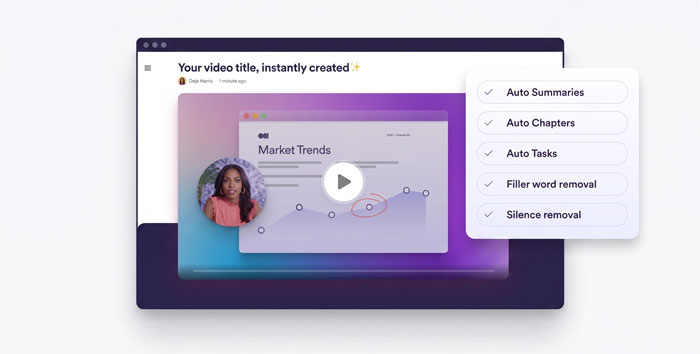
Loom’s AI screen recorder focuses on fast recording, link sharing, and AI-assisted communication. It’s useful when you need to record your screen, webcam, or both, and quickly share the video with teammates, clients, or customers.
Loom AI can also help with features such as auto-generated titles, summaries, chapters, filler word removal, silence removal, and video-to-text conversion, depending on the plan and workflow.
Best for:
Quick team videos, asynchronous updates, onboarding, and video messages
Key features:
- Fast screen and webcam recording
- Link-based video sharing
- AI-generated titles, summaries, and chapters
- Filler word and silence removal
- Team communication features
Consideration:
Loom is excellent for sharing quick videos, but it may not be the best option if you need advanced local recording controls, detailed editing, or subtitle file export.
3. Descript: Best for text-based video editing
Descript is a good choice if you want an AI screen recorder that focuses more on editing than basic capture. Its biggest strength is its transcript-based workflow: after recording or importing a video, you can generate a transcript and edit the video by editing the text.
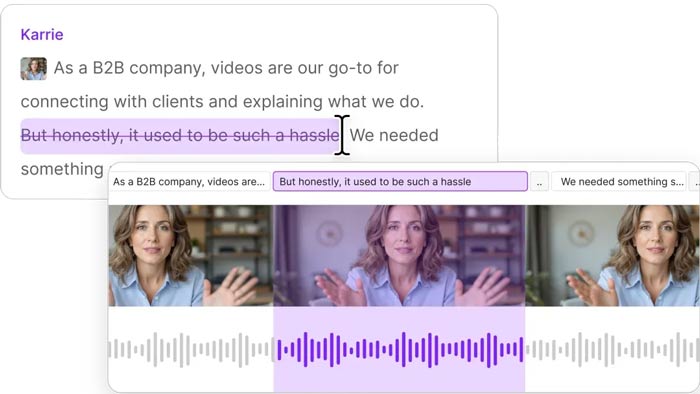
This makes Descript useful for creators who need to clean up tutorials, product demos, podcasts, webinars, or educational videos after recording. Instead of manually cutting video clips on a traditional timeline, you can work directly from the transcript, add captions, and prepare the video for sharing or publishing.
Best for:
Text-based video editing, podcasts, captions, and polished content creation
Key features:
- Screen recording
- AI transcription
- Text-based video editing
- Captions and subtitles
- Audio and podcast editing
- Link sharing and publishing options
Consideration:
Descript is ideal for editing-heavy workflows. If you only need a lightweight screen recorder for quick recording and subtitle generation, it may offer more features than necessary.
4. Camtasia: Best for polished tutorials and training videos
Camtasia is a good fit if you want a screen recorder and video editor in one tool, especially for creating polished tutorials, training videos, online courses, and product walkthroughs. Compared with simpler AI screen recorders, Camtasia focuses more on producing finished instructional videos rather than quick recordings.
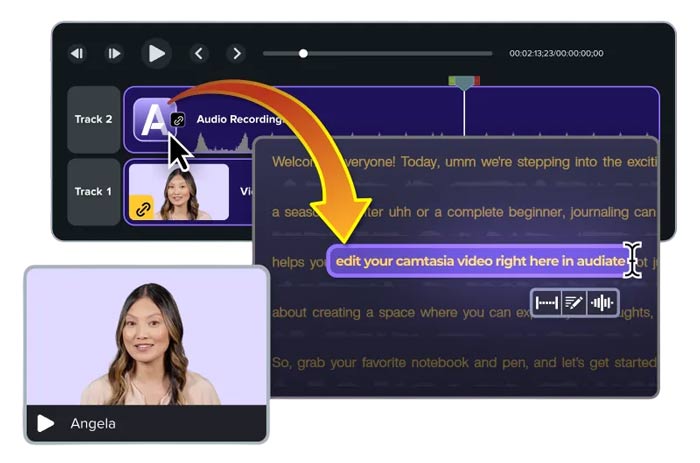
It works well for users who need visual effects, annotations, transitions, templates, captions, and detailed editing controls. This makes it useful for educators, marketers, trainers, and software teams that want to turn screen recordings into professional videos.
Best for:
Professional tutorials, online courses, training videos, and polished educational content
Key features:
- Screen recording
- Video editing
- Captions and transcription workflows
- Annotations and visual effects
- Templates and assets
- Training and tutorial video production
Consideration:
Camtasia is powerful, but it may feel heavy for users who simply want quick AI transcription or a basic screen recorder with subtitles.
5. ScreenApp: Best for meeting recordings and AI notes
ScreenApp is an AI screen recorder that works in a web browser. It is better suited for users who care more about what happens after recording than the recording process itself.
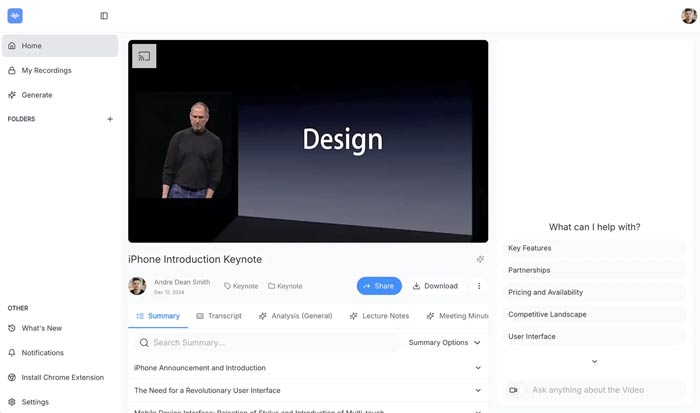
ScreenApp can help turn meetings, lectures, webinars, and screen recordings into transcripts, summaries, and searchable notes. This makes it useful for people who record online meetings, interviews, classes, or internal training sessions and want to review the content later without watching the entire video again.
Instead of focusing on advanced recording controls or detailed video editing, ScreenApp is mainly useful for capturing information and turning it into organized notes.
Best for:
Meeting notes, lecture recordings, summaries, and searchable transcripts
Key features:
- Browser-based recording
- AI transcription
- Meeting summaries
- Searchable notes
- Speaker labels and timestamps
- Useful for meetings, lectures, and webinars
Consideration:
ScreenApp is best for producing notes, summaries, and transcripts. For real-time annotation, detailed editing, or more recording control, another screen recorder may be a better choice.
6. Guidde: Best for AI-generated how-to guides
Guidde is an AI screen recording and documentation tool available as a browser extension and desktop app. It is designed for teams that want to turn workflows into step-by-step video guides, onboarding videos, and product tutorials.
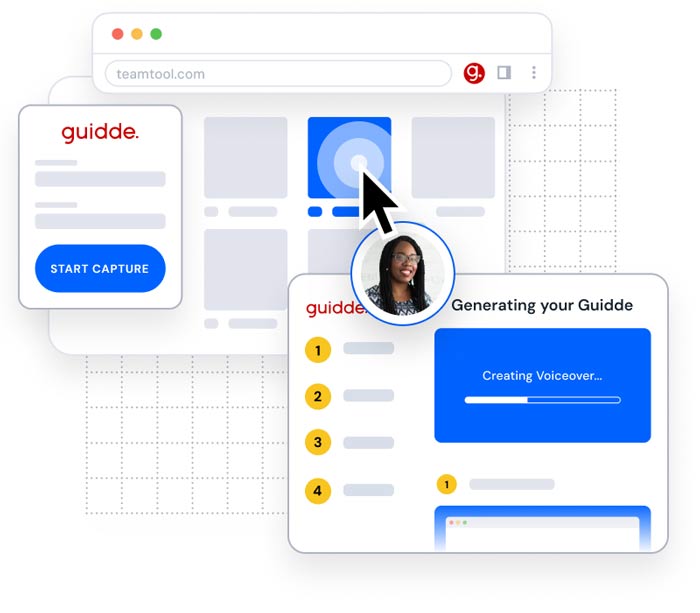
Instead of only capturing the screen, Guidde focuses on turning a recorded workflow into structured documentation. It can help create how-to videos with step-by-step descriptions, visual guidance, and narration, which makes it useful for customer education, internal training, help centers, and software onboarding.
Best for:
AI-generated tutorials, onboarding videos, and step-by-step workflow guides
Key features:
- Workflow recording
- AI-generated step-by-step guides
- AI descriptions
- Voiceover and narration features
- Documentation and onboarding workflows
- Useful for product tutorials and help content
Consideration:
Guidde is best for documentation-style content. If you need detailed video editing, webcam-heavy recordings, or more control over recording settings, another screen recorder may be a better choice.
7. OBS Studio: Best free recorder for advanced users
OBS Studio is not an AI-first screen recorder, but it is still one of the best free options for advanced recording workflows. It is free and open-source, supports Windows, Mac, and Linux, and is widely used for screen recording, livestreaming, and custom video capture setups.
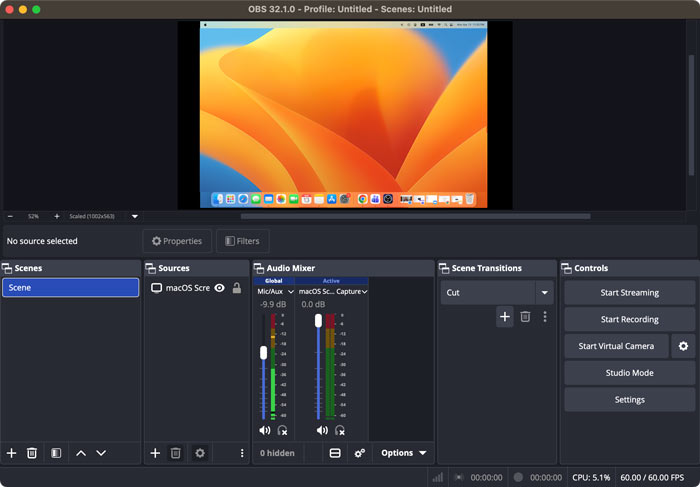
OBS Studio does not include built-in AI transcription, summaries, or subtitle generation. However, it can be a good choice if you want to record high-quality footage first and then use a separate AI tool to create transcripts, captions, or subtitles.
Best for:
Advanced free recording, livestreaming, high-quality capture, and custom recording setups
Key features:
- Free and open-source
- Screen recording and live streaming
- Custom scenes and sources
- Windows, Mac, and Linux support
- No built-in AI features
- Works well with separate AI transcription or caption tools
Consideration:
OBS is powerful but less beginner-friendly. It is not an AI screen recorder with built-in transcription or subtitle tools, so you would need another tool for AI-generated transcription, subtitles, or summaries.
AI Screen Recorder Comparison Table
| Tool | Type | Where recordings are saved | Key AI features |
| Bandicam for Mac | Desktop | Local Mac folder | Transcription, SRT/TXT, subtitles |
| Loom | Desktop, extension, mobile | Loom cloud | Titles, summaries, chapters |
| Descript | Desktop, web | Cloud workspace | Transcription, captions, text editing |
| Camtasia | Desktop | Local project/export | AI editing, captions |
| ScreenApp | Web | Online workspace | Transcription, summaries, notes |
| Guidde | Desktop, extension | Guidde workspace | Step-by-step guides, voiceover |
| OBS Studio | Desktop | Local folder | No built-in AI |
When comparing AI screen recorders, look at how the tool works, where recordings are saved, and which AI features are included. These factors can affect recording control, privacy, sharing, editing, and how easily you can reuse the video after recording.
For subtitles, look for transcription, editable text, and SRT export. For meetings, summaries and searchable notes may be more useful. For tutorials or training videos, features like webcam overlay, annotation, and trimming can make a bigger difference.
FAQs
An AI screen recorder is a screen recording tool that uses AI to help with tasks such as text-based editing or generating transcriptions, subtitles, summaries, and captions.
Yes. Many AI screen recorders can turn recorded audio or video into text automatically and may also let you edit or export the transcript.
Yes. Certain screen recorders can generate captions or subtitle files from your recording. Bandicam for Mac, for example, can create SRT subtitles, save transcripts as TXT, and export subtitled videos.
The best AI screen recorder depends on your workflow. Bandicam for Mac is useful for recording, annotation, AI video-to-text, and subtitle export, while tools like Loom, Descript, Camtasia, ScreenApp, Guidde, and OBS Studio serve different needs.
For tutorials, look for screen recording, webcam overlay, microphone recording, annotation, editing, and subtitle features. Bandicam for Mac, Camtasia, and Guidde are good options depending on how polished or automated you want the tutorial to be.
Bandicam for Mac is a strong option for recording your screen, webcam, audio, and microphone, and then creating transcripts or subtitles with AI video-to-text. Descript and Camtasia are also useful Mac options for editing-focused workflows.
Summary
The best AI screen recorder depends on what you want to do after recording. If you mainly need transcripts or subtitles, choose a tool with AI transcription, editable text, and subtitle export. If you’re trying to create tutorials or training videos, look for strong recording quality, webcam overlay, annotation tools, and editing features. If you’ll be recording meetings, summaries and searchable notes may be more useful than advanced video editing features.
- Bandicam for Mac: Best for screen recording, webcam overlay, annotation, trimming, AI video-to-text, SRT export, and subtitled video export.
- Loom: Best for quick team video messages and sharing.
- Descript: Best for transcript-based video editing.
- Camtasia: Best for polished tutorials and training videos.
- ScreenApp: Best for meeting notes and summaries.
- Guidde: Best for AI-generated how-to guides.
- OBS Studio: Best for advanced free recording with separate AI tools.


