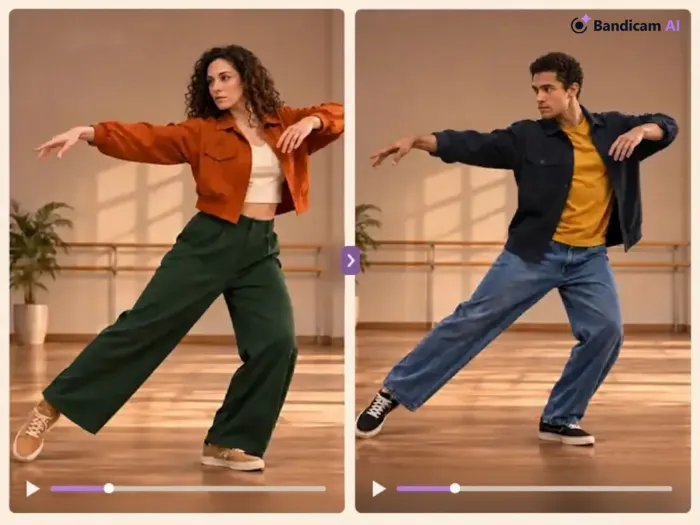
Replacing a person in a video once required reshooting the scene or editing individual frames. AI person replacement makes the process much simpler. An AI video generator can use a motion video and reference images of a new person or character to create a new video based on the original performance.
AI character replacement can change a person’s face, hair, clothing, and overall appearance while following the movement in the source video. This can be useful for social media videos, character content, creative advertising, and visual prototypes.
In this guide, you will learn how to replace a person in a video with AI using Motion Transfer in Bandicam AI Studio.
How to Replace a Person in a Video With AI in 5 Steps
Follow these steps to create an AI character replacement video.
Watch this quick tutorial to see how Motion Transfer replaces a person in a video while preserving the original motion.
Step 1: Prepare a Motion Video
Choose the video containing the movement you want to use. For better results, use a short clip with one clearly visible person, good lighting, limited motion blur, and few objects covering the subject.
Step 2: Prepare Character Reference Images
Select clear full-body or upper-body images that show the person’s face, hairstyle, and outfit. When using multiple images, keep the person’s appearance and visual style consistent.
Step 3: Open Motion Transfer
Open Motion Transfer in Bandicam AI Studio and sign in. Select the multi-reference workflow to add multiple character images.
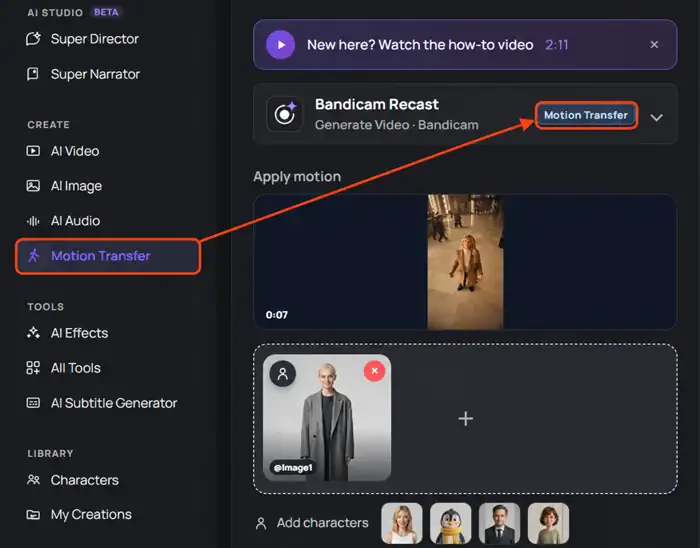
Step 4: Upload the Video and Images
The motion video guides the new character’s gestures, poses, and body movements. Upload the source video under Apply motion, then add reference images of the new person under Add characters.
Step 5: Generate and Review the Video
Adjust the available settings, add a short prompt if necessary, and click Generate. Review the face, hands, clothing, and edges around the character. Also check scenes with fast movement or objects passing in front of the person. If the character changes between frames, try clearer and more consistent reference images.
Tips for Better AI Person Replacement
Use clear reference images
Choose sharp images with good lighting and an unobstructed face. Clear references help the AI reproduce the character more consistently.
Keep the references consistent
Do not mix images with different hairstyles, outfits, ages, or art styles unless you intentionally want a blended result.
Start with a short video
Test a short section before processing a longer clip. This makes it easier to identify problems with the reference images or source footage.
Avoid heavy occlusion
Hands, furniture, props, or other people covering the main subject can make AI character replacement less stable.
AI Person Replacement vs. Video Face Swap
AI person replacement changes the subject’s overall appearance—including the face, hair, clothing, and body—while following the movement in the source video. A video face swap generally changes only the face and retains the original body and outfit.
Use Motion Transfer when you want to replace the full person or character in a video. If you only need to change someone’s face, a video face swap tool may be more suitable.
Ways to Use AI Person Replacement
- Turn a recorded performance into a fictional character.
- Change an actor’s appearance without reshooting.
- Create mascot or virtual character videos.
- Produce costume and seasonal variations.
- Test character ideas before a full production.
- Adapt short videos for different creative campaigns.
Use only videos and reference images you own or have permission to use. Avoid using someone’s identity in misleading or deceptive content.
Frequently Asked Questions
Use Motion Transfer in Bandicam AI Studio. Upload a motion video and reference images of the new person, then generate the replacement video.
Yes. Motion Transfer can replace the person’s overall appearance—including their face, hair, and outfit—while following the movement in the source video.
Yes. Bandicam AI Studio’s Motion Transfer uses the source video to preserve the original movement, background, and camera framing.
Use clear, well-lit images that show the person’s face and appearance. Consistent reference images help produce a more stable character throughout the video.
Summary
AI person replacement allows you to change who appears in a video without recording the entire scene again. Start with a clear motion video, add consistent character reference images, and review the result for facial and motion consistency.
With Motion Transfer in Bandicam AI Studio, you can use multiple reference images to create a more consistent AI character replacement video.