Video transcripts, captions, and subtitles are often confused with one another, but each one serves a different purpose. Choosing the right format can help improve accessibility, make videos easier to follow, and turn spoken content into useful text.
In this guide, we’ll explain the difference between video transcripts, captions, and subtitles, when to use each one, and how to transcribe video to text on Mac.
Table of contents
Video Transcript vs. Captions vs. Subtitles: What’s the Difference?
| Format | Purpose | Audio cues | Timestamps | Common format |
|---|---|---|---|---|
| Video Transcript | Search / reuse | No | No | TXT |
| Captions | Accessibility | Yes | Yes | SRT |
| Subtitles | Translation / viewing | Depends | Yes | SRT |
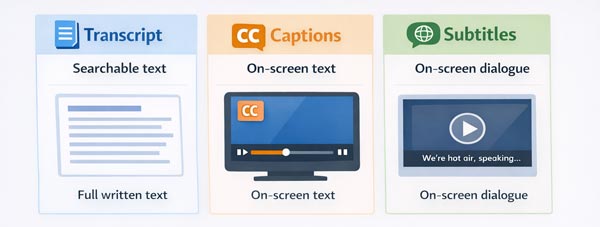
A video transcript is a written version of everything spoken in a video. It is usually displayed outside the video player as plain text. This makes it useful for reading, searching, summarizing, documenting, and turning video content into written content such as notes, blog posts, or support articles. When people want to turn video to text, a transcript is usually the first thing they need.
Captions appear directly on the video during playback and are often labeled with a CC icon, which stands for Closed Captions. They include spoken dialogue and can also include important non-speech audio such as music cues, laughter, sound effects, or background noise. Because of this, captions are especially helpful for accessibility and for viewers who watch videos without sound.
Subtitles also appear on screen, but they usually focus only on spoken dialogue. In many cases, subtitles are used to translate speech into another language. They can also be displayed in the same language to make a video easier to follow, but they typically do not include the same level of non-speech audio detail as closed captions.
In simple terms, a video transcript is used for searchable text, documentation, and content reuse, while captions and subtitles are used during playback. Captions improve accessibility and help viewers watch videos without sound, while subtitles make spoken dialogue easier to follow, especially across different languages.
How to Transcribe Video to Text on Mac
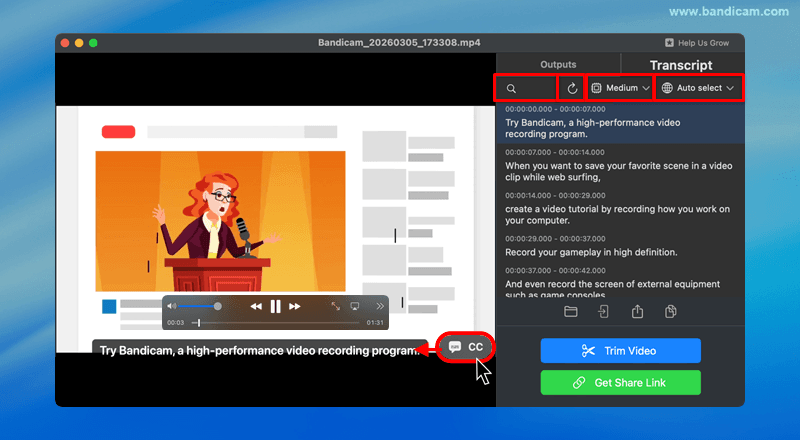
To transcribe video to text on Mac, you need a tool that can automatically detect speech and convert it into text. This can be useful for many types of content, including screen recordings, meetings, tutorials, lectures, and other videos with spoken audio.
Once the audio is processed, the tool generates a video transcript based on the spoken content. The accuracy of the transcript can vary depending on factors such as audio quality, background noise, the selected transcription language, and the AI model used. For better results, it helps to use a tool that gives you control over these settings.
Bandicam for Mac, for example, can generate an SRT subtitle file and save the full transcript as a TXT file. It also lets users choose different AI models and transcription languages, making it easier to balance speed, accuracy, and multilingual support.
This makes video transcription useful not only for converting speech into text, but also for creating searchable notes, captions, subtitles, summaries, and other reusable content from a single video.
To learn the full workflow, check our guide on how to transcribe video to text on Mac.
When to Use a Transcripts, Captions, or Subtitles
Use a video transcript when you want searchable text, written records, or reusable content. Transcripts are useful for meetings, online courses, software tutorials, product demos, interviews, and webinars. They also make it easier to repurpose recorded content into articles, summaries, FAQs, or internal documentation.
Use captions when accessibility matters or when viewers may be watching without sound. Captions are especially useful for training videos, tutorial videos, screen recordings, and social media clips. They can improve comprehension and engagement especially when viewers are in quiet environments or public spaces.
Use subtitles when your content is intended for multilingual audiences or when you want viewers to follow the spoken dialogue more easily. Subtitles are common in translated videos, international presentations, interviews, and educational videos shared with a broader audience.
Frequently Asked Questions
Captions usually include spoken dialogue plus important non-speech audio, such as music or sound effects. Subtitles mainly focus on spoken dialogue and are often used for translation or easier viewing in the same language.
To transcribe video to text on Mac, open or record a video, run speech-to-text, review the transcript, and export it as TXT or SRT. Bandicam for Mac supports both text and subtitle output.
Yes. A transcript can be edited and saved as an SRT file for captions or subtitles. Bandicam for Mac can save transcripts as TXT files and generate SRT subtitle files.
Summary
Choose a video transcript when you need searchable text, written documentation, or reusable content. Choose captions when accessibility and silent viewing are important. Choose subtitles when you want to support multilingual viewers or make spoken dialogue easier to follow. If you want to transcribe video to text more efficiently, it is helpful to think of transcripts, captions, and subtitles as connected parts of the same workflow. A transcript gives you the text foundation, and captions or subtitles help you present that content in a way that fits your audience.