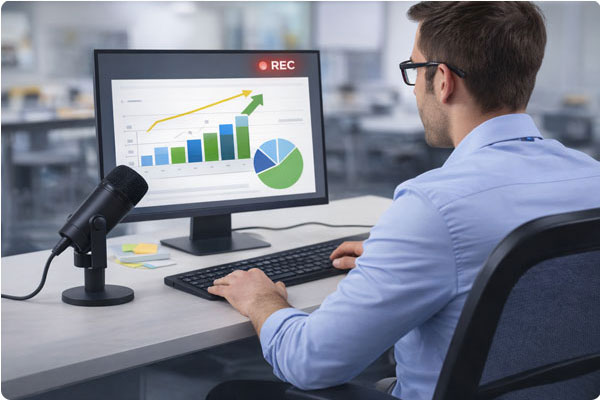
In many organizations, screen recording has become a practical way to create employee training videos. Instead of repeating the same live sessions, teams rely on recorded tutorials to explain software, workflows, and internal processes.
However, training videos are only effective when they are recorded with clarity and purpose. Below are best practices to help you create employee training videos that are easy to follow and reuse.
1. Prepare Your Recording Environment
Before hitting the record button, ensure your digital workspace is ready for professional training content.
- Clear the clutter: Hide unnecessary desktop icons and close unrelated applications. Disable system notifications from tools like email or messaging apps to avoid interruptions.
- Check your audio setup: Use a dedicated microphone if possible. Clear audio is often more important than video quality for keeping learners engaged in training videos.
2. Prioritize Performance and Clarity
Technical issues such as lag, dropped frames, or unreadable text can quickly reduce the effectiveness of employee training videos. This makes the choice of screen recording software especially important.
- Avoid system lag: Choose screen recording software designed to minimize CPU usage, particularly when capturing resource-heavy applications.
- Record in high resolution: Use at least 1080p. Higher resolutions can improve readability, especially when training involves small text or detailed interfaces.
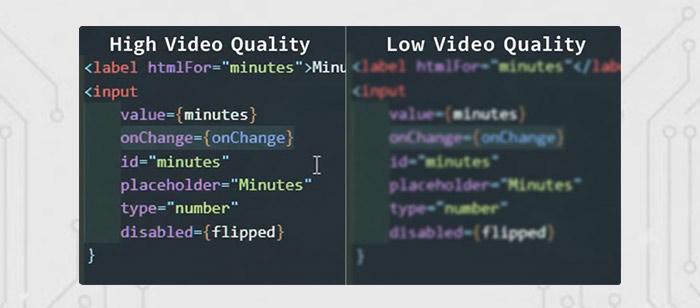
Additional Tip:
Bandicam includes low-CPU recording on Windows and macOS, offering 4K recording and up to 5K resolution on macOS.
3. Enhance Engagement with Screen Annotations
One of the biggest challenges of recorded training videos is maintaining viewer attention.
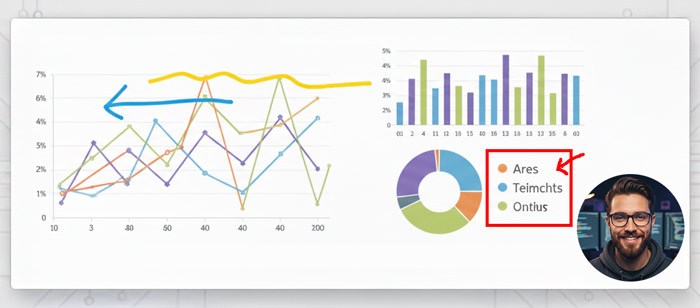
- Use real-time drawing tools: Highlight buttons, underline key areas, or draw arrows while explaining a process. Real-time screen annotation allows instructors to guide attention during recording without relying on post-production editing.
- Enable mouse highlights: Mouse click effects and highlight colors make it easier for employees to follow navigation through complex software menus.
- Add a personal touch: Using a webcam overlay (picture-in-picture) helps build trust and makes training videos feel more personal by letting employees see the instructor.
4. Keep Training Videos Concise with Micro-Learning
Long training videos are often ignored. Breaking content into short, focused segments improves learning and retention.
- One topic per video: Keep each training recording under five to seven minutes whenever possible.
- Rely on stable recording for longer sessions: For extended seminars or in-depth walkthroughs, recording stability matters. Bandicam is known for handling long recording sessions reliably, making it suitable for archiving longer internal training sessions.
5. Manage and Share Training Files Efficiently
Once recorded, training videos need to be stored and shared efficiently within the organization.
- Use efficient compression: Smaller file sizes make uploading to learning management systems or internal communication tools faster without sacrificing quality.
- Consider security: For sensitive internal training materials, local screen recording can be safer than cloud-based solutions. Keeping recordings on your own hardware helps ensure that internal knowledge remains private and controlled.
Creating training videos on Windows and Mac
Screen recording is widely used across both Windows and macOS environments for employee training.
Bandicam for Windows
On Windows, teams often create software tutorials, onboarding guides, and internal process training videos. As a Windows screen recorder, Bandicam includes built-in noise suppression for microphone recording, helping reduce background noise during narration. It also supports hardware acceleration, allowing high-quality recording without significant system slowdown.
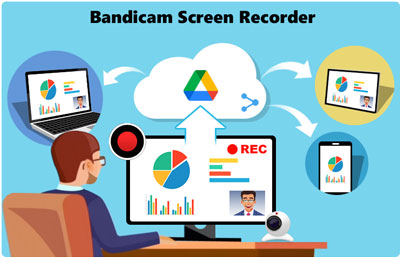
After recording, videos can be uploaded directly to YouTube or shared via Google Drive, making distribution faster for internal teams.
Bandicam for Mac
On macOS, screen recording is commonly used for onboarding, workflow explanations, and team training. As a Mac screen recorder, Bandicam allows users to record system audio and microphone input without needing additional drivers, simplifying the setup process.

Immediately after recording, users can trim their video without switching to separate editing software. This makes it easier to remove mistakes or unnecessary sections before sharing. Files can then be uploaded directly to Google Drive, Dropbox, or OneDrive for faster internal collaboration.
FAQ: Recording Employee Training Videos
To record employee training videos, choose a reliable screen recorder, prepare your recording environment, and capture your screen with clear narration. After recording, trim unnecessary sections and export the video in a high-resolution format such as 1080p or higher.
The best screen recorder for employee training should offer stable performance, system audio and microphone recording, high-resolution support, and basic editing tools.
Yes, an online screen recorder can be useful for quick demonstrations or short training clips. However, for longer sessions, higher resolution recording, system audio capture, or advanced features like screen annotations, a desktop screen recorder is often more reliable and offers better performance.
Employee training videos are typically most effective when kept between 5 and 10 minutes. Short, topic-focused videos improve knowledge retention and make future updates easier.