
Dual‑monitor setups are common among teachers, gamers, professionals, designers, developers, and remote workers. Recording only one screen while using two monitors is essential when creating tutorials, online courses, coding walkthroughs, product demonstrations, or gameplay videos. Bandicam makes this easy by allowing users to select which monitor to record, keeping the second monitor private for multitasking.
This guide explains how to record only one monitor on Windows and Mac using Bandicam.
Table of contents
How to Record One Screen on Dual Monitors (Windows)
Bandicam for Windows offers a straightforward workflow for selecting and recording only one monitor. Below is a complete, easy-to-follow guide.
Step-by-Step Guide (Windows)
Step 1: Install and launch Bandicam on your Windows PC.
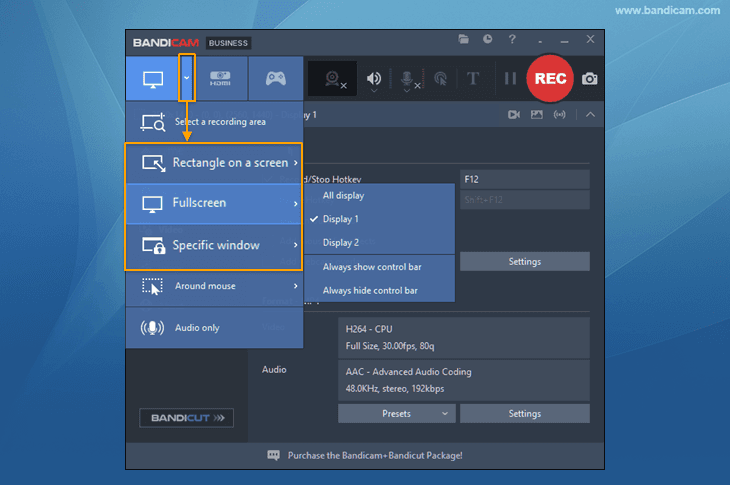
Step 2: From the main interface, select Screen Recording mode.
- Rectangle on a Screen: Define a custom region within the monitor.
- Fullscreen: Select a specific display and record the entire chosen monitor.
- Specific Window: Capture only a particular application window on that monitor.
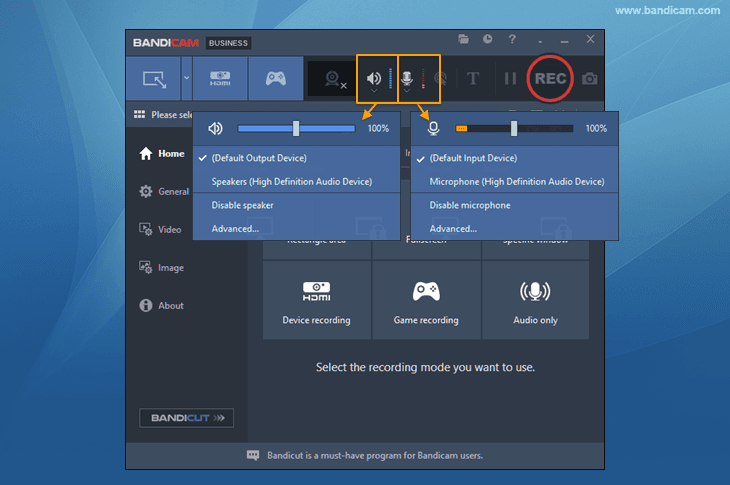
Step 3: Adjust the audio settings by clicking the corresponding audio icons.
You can record computer sound and/or microphone input.
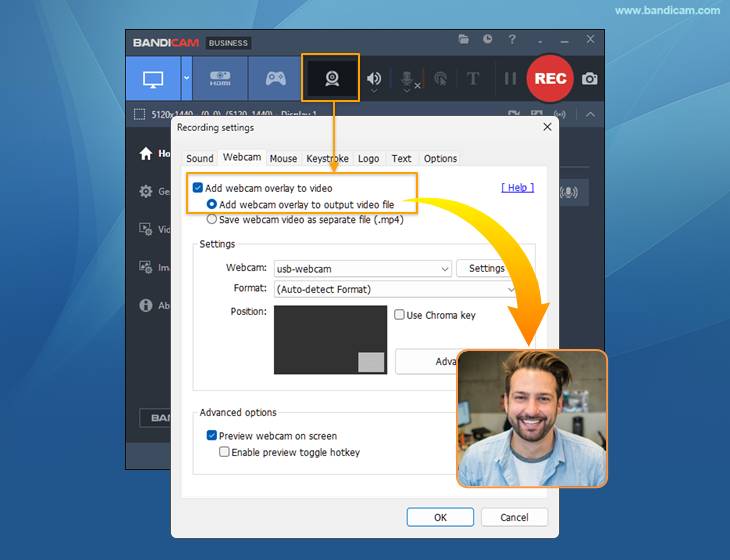
Step 4: Add a webcam overlay to enable picture-in-picture recording.
Enable your webcam if you want your face to appear in the corner while recording your monitor.
Step 5: Press F12 or click the ● REC button to start recording the selected monitor.
Step 6: Press F12 again or click the ■ Stop button and review your recording.
Your captured video will appear in Bandicam’s Video tab.

Once the selected monitor is recorded, the other screen can be used freely. Whether you are referencing notes, responding to messages, checking data, or monitoring streaming tools, none of it will appear in the final recorded video. This dual-monitor workflow is ideal for tutorials, professional presentations, remote teaching, code demonstrations, and gameplay recordings.
Additional Tip: To record dual monitors simultaneously, check out this tutorial: How to record dual/multiple monitors
How to Record One Display on Dual Monitors (macOS)
Bandicam for Mac also offers a simple workflow for recording a single display, whether you’re using a MacBook with an external monitor, dual external displays, or a desktop setup like a Mac Mini or Mac Studio.
Step-by-Step Guide (macOS)

- Install and open Bandicam for Mac.
- Select the Full screen option and choose the display you want to record.
- Configure Cursor, Webcam, and Audio (Optional).
- Click the ● REC button to start recording your selected monitor.
- Click the ■ Stop button to finish recording and review your video.
FAQs
Open Bandicam, click the Screen Recording mode icon, choose ‘Full screen,’ and then select Display 1 or Display 2. Bandicam will instantly lock onto that specific monitor in Full screen recording mode, ignoring the other screen entirely.
Yes, you can easily add a Facecam or Picture-in-Picture (PiP) effect using Bandicam. Click the Webcam overlay icon, enable ‘Add webcam overlay to video,’ and click ‘Advanced’ to position your facecam.
Yes. Bandicam records each monitor at its own native resolution.
Conclusion
Recording a single monitor in a dual-monitor setup is essential for anyone creating tutorials, courses, gameplay videos, design walkthroughs, business presentations, or development demonstrations. Bandicam simplifies this process by detecting all connected monitors and letting you choose exactly which display to capture.
The workflow is straightforward on both Windows and macOS:
- Click Screen Recording on Bandicam
- Select the monitor you want to record
- Adjust the settings
- Optionally, add a webcam
- Start recording
Meanwhile, the second monitor stays unrecorded, giving you complete privacy and flexibility for multitasking. With this dual-monitor approach, you can confidently record clean, focused videos without worrying about revealing sensitive content or clutter from another display. Whether you’re teaching, presenting, coding, designing, or gaming, capturing just one screen keeps your content professional and distraction-free.


