Slack Huddles have become the go-to method for quick team syncs. But have you ever tried to find the “Record” button during a Huddle? Here is the frustrating reality: Slack does not provide a native video recording feature for Huddles. While paid plans (Pro/Business+) offer “AI Notes” or audio transcriptions, there is no built-in way to save the actual video and screen share of your meeting as an MP4 file.
Because of this, users often search for external tools to privately and discreetly record Slack Huddles—especially on Windows and macOS. This is where Bandicam and Bandicam for Mac stand out as the most reliable solutions.
Table of contents
Part 1: How to Record Slack Huddles on Windows (Secretly)
Bandicam is effectively the most stable way to record Slack Huddles without anyone knowing. It reliably captures both video and essential system audio for Huddles, is ideal for long meetings with low resource usage, and crucially, does not notify participants. Follow the steps below to start recording your Slack Huddles.
- Install the Bandicam Windows version.
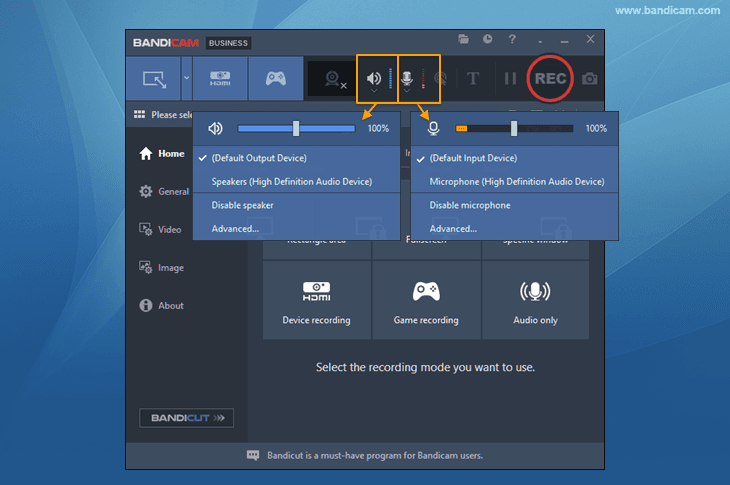
- Open Bandicam and set the audio settings.
To capture both sides of your Huddle conversation, select both the speaker and microphone by clicking their respective icons.
- Start the Slack Huddle.
Click the Huddle icon (headphones symbol) to begin the Slack Huddle or simply join the conversation.
- Choose “Screen Recording Mode” and start recording.
Select ‘Rectangle on a screen’ (for specific Slack Huddle screen capture) or ‘Fullscreen.’ Once the area is chosen, press the ● REC button to begin recording.

- Press the ■ stop button to save your recording.
- Afterwards, navigate to the Home tab and select ‘Videos’ to view your saved recordings.

You have now locally recorded the video and audio of the Slack Huddle. Since Bandicam runs outside of Slack, no notification is sent to the channel, and no icons appear for other participants.
Additional Tip: You can also record only audio from Slack huddles using Bandicam’s audio recording mode. See more details on how to record audio only with Bandicam.
Part 2: How to Record Slack Huddles on Mac
Recording system audio (internal sound) on a Mac has historically been difficult due to macOS security restrictions. However, Bandicam for Mac has solved this problem, allowing for seamless Slack recording.
Step 1: Get Bandicam from the Mac App Store.
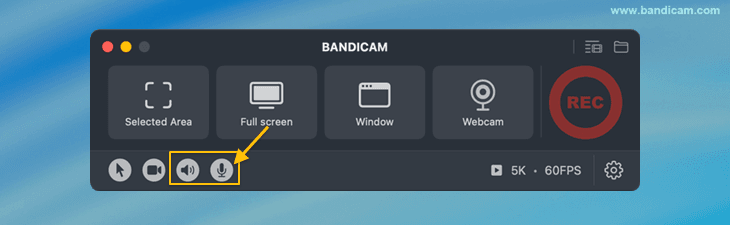
Step 2: Open Bandicam for Mac and enable system audio/microphone to capture all Slack voices.
Step 3: Join the Slack Huddle on macOS.
Step 4: Select either ‘Selected Area’ or ‘Full Screen’, and start recording.
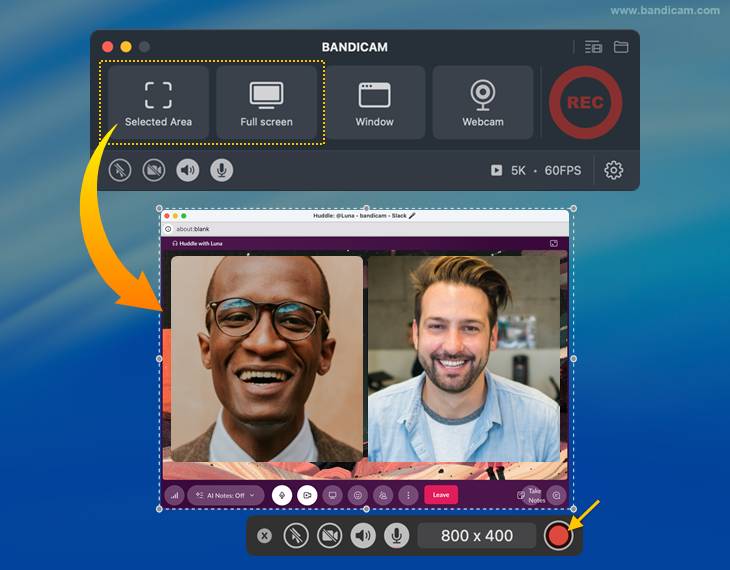
Step 5: Click the ■ Stop button to save the recording.
Step 6: Review the Slack call recording.
You can review, share, or edit Slack recordings instantly with the ‘Trim Video‘ button, and save audio separately by right‑clicking the video and selecting ‘Extract Audio.’

You can now secretly record Slack calls and save the recordings directly to your Mac. This simple process allows you to archive vital information, such as design feedback, code reviews, or important announcements.
FAQ: Common Questions
Slack does not offer built-in Huddle or call recording, even on paid plans. They provide AI-generated “Huddle Notes” (transcription) only. To record the video (MP4) of your screen share or camera, you need a dedicated Slack screen recorder like Bandicam.
It’s possible to record Slack Huddles secretly, but this requires a third-party screen recording application, such as Bandicam.
Yes. On Windows, Bandicam offers a dedicated “Audio Only” recording mode, allowing you to save the Huddle conversation directly as a lightweight MP3 or WAV file. On Bandicam for Mac, you can record the meeting and easily extract the audio from the recorded video file if you only need the sound log.
Conclusion
Slack is fantastic for real-time collaboration, but it does not allow you to record Huddles, leaving teams without essential meeting archives or documentation. Whether you need recordings for project notes, audits, bug reporting, or accountability, an external recorder is the only reliable option.
To maintain a permanent, high-quality, and private record of your meetings on Windows or Mac, using a dedicated tool like Bandicam is the professional choice. Bandicam offers the flexibility to record video, audio-only, and specific screen areas without limitations.


