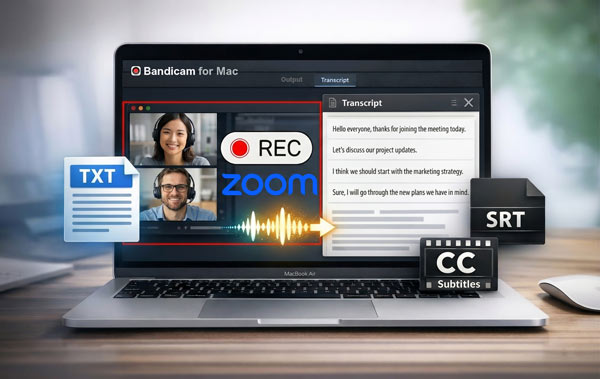
Recording a Zoom meeting is only the first step. Once you have the video, turning it into text can make it much easier to review key points, search for specific discussions, and reuse the content for notes or subtitles. If you have not recorded your Zoom meeting yet, you can start with our guide on how to record Zoom meetings on Mac. In this guide, we will focus on what comes next: how to transcribe your Zoom recordings on Mac with Bandicam.
Why transcribe Zoom recordings?
A transcript makes Zoom recordings more useful after the meeting ends. Instead of replaying the entire video to find one important comment or decision, you can review the text, search for keywords, and pull out the parts you need much faster. This is especially helpful for meeting follow-ups, lecture review, internal documentation, and turning recorded content into subtitles or shareable written summaries.
Review meetings faster
A transcript helps you scan the conversation without watching the full recording again. This can save time when you only need action items, decisions, or specific quotes.
Search important points more easily
Text is easier to search than video. With a transcript, you can quickly look up names, topics, or phrases from a long Zoom recording.
Reuse the recording in more ways
Once your meeting exists as text, it becomes easier to turn it into notes, captions, summaries, or other written content for your team or audience.
Does Zoom offer built-in transcripts?
Zoom offers a built-in transcript option in some workflows. Free Zoom accounts can save local recordings to a computer, but Zoom’s built-in audio transcript is part of its cloud recording workflow. Bandicam offers another way to turn Zoom recordings into text and subtitles.
Here is a simple comparison between Zoom’s built-in transcript option and Bandicam’s transcript workflow.
| Option | Zoom built-in transcript | Bandicam transcription |
| Available in | Zoom paid cloud recording | Bandicam for Mac |
| Source | Zoom cloud recordings | Bandicam recordings |
| Output | VTT (web subtitle file) | TXT, SRT |
| Subtitle editing | Available | Available |
Depending on your workflow, you may use Zoom’s built-in cloud transcript option or a separate tool such as Bandicam to turn Zoom recordings into text and subtitles.
How to transcribe your Zoom recordings with Bandicam
Bandicam for Mac makes it easy to transcribe Zoom recordings and turn them into text or subtitles. Follow the steps below to generate a transcript, save it as TXT, or create an SRT subtitle file.
- Open your Zoom recording
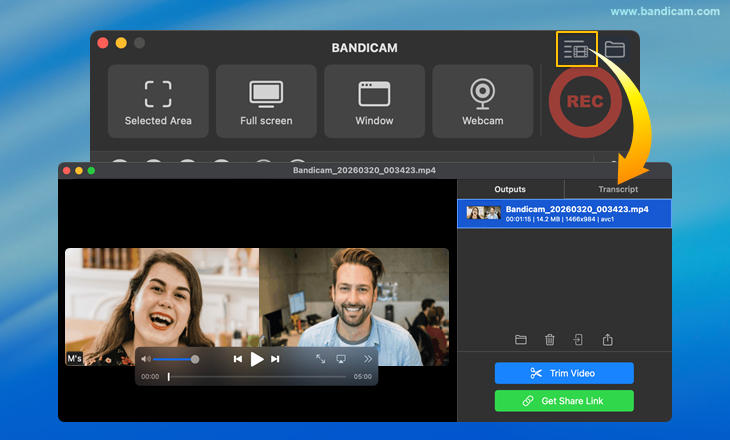
After recording your Zoom meeting with Bandicam, open the Output Video List and select the video you want to transcribe.
- Run the AI video-to-text feature
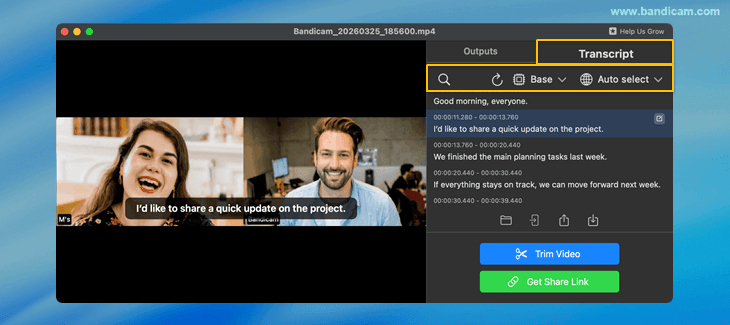
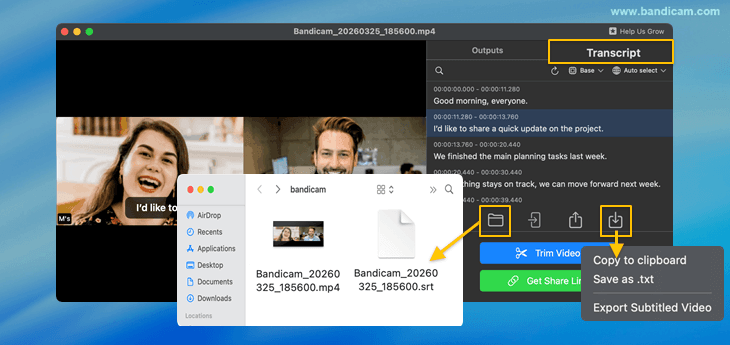
After selecting the file, click the Transcript tab to generate a transcript from your Zoom recording. You can also search the text, change the AI model or language, and refresh the transcript.
- Review and edit the transcript
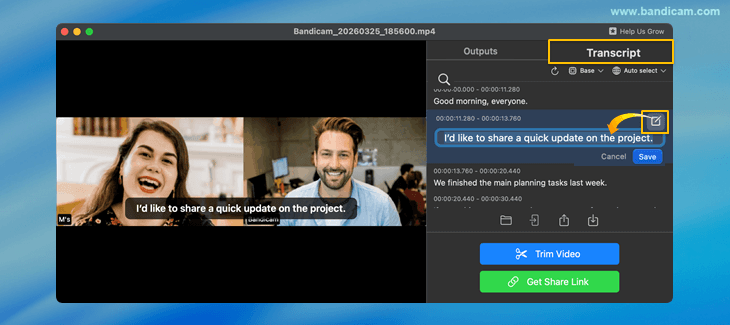
Once the transcript appears, click the edit icon next to a subtitle line and update the text as needed.
- Copy, save, or export the results
Bandicam creates an SRT file in the video folder when you open the Transcript tab. You can also copy the transcript, save it as TXT, or export a subtitled video.
FAQs
Yes. Zoom recordings can be transcribed on Mac in different ways, depending on the recording workflow you use. Bandicam for Mac is one option for turning recordings into text or subtitles.
Yes. Zoom provides audio transcription for cloud recordings, and it requires a Pro, Business, Education, or Enterprise account with cloud recording and audio transcription enabled.
A typical workflow is to open the recording, generate the transcript, review the text, and then save or export the result. In Bandicam for Mac, this is done from the Transcript tab.
That depends on the tool. Zoom’s built-in audio transcript is saved in VTT format, while Bandicam for Mac can generate an SRT subtitle file and lets you copy the transcript or save it as TXT.
One way is to generate a transcript from the recording, review or edit the text, and then save the subtitle file. Bandicam for Mac automatically creates an SRT file from the video audio.
Yes. After turning the recording into text using a tool such as Bandicam, you can use ChatGPT or Gemini to create a summary, notes, or action items.
Summary
If you already have a Zoom recording, turning it into text is one of the easiest ways to make the content more useful afterward. Bandicam for Mac gives you a simple workflow for recording, transcribing, reviewing, and saving the result, so your Zoom recordings can become searchable text, subtitles, and reusable notes instead of staying as video files only.


