
Capturing web content, creating tutorials, and sharing online experiences are all made possible by recording videos from your web browser. Using a browser recorder or video recorder, you can effectively screen record videos from Chrome or Edge browser and share your activities online. This guide explains how to use Bandicam Browser Recorder to record videos from Edge or Chrome browsers, even when they are hidden behind other application windows.
Bandicam is screen recording software that produces high-quality recordings. Its Specific Window recording option allows you to capture only your browser activity in Edge and Chrome.
Record Edge/Chrome Browser Videos: Step-by-Step Guide
Step 1: Install Bandicam browser recorder.
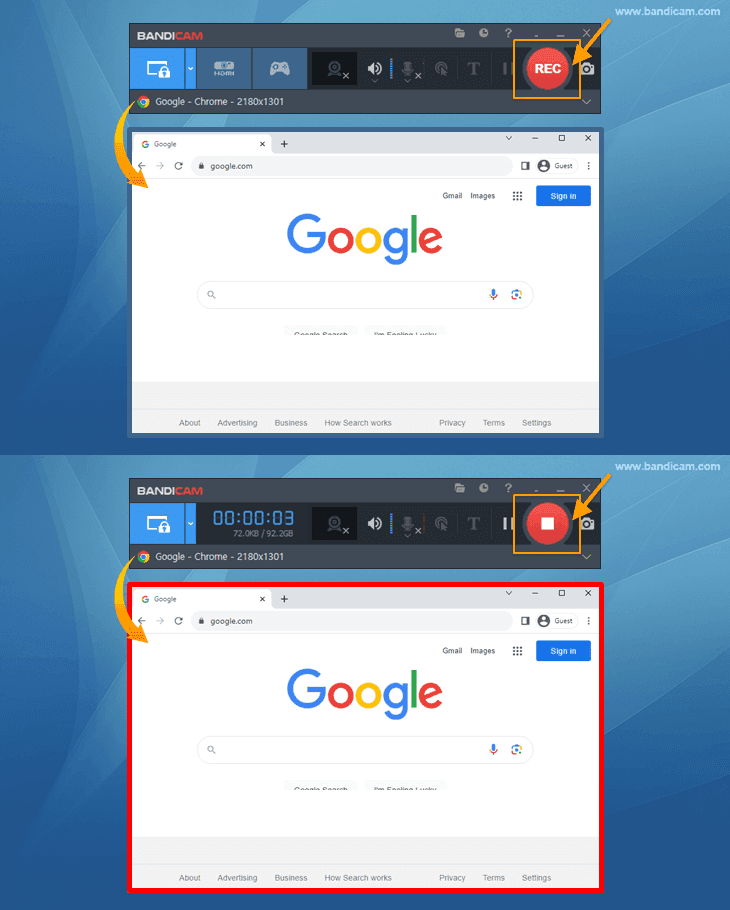
Step 2: Launch Bandicam and choose the ‘Specific window’ mode.
Choose the specific browser you’d like to record. The recording will only capture activity within the selected browser window, excluding everything else on your screen.

You can also choose to record only a portion of the selected browser by specifying the recording area in the browser window.

Step 3: To start recording, click the ● REC button; to stop recording, click the ■ Stop button.
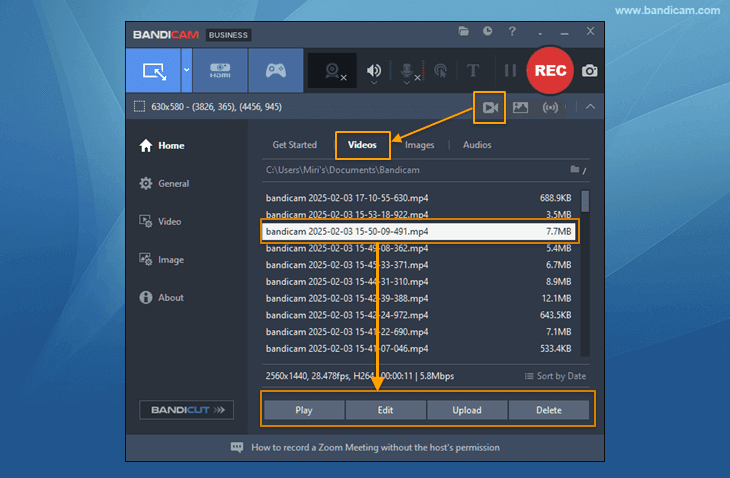
Step 4: Once you’re done, click on the video icon to play, edit, upload, or delete the recorded videos.
Bandicam Browser Screen Recorder allows you to effortlessly record videos from Chrome or Edge, even when they are obscured by other program windows.
Resolve Black/White Screen in Specific Window Recording Mode
Are you encountering a black or white screen while recording a specific browser window? This issue can be resolved by adjusting your browser settings. If you’re using Chrome, modify your Chrome settings accordingly. Similarly, if you’re using Edge, adjust your Edge settings and try recording again.
1. Google Chrome Settings
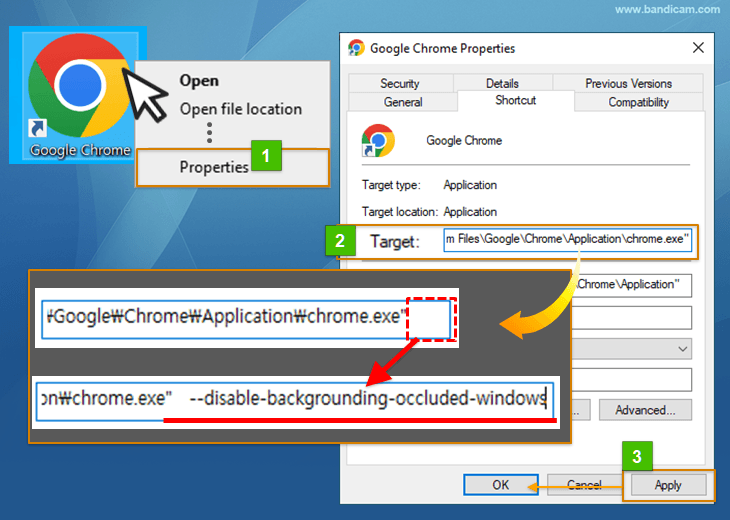
- Step 1: Right click on the Chrome shortcut -> Click on Properties -> Go to the Shortcut tab.
- Step 2: In the ‘Target’ textbox, add a space at the end, and then type –disable-backgrounding-occluded-windows
- Step 3: Click the Apply button, and then click the OK button.
- Step 4: Launch the Chrome browser. Then, go to Settings -> System -> Uncheck the “Use graphics acceleration when available” option. Finally, relaunch Chrome and start recording the browser window again.

2. Edge Settings
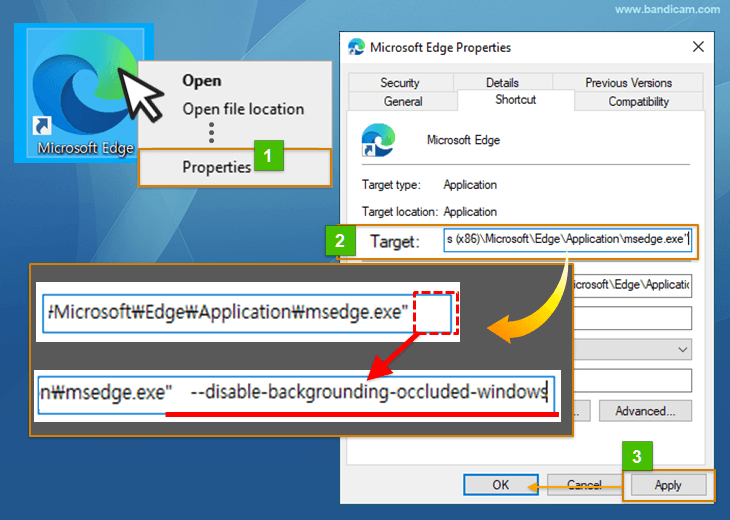
- Step 1: Right click on the Edge shortcut -> Click on Properties -> Go to the Shortcut tab.
- Step 2: In the ‘Target’ textbox, add a space at the end, and then type –disable-backgrounding-occluded-windows
- Step 3: Click the Apply button, and then click the OK button.
Step 4: Launch the Edge browser. Then, go to Settings -> System and Performance -> Turn off the “Startup boost” and “Use graphics acceleration when available” options. Finally, relaunch Edge and start recording the browser window again.

Summary
Using Bandicam Browser Recorder to capture videos from Edge or Chrome is an excellent way to create high-quality web content. This guide provides a detailed step-by-step process to help you record browser activities effortlessly, even when they are hidden behind other application windows. Additionally, it offers solutions to common issues like encountering a black or white screen while recording a specific browser window. With these tips and troubleshooting steps, you’ll be well-equipped to produce professional recordings and share your online experiences seamlessly.


