Manage Your Account & Licenses
Use My Bandicam Space to manage your Bandicam account and licenses in one place.
1. Create an Account on My Bandicam Space
Create an account by signing in with Google, Apple, or Microsoft, or by using your email address.
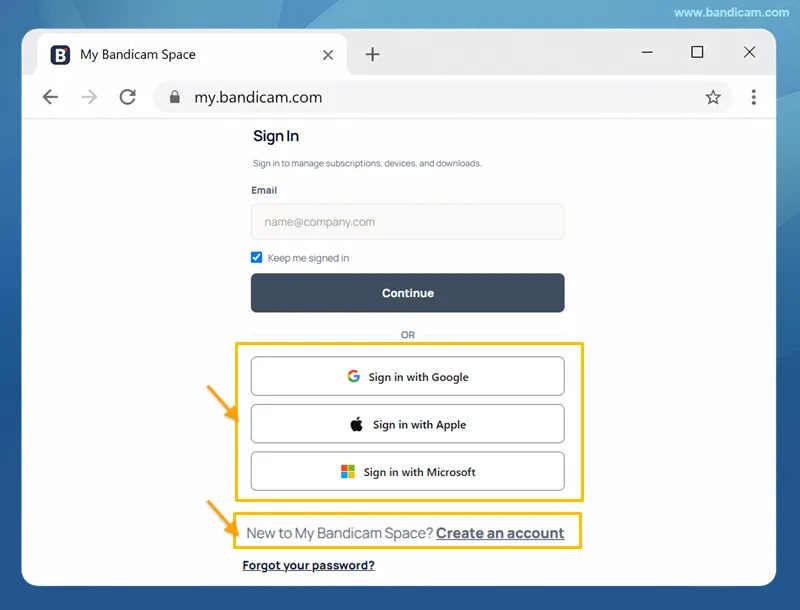
Method 1: Sign in with Google, Apple, or Microsoft
Sign in with Google, Apple, or Microsoft to create your account automatically, then use the same option whenever you sign in again.
Method 2: Create an Account with Your Email Address
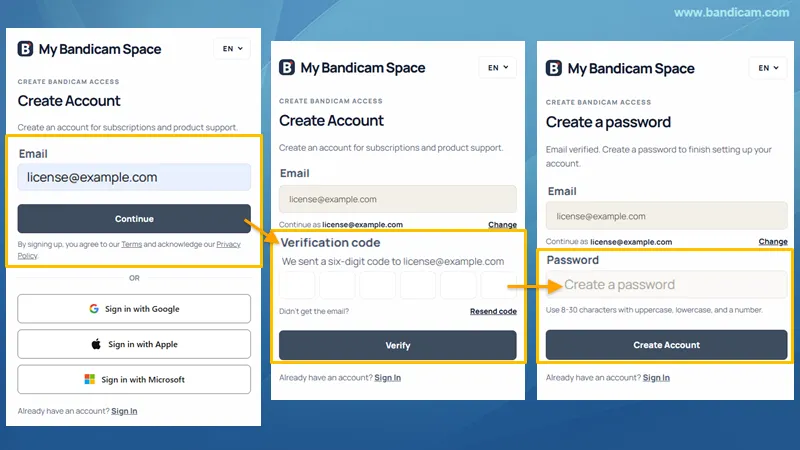
- Enter your email address, then select Continue.
- Enter the six-digit verification code sent to your email, then select Verify. If you did not receive the email, select Resend code.
- Create an 8-30-character password, then select Create Account.
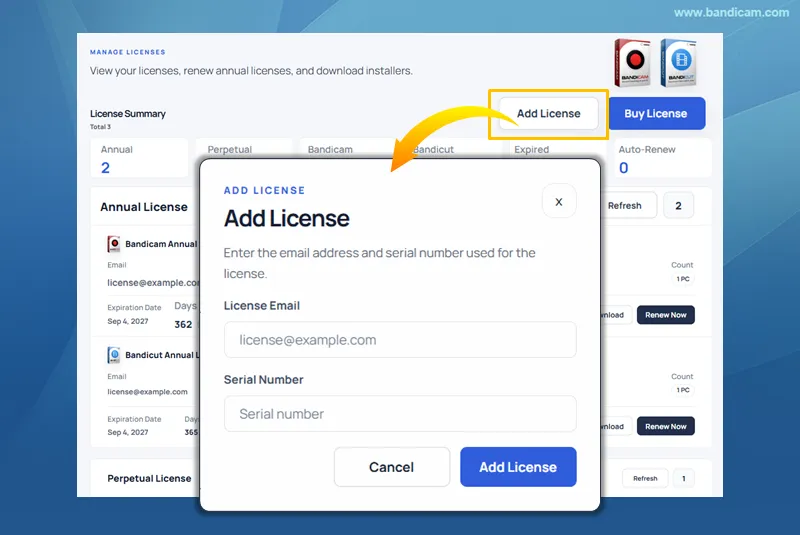 using the purchase email and serial number.
2. Manage Licenses
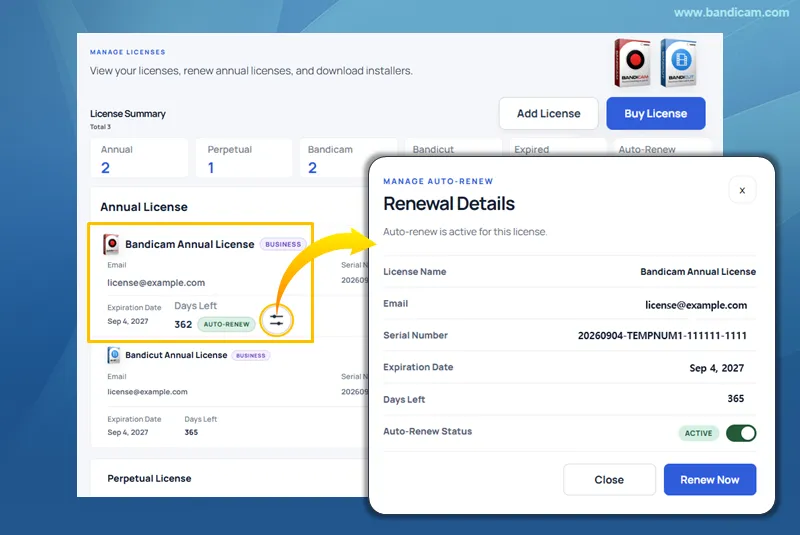
After signing in, click License in the left menu to view and manage your Bandicam and Bandicut licenses.
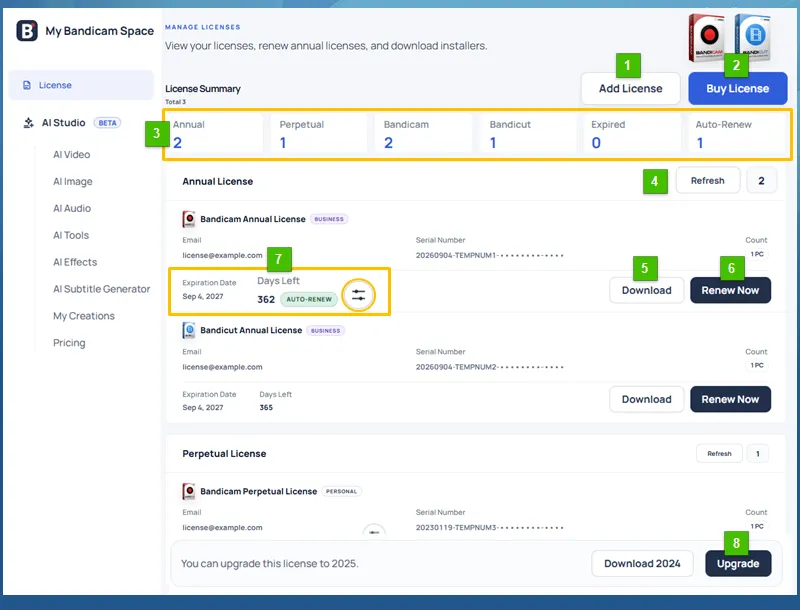
- Add License: Add an existing license
 to your account using your purchase email and serial number.
 - Buy License: Purchase a new Bandicam, Bandicut, or Bandicam + Bandicut package license.
- License Summary: View license counts by license type, product, expiration, and auto-renew status.
- Refresh: Update your license status after a purchase, renewal, or upgrade.
- Download: Download the Bandicam or Bandicut release available for your license.
- Renew Now: Renew an Annual License to extend its expiration date.
- Auto-Renew: View the expiration date and days left. Click the settings icon to manage auto-renew or renew the license.
- Upgrade: Upgrade your Perpetual License to use the latest release of Bandicam or Bandicut.
3. Account Settings
Edit Profile
Click Account Settings in the left menu to view your sign-in method, License Email, and subscription details. Then click Edit Profile to manage your profile settings:
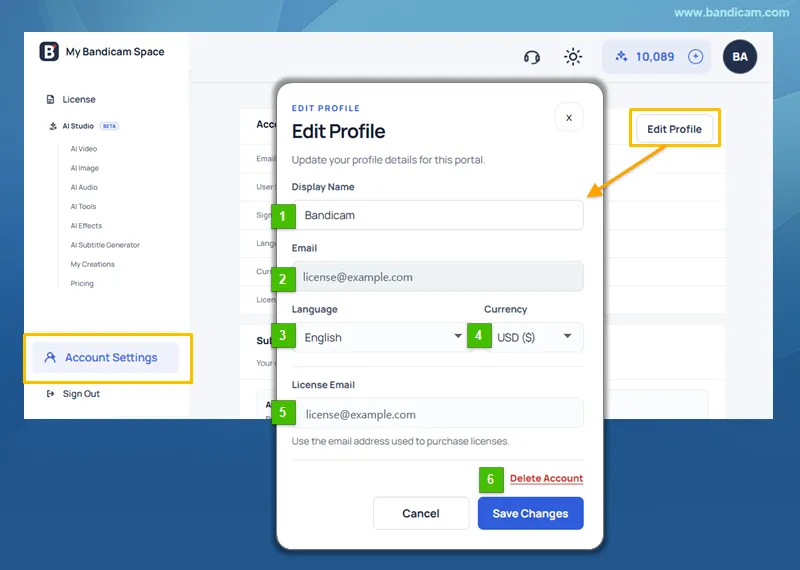
- Display Name: Set the name shown in My Bandicam Space.
- Email: View the email address used to sign in. This email cannot be changed.
- Language: Choose the display language.
- Currency: Choose the currency used for prices and payments.
- License Email: Enter or change the email address used to purchase a license. Licenses associated with that email will appear in your account.
- Delete Account: Request account deletion after all active subscriptions expire. You cannot use My Bandicam Space until the scheduled deletion date.
License Activation with My Bandicam Space
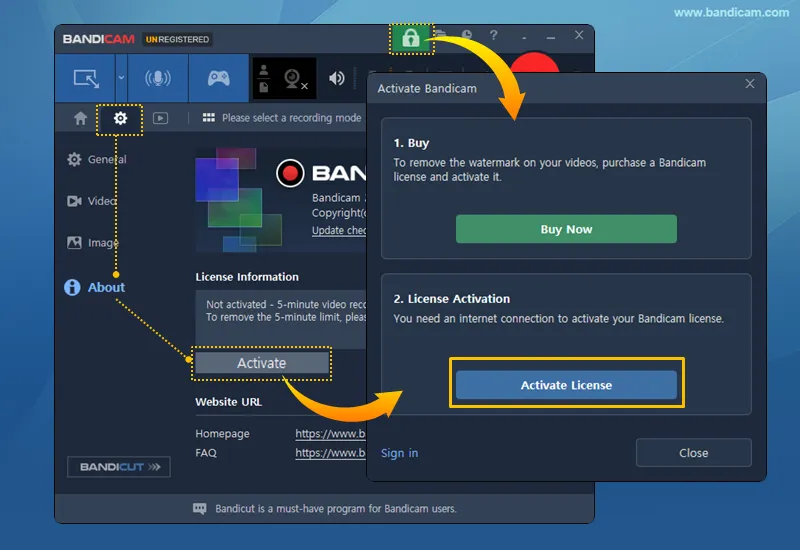
- In Bandicam, click the Lock icon or go to About > Activate, then click Activate License.
- Sign in to My Bandicam Space and select a license to activate Bandicam.
For activation with a serial number or deactivation, see How to Activate or Deactivate Your Bandicam License.
Frequently Asked Questions
1. Why isn't my license shown after purchase?
Sign in with your purchase email to add the license automatically. If you use a different email address, add the license manually with your purchase email and serial number.
2. Which password should I use when signing in with my email address?
Use the password you created for My Bandicam Space, not your email account password. If you don't have an account yet, create a My Bandicam Space account before signing in.
3. How do I change or reset my password?
To change your My Bandicam Space password, go to Account Settings > Change Password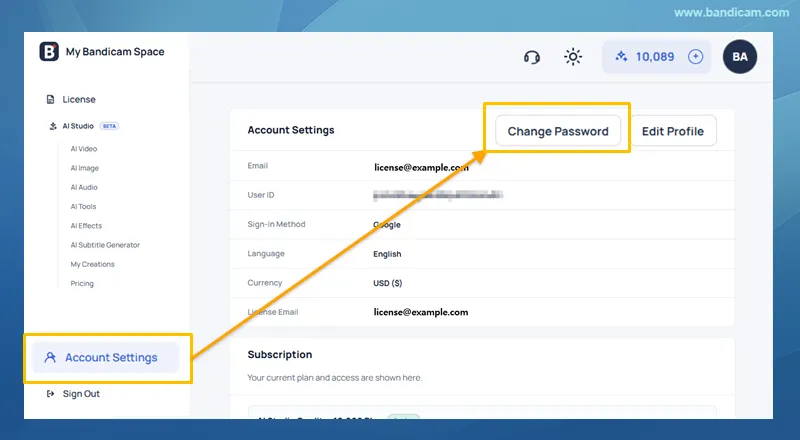 . If you forgot it, select Forgot Password on the sign-in page.
4. Where can I find my license serial number?
Sign in to My Bandicam Space with your purchase email to view your serial number. You can also use the links below to have your license information resent to that email: Bandicam / Bandicut.
5. Why can't I delete my account?
You cannot delete your account while you have an active subscription. Try again after the subscription expires.