
ASUS laptops are renowned for their versatility, ranging from the powerful ROG and TUF gaming series to the innovative Zenbook and Vivobook lineups. Whether you want to capture your epic gaming highlights in 4K or record a tutorial on your dual-screen setup, knowing the right tool is essential in 2026.
In this guide, we will cover three proven methods to screen record on any ASUS laptop: the basic built-in Xbox Game Bar, NVIDIA ShadowPlay, and Bandicam, a professional all-in-one solution for high-quality recording.
Table of contents
Method 1: Using the Built-in Xbox Game Bar (Free & Built-in)
ASUS laptops running Windows 10 or 11 include the Xbox Game Bar, an integrated screen recorder. This versatile tool is ideal for recording any application window, not just games, and offers the quickest way to screen record without needing to install additional software.
When to use it: Ideal for recording a single application, such as a Chrome browser window, a specific software program, or a game.
How to use It:
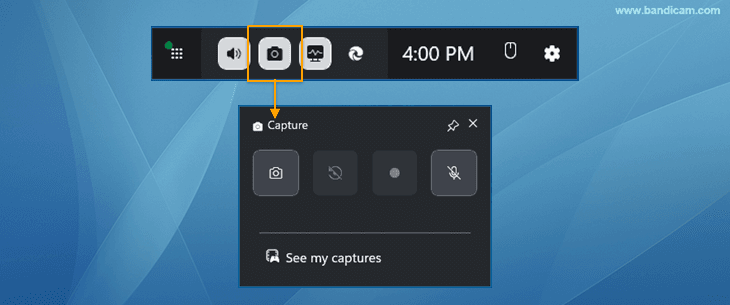
- Step 1: Press Win + G to open the Xbox Game Bar.
- Step 2: Click the “Capture” widget (camera icon).
- Step 3: Press Win + Alt + R to start recording.
That’s it! A notification will pop up saying, “Game clip recorded.” You can click on it to view your video.
Limitation: The Xbox Game Bar cannot record the Windows desktop or File Explorer; it needs to record a specific application. For desktop recording, see the other methods below.
Additional tip: If you need to screen record on your ASUS Windows 11 laptop, the classic Snipping Tool has been upgraded for this exact purpose. It’s simple and great for capturing just a portion of your screen.
Method 2: Using NVIDIA ShadowPlay
Most ASUS gaming laptops (ROG Strix, Zephyrus, TUF Gaming) come equipped with NVIDIA GeForce graphics cards. If you are a gamer, the pre-installed NVIDIA App (formerly GeForce Experience) is a powerful free recorder that captures gameplay with virtually no performance loss.
How to use it:
- Step 1: Press Alt + Z to open the overlay.
- Step 2: Click Record to start, or simply press Alt + F9 to toggle recording on/off.
Method 3: Using Bandicam (A Popular & User-Friendly Recorder)
If you find the built-in tools too basic but want something simpler than more complex software, Bandicam is a fantastic choice for an ASUS laptop screen recorder. It’s a lightweight, user-friendly software that is well-known for recording gameplay and screen activities with high quality.
When to use it: When you want an easy-to-use tool with more options than the Game Bar, especially for recording games or specific screen regions.
Why choose Bandicam for ASUS Laptops?
- Region Recording: You can record just a specific part of your screen (not possible with ShadowPlay).
- Dual Screen Support: Perfect for ASUS Zenbook Duo users. Bandicam can capture across multiple monitors seamlessly.
- Webcam Overlay: Add your face to the video for professional presentations or game commentaries.
How to use it:
- Download and install Bandicam Screen Recorder.
- Run Bandicam and choose a recording mode (e.g., Screen, Device, Game).
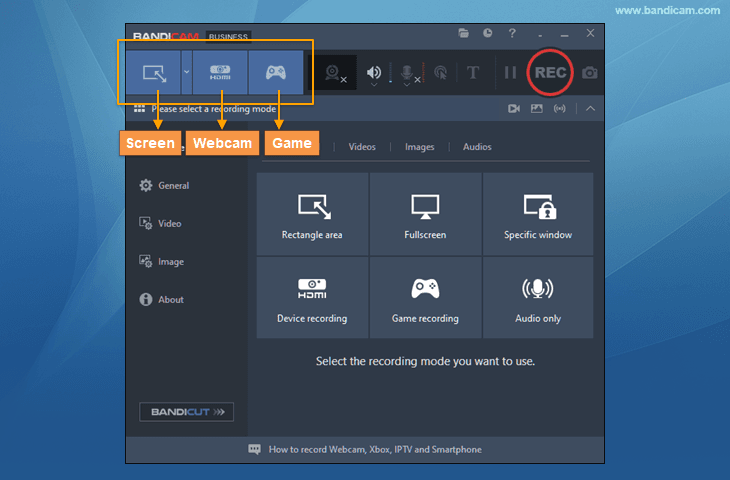
- For example, click “Rectangle on a screen” in Screen Recording mode.
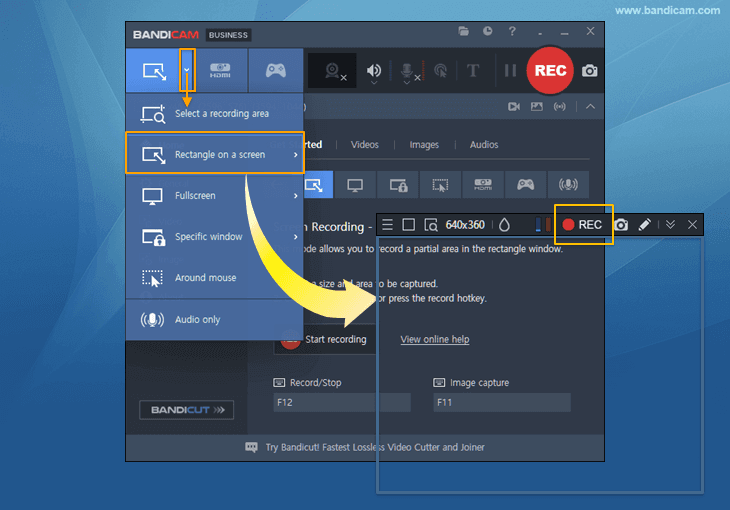
- Start Recording: Click the “● REC” buttoncor press the F12 key (the default hotkey).
- Stop Recording: Press F12 again or click the square “■ Stop” button to finish.
Now, you can play, edit, or upload your recorded videos.

✅ Great for online classes, tutorials, presentations, and gameplay.
Other Screen Recording Tools
Here are some alternatives if you’re looking for different features:
- OBS Studio (The Professional Choice for Streaming): OBS’s main strength lies in its customization: You can combine multiple video/audio sources and even live stream directly to platforms like YouTube or Twitch. However, it does have a steeper learning curve.
- Camtasia (The All-in-One Editor): If you’re creating professional tutorials or training videos, Camtasia is a top-tier paid option. Its biggest advantage is that it combines a powerful screen recorder with a full-featured, user-friendly video editor in one package. You can seamlessly record your screen and then immediately add effects, callouts, and edits to create a polished final product.
- ScreenPal: This tool offers a very accessible recorder that can even be launched from a browser. The free version is great for quick recordings (with some limitations), while the paid version unlocks a built-in editor and other useful features.
Frequently Asked Questions (FAQs)
Yes. ASUS laptops use Windows, so the built-in Xbox Game Bar is available.
Yes, with tools like Bandicam or OBS, you can record both audio sources.
Yes, the Xbox Game Bar is free. Bandicam offers a free version with a watermark; the paid version removes limits.
For basic tasks, the Xbox Game Bar works well. For high-quality output and features, Bandicam is recommended.
Conclusion
As you can see, recording your screen on an ASUS laptop is simpler than you might have thought. Whether you need a quick screen recording using the ASUS Windows 10 built-in Xbox Game Bar, a user-friendly experience with Bandicam, or a streaming tool like OBS Studio, there’s a perfect method waiting for you. Now, you have the knowledge to create tutorials, save your favorite moments, and share information with ease. Go ahead and choose the tool that fits you best and start creating amazing content today!


