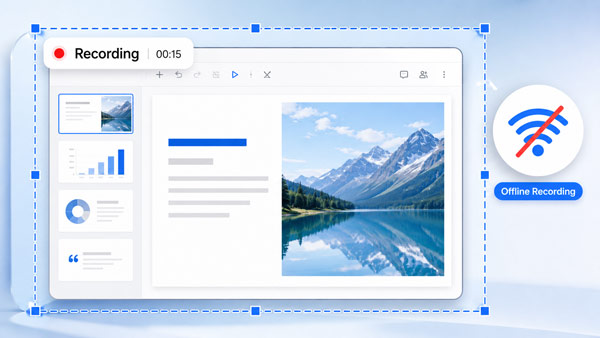
If you are looking for the best offline screen recorder for Windows and Mac in 2026, a desktop recording app can be a better choice than a browser-based recorder.
Many online screen recorders depend on a browser, internet access, or a cloud-based workspace. While that can be convenient for quick recordings, it is not always ideal when you want more control over your screen recording settings or prefer to save videos directly to your computer.
An offline screen recorder is usually a desktop recording app that lets you record your screen locally instead of relying on internet access. This can be useful when you want to record your screen offline, save recordings to a local folder, avoid unnecessary cloud uploads, or capture long tutorials, meetings, lectures, software demos, and gameplay more reliably.
In this guide, we’ll explain what to look for in an offline screen recorder and show how Bandicam can help you record your screen, audio, webcam, tutorials, and meetings offline on Windows or Mac.
Table of contents
What to Look for in an Offline Screen Recorder
A good offline screen recorder should give you control over how your screen is recorded and where your videos are saved. Before choosing a screen recorder, consider the following features:
- Local recording: The recorder should save videos directly to your computer instead of requiring a cloud upload.
- Offline access: After installation and registration, the recorder should work without an active internet connection.
- Audio recording: A useful screen recorder should capture system audio, microphone input, or both.
- Webcam recording: Webcam overlay support is helpful for tutorials, online courses, reaction videos, lectures, and training content.
- Flexible recording modes: Full screen, selected area, and window recording options make it easier to capture exactly what you need.
- Browser-independent recording: The recorder should let you capture your screen locally without depending on a browser session, cloud workspace, or active internet connection.
- Output folder control: You should be able to choose where your recordings are saved on your computer.
Offline Screen Recorder vs. Online Screen Recorder
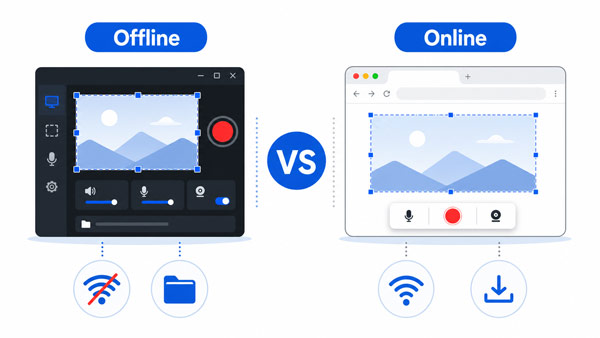
Both offline and online screen recorders can be useful. The better choice depends on how you want to record your screen.
An offline screen recorder is a desktop app installed on your computer. It is a good choice when you want more control over recording settings, audio sources, webcam options, output folders, and local recording workflows. It is also useful when you want to open the recorder and capture your screen without relying on a browser-based tool.
An online screen recorder runs in a web browser and does not require software installation. This can be convenient when you want to record quickly, use a shared computer, or avoid installing a desktop app. Some online recorders, such as Free Online Screen Recorder, process recordings locally in the browser and let you download the video without uploading files to a cloud server.
| Feature | Offline screen recorder | Online screen recorder |
|---|---|---|
| How it works | Desktop app | Web browser |
| Installation | Required | Not required |
| Internet connection | Not required for local recording after setup | Required to use the tool |
| Best for | Local recording, tutorials, meetings | Quick no-install recordings |
| Save location | Local computer | Local or cloud, depending on the tool |
If you need greater recording control, high-performance capture, or longer recording sessions, an offline desktop recorder like Bandicam is usually the better choice. If you need a quick no-install option, Free Online Screen Recorder may be a better fit.
How to Record Your Screen Offline on Windows or Mac
Bandicam is a desktop screen recorder that lets you record your screen, system audio, microphone, and webcam, and then save the recording locally on your computer. Once the full version is registered, you can use Bandicam for local screen recording without an internet connection. Internet access is mainly needed for downloading, registration, updates, or recording online content.
Recording offline with Bandicam is simple. The exact interface may differ between Bandicam for Windows and Bandicam for Mac, but the basic process is similar.
- Download Bandicam Screen Recorder.
Install the correct version of Bandicam for your operating system: Windows or Mac.
- Choose a recording mode.
Select what you want to record, such as your full screen, a selected area, or a specific window.
- Set up audio and webcam.
Choose whether to record system audio, microphone input, and/or a webcam overlay.
- Start recording without an internet connection.
Click the record button and capture your screen activity locally, even when you are not connected to the internet.
- Save the video locally.
After recording, review the video file saved on your PC.
FAQs
Bandicam is a practical offline screen recorder for Windows and Mac. Once installed and registered, it lets you record your screen without an internet connection, including screen activity, audio, microphone input, and webcam video.
Yes. With a desktop screen recorder like Bandicam, you can record your screen locally without internet access. You may still need internet access if the content you are recording is online, such as a web meeting or streaming page.
It depends on your recording needs. An offline screen recorder is better if you want to record without an internet connection, avoid browser-based limits, or use more detailed recording settings. An online screen recorder is better if you want a quick, no-install option for simple recordings.
Offline screen recordings are usually saved to a local folder on your computer. In Bandicam, users can choose or change the output folder depending on the version and operating system.
Yes. Bandicam can be used for local screen recording on both Windows and Mac after installation and registration. Internet access may still be needed for downloading, registration, updates, or recording online content.
Summary
Choosing the right offline screen recorder comes down to how often you record and how much control you need. If screen recording is part of your regular work, teaching, training, or content creation, Bandicam is a strong choice for both Windows and Mac users.
For quick one-time recordings, a browser-based tool may be enough. But if you want a dedicated desktop recorder that is ready whenever you need it, Bandicam is worth considering in 2026.