Try Bandicam Video Recorder!
Download Bandicam (Free)How to record YouTube videos
YouTube has become an extremely popular platform for people to create, share, and watch videos for entertainment, education, etc.
How does one share videos onto such a platform with just a few clicks?
Well, the process is relatively easy: simply make videos with a camera or screen recording program and upload them to YouTube.
If you want to record YouTube videos, download the free version of Bandicam from https://www.bandicam.com/downloads/ and use the software’s Screen Recording Mode.
Bandicam is a video and screen capture program designed for all, especially for video gamers and YouTubers, that allows users to record everything on their computer screens. You can also record YouTube Music with Bandicam's Audio Only Recording Mode.
How to Record YouTube Videos on a PC
-
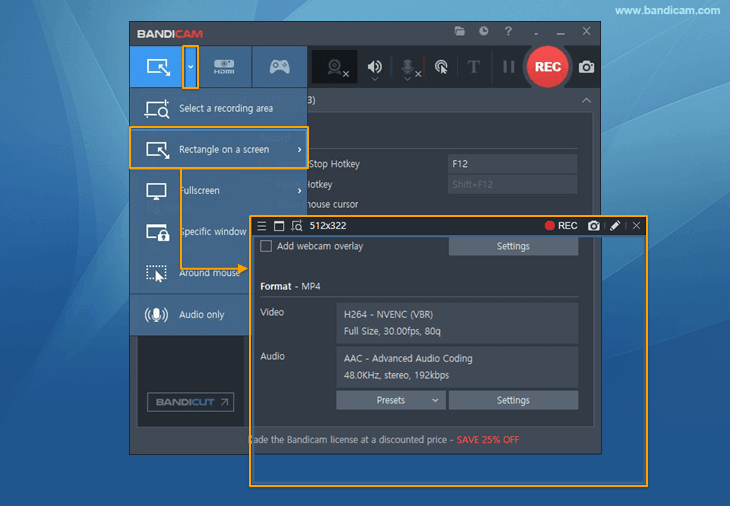
Start Bandicam and choose the 'Rectangle on a screen' mode.
-
Adjust the green-edged rectangle on the YouTube video of your choice, and proceed to play the video.
When you click the ' ● REC ' button, the green-edged rectangle will become red.
![Bandicam YouTube recording - find window]()
-
To stop recording, click the 'stop ( ◼ )' button.
To pause the recording, click the 'pause ( ll )' button.
![Bandicam YouTube recording - find window]()
-
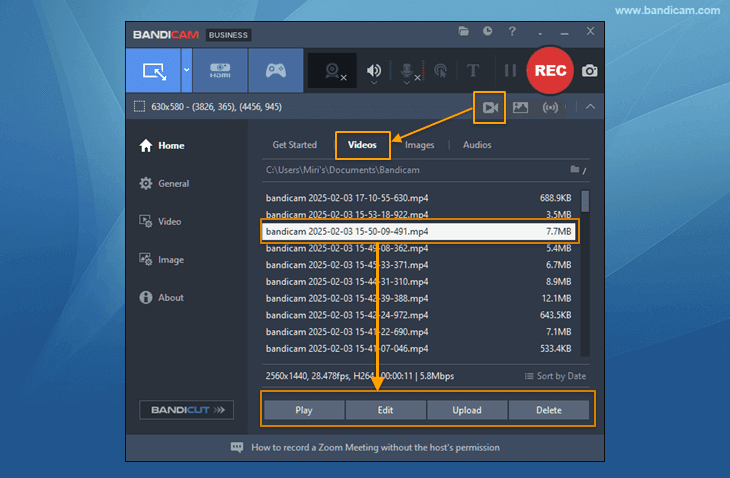
Click on the video icon to play, edit, or upload the captured videos to YouTube.» See more...
![Bandicam, Recorded videos]()



How to Make YouTube Videos
If you are a YouTuber and want to promote your YouTube channel, you may want to create interesting content that will boost audience engagement. With Bandicam, you can create YouTube videos in a variety of ways, such as by recording a facecam, creating a YouTube intro, or making YouTube Shorts.
Add a Facecam for YouTube Videos
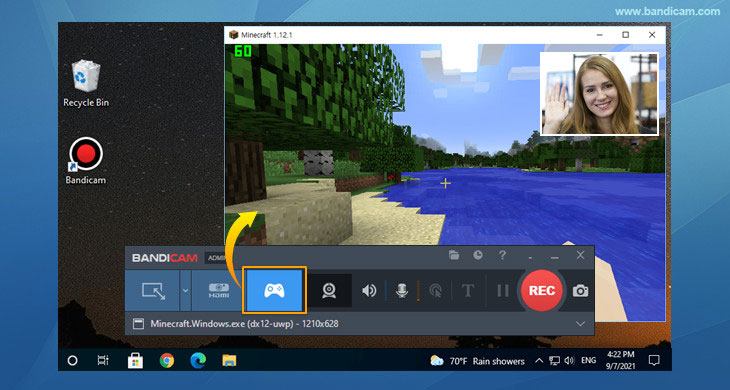
Use your webcam device or smartphone camera to record both your camera and computer screen at the same time. Bandicam's Webcam Overlay feature allows users to record gameplay or the computer screen along with a face. » Put Your Face in a Video
Make YouTube Shorts
You can create a 60-second YouTube Short by selecting Bandicam's Screen Recording Mode. » How to make and upload YouTube Shorts

Additional Tip: A real-time drawing function is available
Users can simultaneously draw lines, boxes, or highlights while recording in 'Screen Recording' mode. This feature will be useful to emphasize certain parts of a YouTube video. » Real-time drawing
More Information
- To make 1080p/720p YouTube videos on Bandicam, simply select the "YouTube (1080p/720p)" Preset.
- YouTube (Wikipedia): https://en.wikipedia.org/wiki/Youtube
- Recommended resolution & aspect ratios for YouTube: https://support.google.com/youtube/answer/6375112?hl=en
- Please share your video on the Bandicam forum: https://bandicam.com/forum/viewforum.php?f=14
Last Updated on