Try the game recorder, Bandicam!
Download Bandicam (Free)How to record World of Warcraft (WOW) Gameplay
Have you ever wanted to capture your World of Warcraft (WOW) gameplay? With the fantastic and robust software, Bandicam, you can easily record your gameplay on WOW.
What is World of Warcraft?
World of Warcraft is a game set in a fantasy universe in the world of Azeroth. It is a massively multiplayer online role-playing game (MMORPG) developed and published by Blizzard Entertainment. Since its release in 2004, WOW has had eight major expansion packs, and its ninth pack, Dragonflight, is currently under development.
Players can build their character avatar to explore the open gaming world of Warcraft in first- or third-person view, which includes landscapes, brawling with monsters, completing the quests, etc. The game has garnered worldwide players, leading to its commercial success, and had over 12 million subscribers by 2010; it had cashed $9.23 billion by 2017.
While you’re playing on WOW, you might want to record and share an important scene or strategy of your gameplay. With Bandicam Game Recorder, you can easily record wow gameplay and share it on social media such as YouTube.
Record World Of Warcraft Gameplay on a Windows PC
Follow the steps below to record your World of Warcraft game:
-
Download the game recorder, Bandicam, and start.
-
Choose the 'Game Recording' mode to record WOW gameplay.
It's better to use 'Game Recording' mode to get a high quality video file.
![record wow gameplay, world of warcraft]()
-
Start the World of Warcraft game.
Note: For a stable operation, Bandicam needs to be running before starting the World of Warcraft game.
- While running a game in 'Game Recording' mode, you can see the green FPS number on the screen.
- You can control the FPS (frames per second) under the 'FPS' tab of Bandicam. If you can't see the green FPS number, visit No FPS on the recording target.
![world of warcraft recording, ready to record, Game FPS]()
-
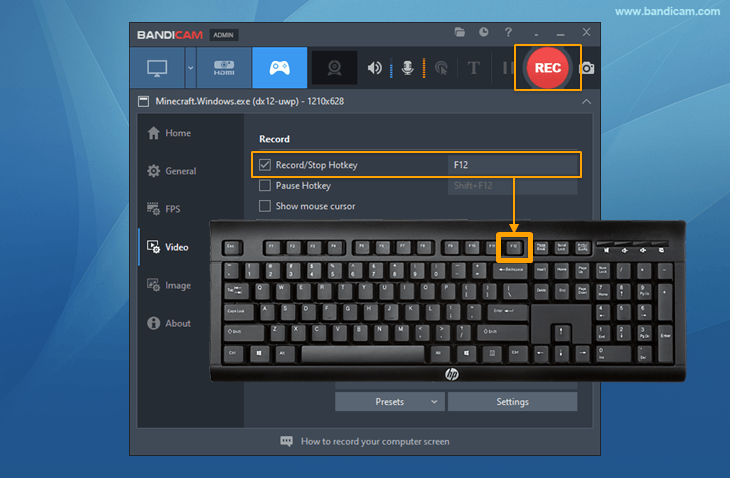
Press the 'F12' function key (or the 'Record' button in Bandicam) to start recording.
![f12 key to start/stop the recording gameplay]()
-
During the recording, the green FPS number will change to red.
![world of warcraft recording, Game FPS]()
-
To stop recording, press the 'F12' function key (or the 'Record' button in Bandicam) again.
-
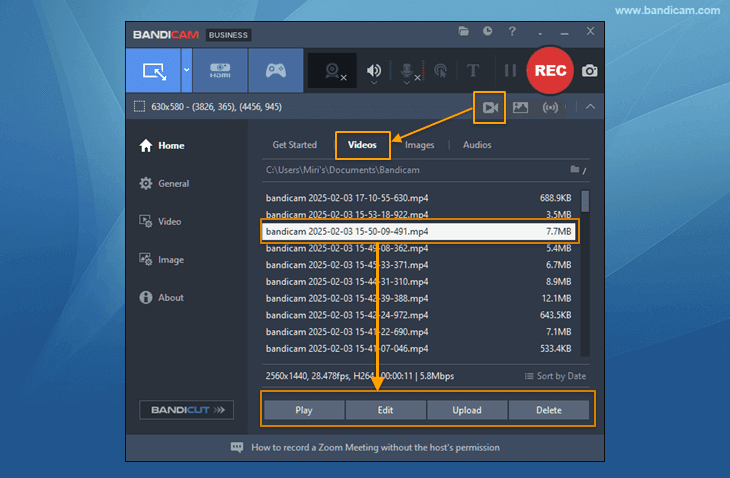
Click on the video icon to play, edit, or upload the captured videos.
![Bandicam, Recorded videos]()



Related FAQs about recording WOW Gameplay
1. What does FPS mean in gaming?
FPS stands for "frames per second" and is used to describe how smooth a video or video game is playing. A "frame" is a still image within the display that is played in videos or gameplay. For example, 60 frames per second contain still images at 60 frames per second. With a higher FPS value, you can play your gameplay smoothly.
Bandicam allows users to capture their gameplay up to 480 FPS with DirectX/OpenGL/UWP/Vulkan hooking and hardware acceleration technologies.
2. How can I record games like YouTubers?
Bandicam is a high-performance game recorder that records your gameplay in high quality. You can also use Bandicam's webcam overlay feature to add faces to your gameplay footage. In addition, you can record games on Bandicam and upload them directly to YouTube.
FAQ: Bandicam doesn't recognize WOW - I can't see the green FPS number.
If you do not see the green FPS number, please check out the solutions below:
- Download the latest version of Bandicam from https://www.bandicam.com/downloads/
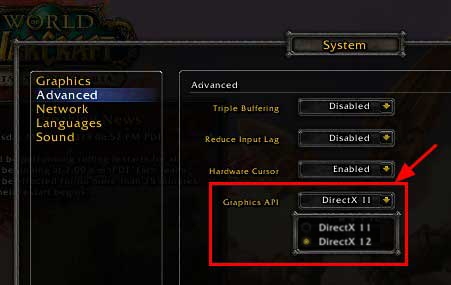
- Go to the System settings menu, and try DirectX 11 or DirectX 12.
- If you're using DirectX 12, try DirectX 11.
- If you're using DirectX 11, try DirectX 12.
![wow fps recognition, directx 9/11]()
- Go to the properties of WOW, uncheck "Run this program in compatibility mode for:" and check "Run this program as an administrator."
![wow compatibility mode, Run as an administrator]()

If Bandicam still can't recognize the game, please visit https://www.bandicam.com/faqs/no_fps_frames_per_second_number
Battlefield Game Recording for advanced users
- To enhance the recording ability of Bandicam, try the hardware-accelerated H.264 encoder.
- To edit the recorded video, use the "Vegas/Premiere/Pinnacle" preset.
- To minimize computer lag, reduce the "Video Resolution/Size/FPS/Quality."
- To record / merge the webcam stream with the main video, try the webcam PiP feature.
- To use Mouse Click Effects, check the "Add mouse click / highlight effect" option.
Last Updated on
Bandicam offers the best online game recording experience.
When you record online games with Bandicam Game Recorder...
You can upload the recorded file to YouTube WITHOUT CONVERTING.
You can RECORD FOR OVER 7 DAYS without stopping (AVI 2.0 OpenDML).
Bandicam produces SMALLER FILE SIZES for recordings, compared to other capture programs.
Bandicam has LESS LAG than other screen capture software, since it uses fewer CPU/GPU/RAM resources.
 Roblox game recording
 Valorant
 Minecraft game recording
 Battlegrounds (PUBG)
 Overwatch highlights
 Counter-Strike recording
 Grand Theft Auto(series)
 League of Legends(LoL)
 Skyrim game recording
 Team Fortress2(TF2)
 The Sims 3, 4 recording
 World of Warcraft (WoW)
 Angry Birds game
 Battlefield game recording
 Call of Duty game
 Mobile games on BlueStacks
 Age of war (flash game)
 Lost Ark
 Genshin Impact