Try Bandicam Video Recorder!
Download Bandicam (Free)
How to record Windows Media Player or Movies & TV
Record videos on Windows 10/11
Windows Media Player (WMP) is a built-in audio/video playback software for Windows. If your system is Windows 10 or 11, you may also notice that Movies & TV is the default media player. However, both Windows Media Player and Movies & TV can only play, not record, audio and video files. To record Windows Media Player, you need to use a screen recorder such as Bandicam. This article will show you how to record Windows Media Player or Movies & TV.
Why Bandicam for recording Windows Media Player?
Bandicam’s Game Recording Mode can hook recording target processes, which means you can selectively record only your gameplay or Windows apps such as Windows Media Player, instead of recording your entire computer screen. To record only Windows apps, you need to add Windows apps to the Bandicam hooking target list. Download Bandicam and follow the steps below to record videos from Windows Media Player:
How to record Windows Media Player on Windows
Download the Windows Media Player Recorder, Bandicam, and start.
Go to the General tab, click on the Advanced button, and check the "Windows Apps (UWP)" option.
Once you have checked the "Windows Apps (UWP)" option, you can selectively capture only "Windows Media Player" or "Movies & TV” in great quality through Bandicam’s Game Recording Mode.
![Enable Windows Apps (UWP), How to record Windows games in Microsoft Store]()
Choose the 'Game Recording' mode.
It's better to use 'Game Recording' mode to get a high quality video file.
![record Windows Media Player, best video recorder - DirectX mode]()
-
Start Windows Media Player or Movies & TV.
Note: For a stable operation, Bandicam needs to be running before starting Windows Media Player.
- While playing a video with the player, you can see the green FPS number on the screen.
- If you can't see the green number, you can use 'Screen Recording' mode to record WMP.
![record Windows Media Player, record WMP, ready to record - green color]()
-
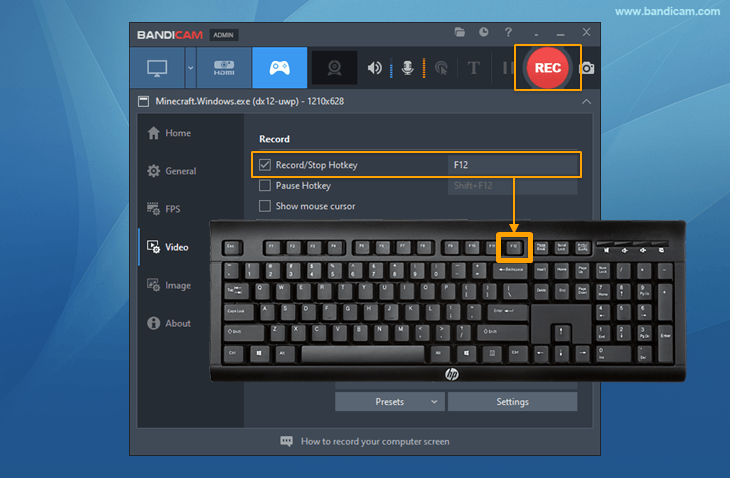
Press the 'F12' function key (or the 'Record' button in Bandicam) to start recording.
![f12 key to start/stop the recording gameplay]()
-
During the recording, the green FPS number will change to red.
![recording the target - red color]()
-
To stop recording, press the 'F12' function key (or the 'Record' button in Bandicam) again.
-
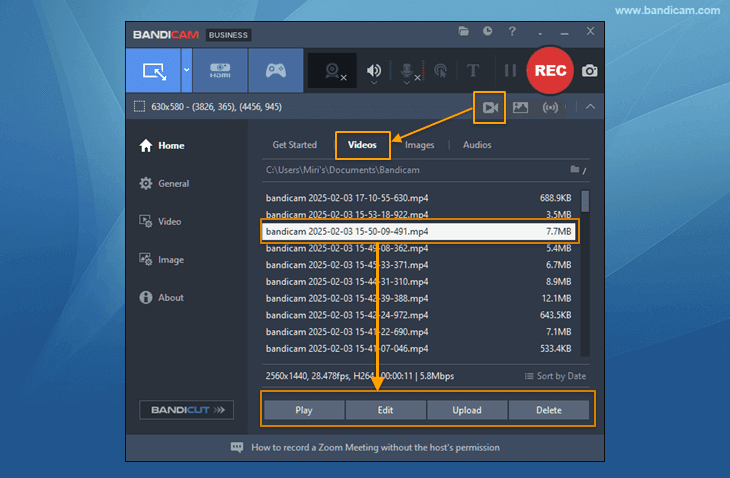
Click on the video icon to play, edit, or upload the captured videos.
![Bandicam, Recorded videos]()




How to record Windows Media Player through the 'Screen Recording' mode
If you can't record Windows Media Player in ‘Game Recording’ mode, use Bandicam's ‘Screen Recording’ mode instead. Follow the steps below to record video or audio from Windows Media Player:
-
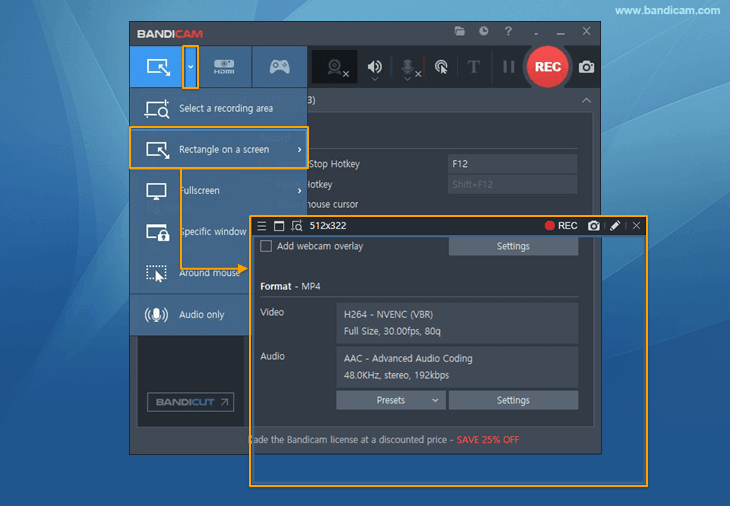
Start Bandicam and choose the 'Rectangle on a screen' mode.
![best video recorder - 'Screen Recording' mode]()
-
Adjust the rectangle window on the video and play the video.
-
Click the ● REC button or press the 'F12' function key to record.
-
To stop recording, click the 'Stop (◼)' button (Hotkey F12).
-
Click on the video icon to play, edit, or upload the captured videos.
![Bandicam, Recorded videos]()
Related FAQs about Windows Media Player
1. Can Windows Media Player record audio?
Unfortunately, you cannot record audio with Windows Media Player. The good news is that with Bandicam Audio Recorder, you can record audio, including your voice, for free! » Here is a guide, "How to record audio on Windows."
2. Can I change the playback speed on Windows Media Player?
Yes, Windows Media Player allows you to change the playback speed of your video file. » Find out more in this "How to change playback speed on Windows" tutorial.
Windows Media Player Recording for advanced users
- To enhance the recording ability of Bandicam, try the hardware-accelerated H.264 encoder.
- To edit the recorded video, use the "Vegas/Premiere/Pinnacle" preset.
- To minimize computer lag, reduce the "Video Resolution/Size/FPS/Quality."
- To record / merge the webcam stream with the main video, try the webcam PiP feature.
- To use Mouse Click Effects, check the "Add mouse click / highlight effect" option.
Last Updated on
Bandicam offers the best online game recording experience.
When you record online games with Bandicam Game Recorder...
You can upload the recorded file to YouTube WITHOUT CONVERTING.
You can RECORD FOR OVER 7 DAYS without stopping (AVI 2.0 OpenDML).
Bandicam produces SMALLER FILE SIZES for recordings, compared to other capture programs.
Bandicam has LESS LAG than other screen capture software, since it uses fewer CPU/GPU/RAM resources.