Try Bandicam Screen Recorder!
Download Bandicam (Free)How to Record PowerPoint Presentations with Audio
PowerPoint recording is essential for creating professional presentations, training videos, and educational content.
Why Record Your PowerPoint Presentations?
- Create Professional Training Materials - Record once and share with as many team members as you need
- Enhance Online Courses - Add audio narration and webcam for more engaging lectures
- Improve Remote Presentations - Record and share with anyone who missed the live session
- Build Your YouTube Channel - Turn presentations into searchable, shareable content
This article explains how to add audio to your PowerPoint presentations and how to record PowerPoint presentations with audio using Bandicam.
How to Add Audio to PowerPoint Slides
Adding audio to a PowerPoint presentation can enhance the overall experience for your audience. Audio, such as music or sound effects, can help convey a message, make your presentation more engaging and memorable, and provide context to visual aids. Audio can also be used to break up the flow of your presentation and grab the audience's attention.
Fortunately, PowerPoint has an audio feature, which allows you to either record your voice or insert audio files to PowerPoint. Follow the steps below to add audio to PowerPoint:
Open the PowerPoint program. Then, open the Insert menu and click on Audio.
Optional: Set the playback settings to play sound when you start a slideshow.
After inserting the audio, a speaker icon will appear on the slide. Select it, and then go to the Playback tab. Set the following options:
- Start: Select "Automatically."
- Check the "Play Across Slides" option.
- Check "Hide During Show" if you don't want the speaker icon to appear.
![PowerPoint playback setting]()
- Now, start your presentation slide show to make sure the audio plays smoothly across all slides.


Additional Tip: Bandicam can record both computer and microphone audio, unlike PowerPoint's microphone-only audio recording, and these recordings can be easily added to PowerPoint presentations. » Free MP3 Recorder
How to Record PowerPoint Presentations with Audio
There are various purposes for recording a PowerPoint presentation, such as:
- Accessibility: Recording a presentation allows viewers who couldn't attend the live session to watch it later at their convenience.
- Sharing: A recorded presentation can be shared with a larger audience, such as colleagues or clients who were unable to attend in person.
- Review: Recording can help speakers review their own presentations and improve their public speaking skills.
- Marketing: Presentations can be turned into marketing materials, such as webinars, that attract potential customers and generate leads.
- Training: Recorded presentations can be used for employee training and onboarding, making it easy for new hires to learn about company policies and procedures.
Install Bandicam Screen Recorder and start.
-
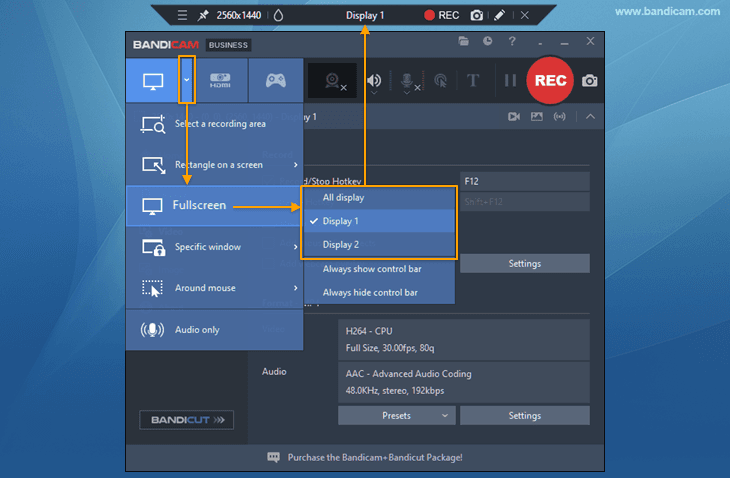
Choose the 'Fullscreen' mode in Bandicam.
You can also choose the 'Select a recording area' mode and adjust the recording window size to match what you want to record.
![best video recorder - 'Screen Recording' mode]()
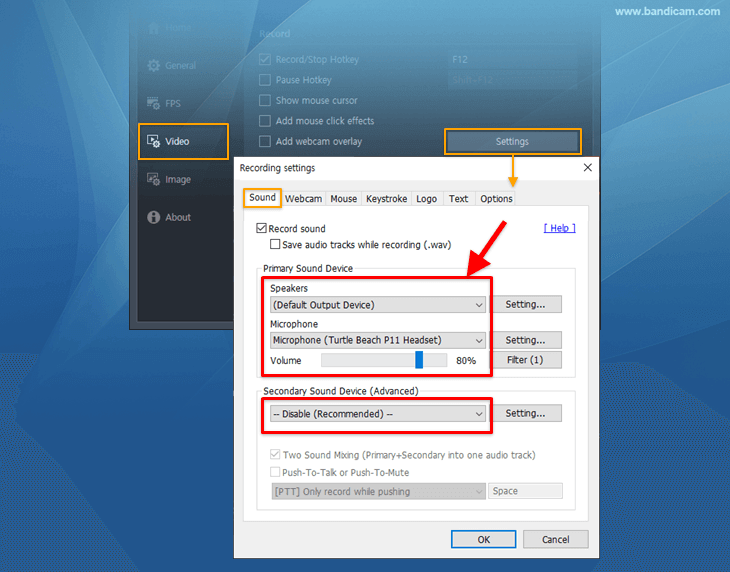
Optional: You can selectively record your computer sound, voice, or both.
- Speakers: Select “(Default Output Device)” or “Disable” for the Speakers depending on your preference.
- Microphone: To add audio narration, select your microphone device for the Microphone in the Recording settings.
![record audio on PowerPoint]()
-
Press F5 to begin your PowerPoint slideshow, and press F12 to start/stop the Bandicam recording.
![How to record Powerpoint presentation, How to record PPT]()
-
You can also click the '● REC' button to start and stop the recording.
![Bandicam, fullscreen recording]()
-
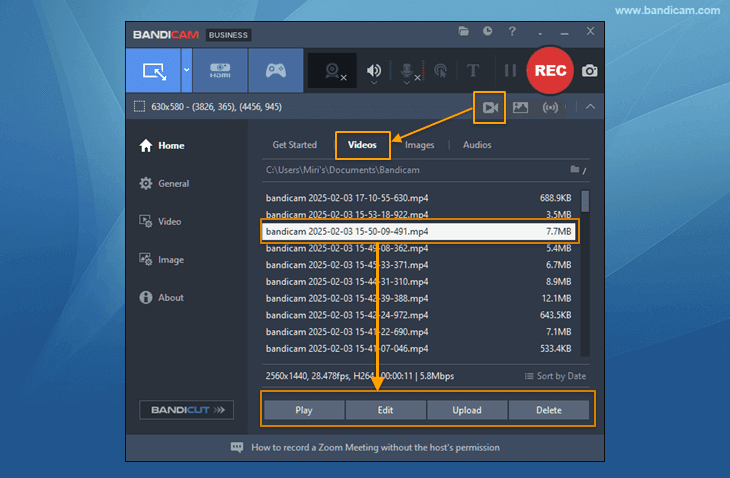
Click on the video icon to play, edit, or upload the captured videos.
Now, you can directly upload the presentation videos to Google Drive, YouTube, or Vimeo. If you upload a recorded video to Google Drive, you can also share the video via a link.
![Bandicam, Recorded videos]()


How to Create Professional Lecture Videos with PowerPoint
Recording a PowerPoint presentation with a webcam is helpful for creating instructional videos or tutorials, in which you demonstrate something on the screen while giving verbal instructions. It can also be useful for creating personal video messages or video resumes to convey your personality and enthusiasm for a job or project.
By using Bandicam’s webcam overlay feature, you’ll be able to not only record your presentation with a webcam but also enlarge your webcam to full screen. » Create a Lecture Video using PowerPoint

Frequently Asked Questions About PowerPoint Recording
How do I remove black bars when recording PowerPoint presentations?
If you have PowerPoint 2010 and earlier, the default slide size is 4:3, so there will be black margins on both sides when you present a slide show. To remove these black margins, go to the Design tab and change the slide size to 16:9 (or set the width to 33.867 cm and height to 19.05 cm).

How can I draw or annotate on my PowerPoint while recording?
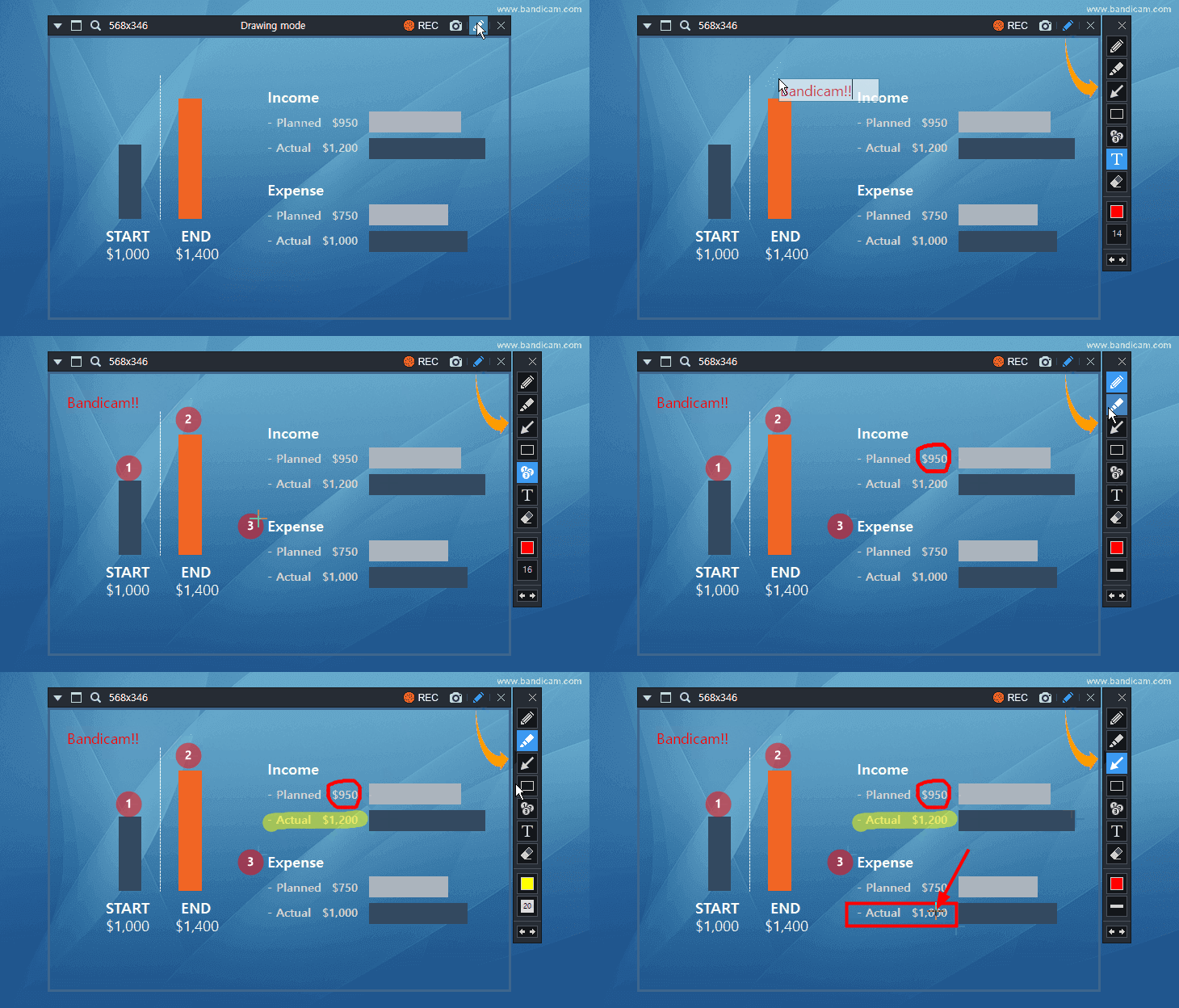
Bandicam's Drawing feature allows you to create real-time annotations while recording your PowerPoint presentation. You can draw lines and rectangles, highlight important content, and add text overlays to emphasize key points.
Can I create YouTube video intros using PowerPoint and Bandicam?
Yes! PowerPoint's animation capabilities make it perfect for creating professional YouTube intros and outros. Design your animated intro in PowerPoint, then use Bandicam to record the animation with high quality.

How do I highlight my mouse cursor when recording PowerPoint presentations?
Bandicam's 'Mouse Effects' feature enhances mouse visibility during PowerPoint recordings. You can add spotlight effects, click animations, and cursor highlighting to draw attention to important elements.
Can I record PowerPoint with both system audio and microphone simultaneously?
Absolutely! Unlike PowerPoint's built-in recording feature, Bandicam allows you to capture both system audio (music, sound effects, slide sounds) and your microphone input (voice narration) simultaneously.
What's the best file format for sharing PowerPoint recordings online?
MP4 with H.264 video codec offers the ideal balance between quality and file size for online sharing. Bandicam automatically optimizes recordings in this format, making them perfect for platforms like YouTube, Google Drive, and Vimeo.
Last Updated on