How to record iTunes streaming videos
Bandicam is a popular, easy-to-use and reliable screen recording program. It allows you to record your computer screen, game, or video in high quality with small file size. It is just what you need to deliver software demonstrations and live video tutorials. To record iTunes, use the 'Screen Recording Mode' of Bandicam.
Recording by 'Game Recording' mode
If you can see the green number on a web browser's screen (including iTunes), you can record the video through 'Game Recording' mode.
Please follow the steps below:
-
Choose the 'Game Recording' mode.
To record iTunes Streaming videos, you should use 'Game Recording' mode to get the high quality video file

-
Start iTunes
Note: For a stable operation, Bandicam needs to be running before starting iTunes.
-
While running a streaming DirectX/OpenGL video, you can see the green FPS number on the screen.
You can control the FPS (frames per second) under the 'FPS' tab of Bandicam. If you can't see the green FPS number, visit No FPS on the recording target.

-
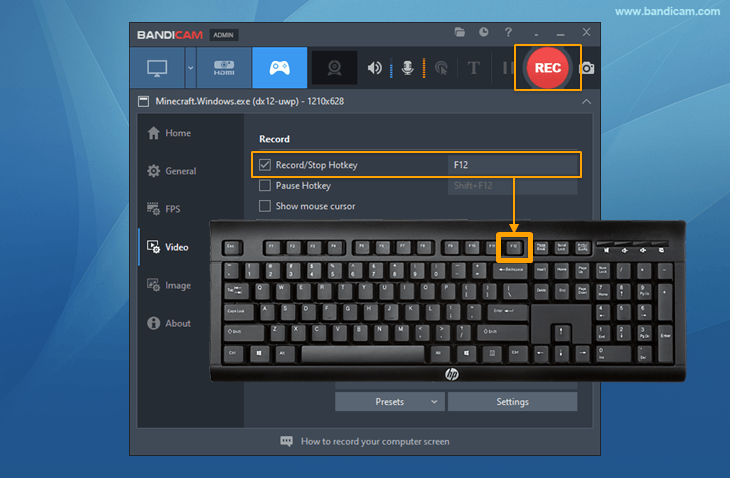
Press the 'F12' function key (or the 'Record' button in Bandicam) to start recording.
-
During the recording, the green FPS number will change to red.

-
To stop recording, press the 'F12' function key (or the 'stop ◼ ' button in Bandicam).




Recording by 'Screen Recording' mode
If you can't see the green number, you can use 'Screen Recording' mode to record iTunes videos. Follow the steps below:
-
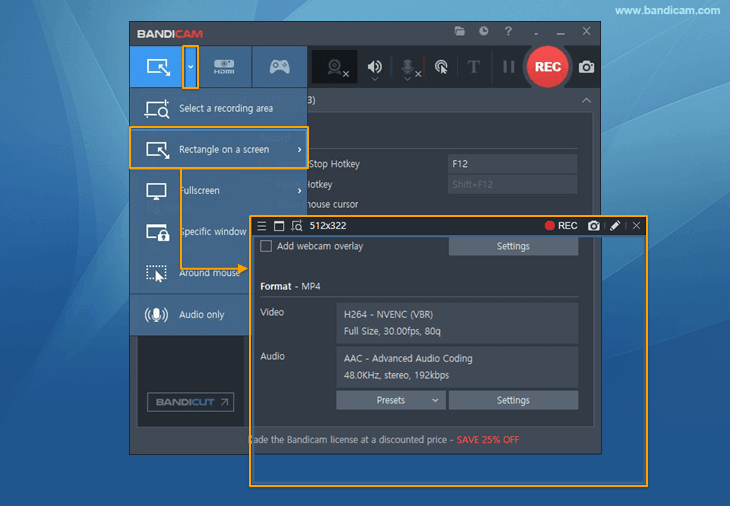
Start Bandicam and choose the 'Rectangle on a screen' mode.
-
Adjust the green-edged rectangle on the video and play the iTunes video
-
Click the ' ● REC ' button or press the 'F12' function key to record.

-
To stop recording, click the 'Stop (◼)' button (Hotkey F12).
-
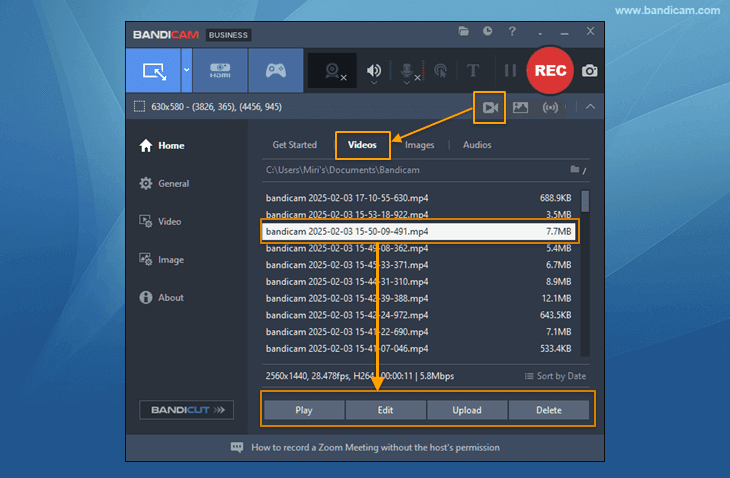
Click on the video icon to play, edit, or upload the captured videos.



More information
- iTunes (Wikipedia): https://en.wikipedia.org/wiki/Itunes
- User-created Video (YouTube): Waiting for your video.
- Please share your video on the Bandicam forum: https://bandicam.com/forum/viewforum.php?f=14
iTunes Video Recording for advanced users
- To enhance the recording ability of Bandicam, try the hardware-accelerated H.264 encoder.
- To edit the recorded video, use the "Vegas/Premiere/Pinnacle" preset.
- To minimize computer lag, reduce the "Video Resolution/Size/FPS/Quality."
- To record / merge the webcam stream with the main video, try the webcam PiP feature.
- To use Mouse Click Effects, check the "Add mouse click / highlight effect" option.
Bandicam offers the best online game recording experience.
When you record online games with Bandicam Game Recorder...
You can upload the recorded file to YouTube WITHOUT CONVERTING.
You can RECORD FOR OVER 7 DAYS without stopping (AVI 2.0 OpenDML).
Bandicam produces SMALLER FILE SIZES for recordings, compared to other capture programs.
Bandicam has LESS LAG than other screen capture software, since it uses fewer CPU/GPU/RAM resources.