Try Bandicam Game Recorder!
Download Bandicam (Free)
How to record Skyrim gameplay
The Elder Scrolls V
The Elder Scrolls V: Skyrim is a role-playing action game, in which players may freely roam over the land of Skyrim, an open world environment consisting of wilderness expanses, dungeons, caves, cities, towns, fortresses, and villages. Over the course of the game, players complete quests and develop their character by getting weapons and improving skills. If you are a Skyrim player, you may want to record your gameplay to share your game strategy and experience with others. This article will show you how to capture Skyrim gameplay.
Follow the steps below to record Skyrim gameplay:
-
Download the Skyrim recorder, Bandicam, and start.
-
Choose the 'Game Recording' mode to record Skyrim gameplay.
It's better to use 'Game Recording' mode to get a high quality video file.
![record Skyrim gameplay, best game recorder - directx mode]()
-
Start the Skyrim game to record.
Note: For a stable operation, Bandicam needs to be running before starting the Skyrim game.
- While running a game in 'Game Recording' mode, you can see the green FPS number on the screen.
- You can control the FPS (frames per second) under the 'FPS' tab of Bandicam. If you can't see the green FPS number, visit No FPS on the recording target.
![Skyrim gameplay recording, ready to record - skyrim gameplay]()
-
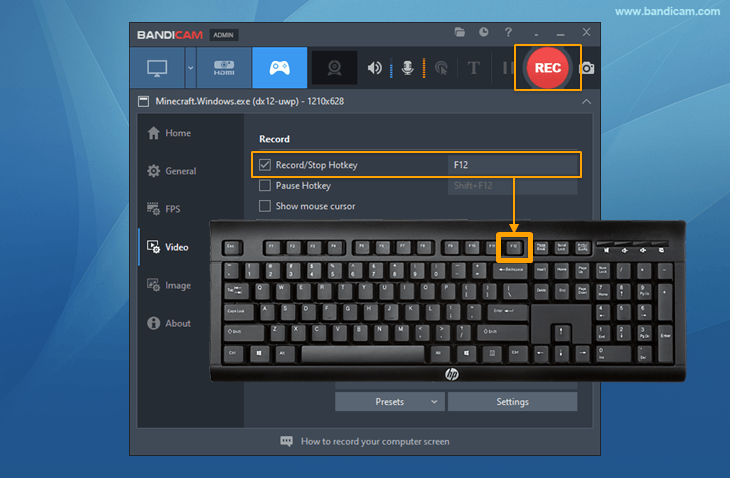
Press the 'F12' function key (or the 'Record' button in Bandicam) to start recording.
![Skyrim recording, f12 key to start/stop the recording gameplay]()
-
During the recording, the green FPS number will change to red.
![record skyrim gameplay]()
-
To stop recording, press the 'F12' function key (or the 'Record' button in Bandicam) again.
-
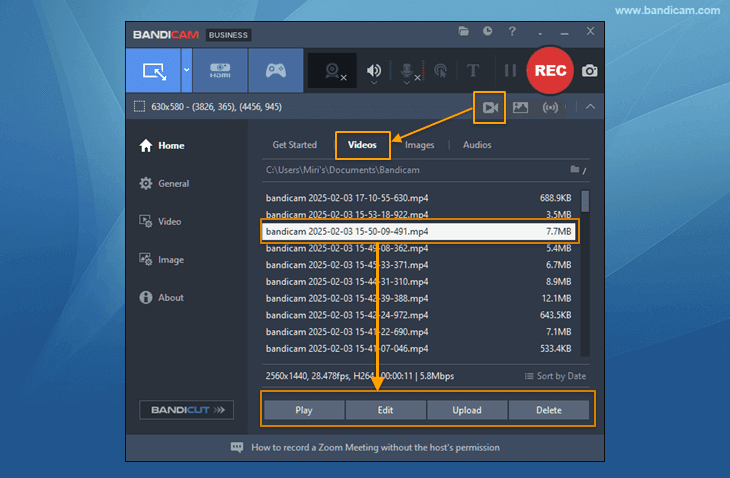
Click on the video icon to play, edit, or upload the captured videos.
![Bandicam, captured videos]()



Battlefield Game Recording for advanced users
- To enhance the recording ability of Bandicam, try the hardware-accelerated H.264 encoder.
- To edit the recorded video, use the "Vegas/Premiere/Pinnacle" preset.
- To minimize computer lag, reduce the "Video Resolution/Size/FPS/Quality."
- To record / merge the webcam stream with the main video, try the webcam PiP feature.
- To use Mouse Click Effects, check the "Add mouse click / highlight effect" option.
Last Updated on
Bandicam offers the best online game recording experience.
When you record online games with Bandicam Game Recorder...
You can upload the recorded file to YouTube WITHOUT CONVERTING.
You can RECORD FOR OVER 7 DAYS without stopping (AVI 2.0 OpenDML).
Bandicam produces SMALLER FILE SIZES for recordings, compared to other capture programs.
Bandicam has LESS LAG than other screen capture software, since it uses fewer CPU/GPU/RAM resources.
 Roblox game recording
 Valorant
 Minecraft game recording
 Battlegrounds (PUBG)
 Overwatch highlights
 Counter-Strike recording
 Grand Theft Auto(series)
 League of Legends(LoL)
 Skyrim game recording
 Team Fortress2(TF2)
 The Sims 3, 4 recording
 World of Warcraft (WoW)
 Angry Birds game
 Battlefield game recording
 Call of Duty game
 Mobile games on BlueStacks
 Age of war (flash game)
 Lost Ark
 Genshin Impact