Try the game recorder, Bandicam!
Download Bandicam (Free)How to record Call of Duty gameplay with Bandicam
(COD, MW3, MW2, Modern Warfare, Black Ops)
Call of Duty is a first-person shooter game that draws inspiration from other games set in World War II. The game was developed by Infinity War, published by Activision, and released in 2003. The latest Call of Duty: Vanguard was released on November 5, 2021, and Call of Duty: Modern Warfare II will be released on October 28, 2022.
The main Call of Duty series comprises World War II games, Modern Warfare series, Black Ops story arc, and three standalone games. By April 2021, the game had successfully sold over 400 million copies and was registered as a chart-topping first-person shooter game series by Guinness World Records.
If you have been pondering how to record COD, we have a great game recorder for you to use. In this article, you will learn how to easily record Call of Duty on a PC with the innovative recording software, Bandicam.
To record Call of Duty gameplay, please follow the steps below:
-
Download the game recorder, Bandicam, and start.
-
Choose the 'Game Recording Mode' to record COD gameplay.
It's better to use the 'Game Recording Mode' to get a high quality video file.
![record COD gameplay, Call of Duty]()
-
Start the Call of Duty game to record.
Note: For a stable operation, Bandicam needs to be running before starting the Call of Duty game.
- While running a game in 'Game Recording' mode, you can see the green FPS number on the screen.
- You can control the FPS (frames per second) under the 'FPS' tab of Bandicam. If you can't see the green FPS number, visit No FPS on the recording target.
![call of duty recording, ready to record, Game FPS]()
-
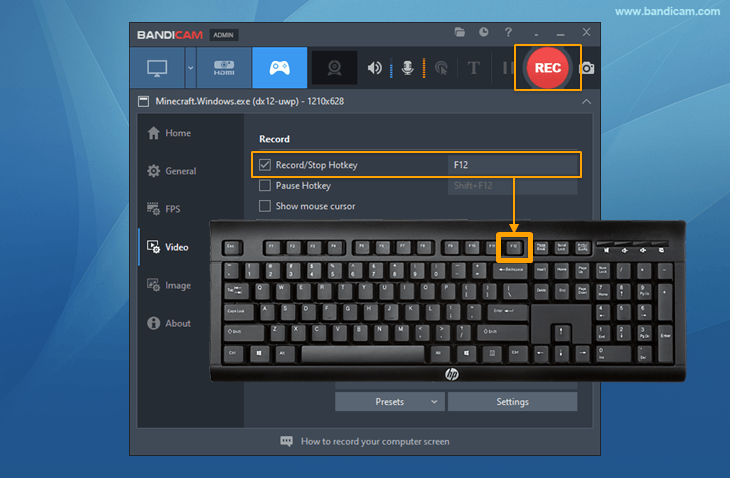
Press the 'F12' function key (or the 'Record' button in Bandicam) to start recording.
![record cod, f12 key to start/stop the recording gameplay]()
-
During the recording, the green FPS number will change to red.
![Call of Duty game record, recording the target - red color]()
-
To stop recording, press the 'F12' function key (or the 'Record' button in Bandicam) again.
-
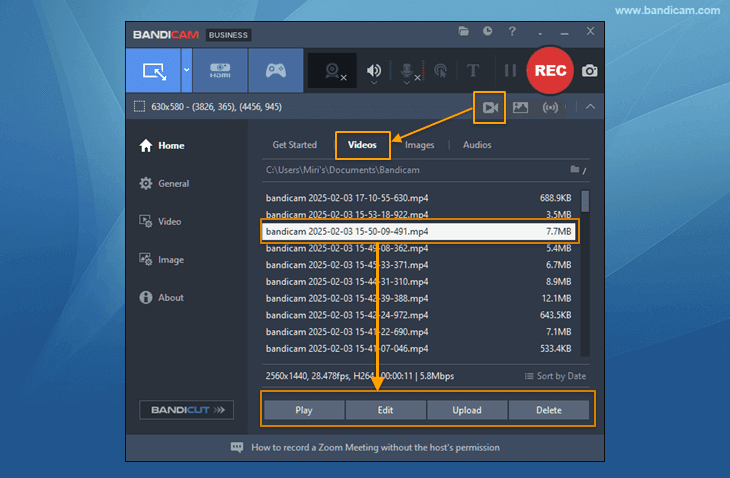
Click on the video icon to play, edit, or upload the captured videos.
![Call of Duty recording, Bandicam, captured videos]()



Related FAQs about recording COD gameplay
1. How do you record COD on a PC?
Bandicam is the best game recording software that works on Windows OS. With Bandicam, you can record gameplay on your laptop or computer. Follow the steps above to record COD on a PC.
2. How do I record my mic in the game?
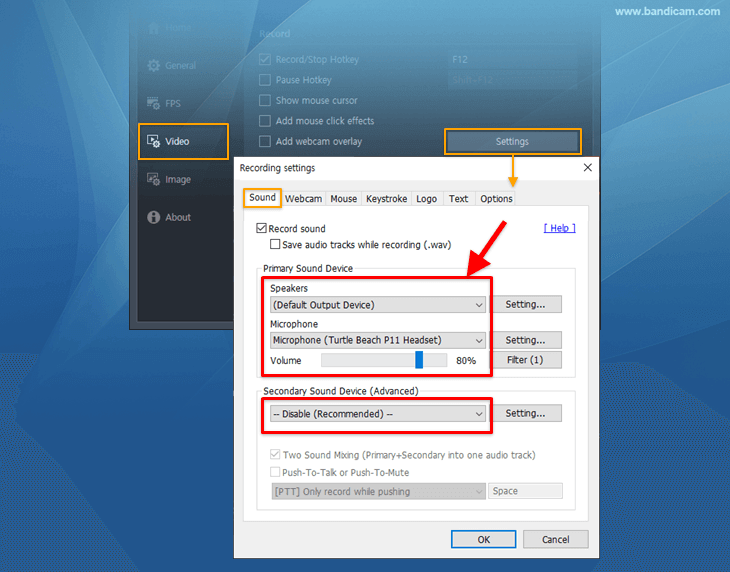
If you select "(Default Output Device)" for the Speakers and "Your microphone device" for the Microphone, you can record your gameplay with your voice, including game sounds.
Battlefield Game Recording for Advanced Users
- To enhance the recording ability of Bandicam, try the hardware-accelerated H.264 encoder.
- To edit the recorded video, use the "Vegas/Premiere/Pinnacle" preset.
- To minimize computer lag, reduce the "Video Resolution/Size/FPS/Quality."
- To record / merge the webcam stream with the main video, try the webcam PiP feature.
- To use Mouse Click Effects, check the "Add mouse click / highlight effect" option.
Last Updated on
Bandicam offers the best online game recording experience.
When you record online games with Bandicam Game Recorder...
You can upload the recorded file to YouTube WITHOUT CONVERTING.
You can RECORD FOR OVER 7 DAYS without stopping (AVI 2.0 OpenDML).
Bandicam produces SMALLER FILE SIZES for recordings, compared to other capture programs.
Bandicam has LESS LAG than other screen capture software, since it uses fewer CPU/GPU/RAM resources.
 Roblox game recording
 Valorant
 Minecraft game recording
 Battlegrounds (PUBG)
 Overwatch highlights
 Counter-Strike recording
 Grand Theft Auto(series)
 League of Legends(LoL)
 Skyrim game recording
 Team Fortress2(TF2)
 The Sims 3, 4 recording
 World of Warcraft (WoW)
 Angry Birds game
 Battlefield game recording
 Call of Duty game
 Mobile games on BlueStacks
 Age of war (flash game)
 Lost Ark
 Genshin Impact