How to Record Webcam and Sound
Best Webcam Recorder
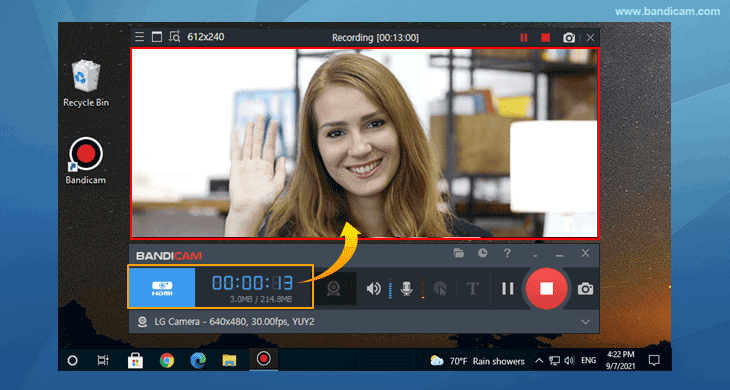
If you use a laptop or desktop PC that has a webcam device, you will be able to capture the real-time webcam view by using the 'Device Recording' mode of Bandicam. The 'Device Recording' mode allows you to record external webcam devices (hardware) with a high compression ratio and in high quality.
If you have a microphone device such as a webcam with a microphone or a headset microphone, you can record both your webcam and microphone sounds at the same time.
How to record Webcam + Microphone
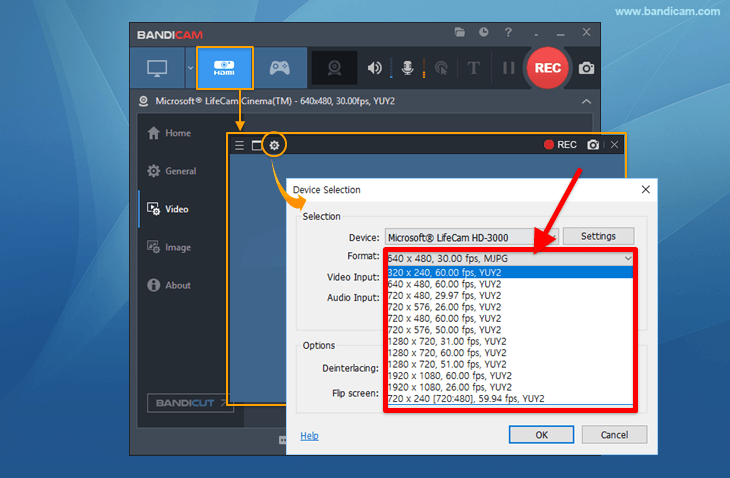
- Start Bandicam, choose "Device Recording" mode, select the webcam device you want to record, and click the OK button.
- If you can't see the webcam screen, install proper webcam drivers and select another video size
 .
.
- If you can't see the webcam screen, install proper webcam drivers and select another video size
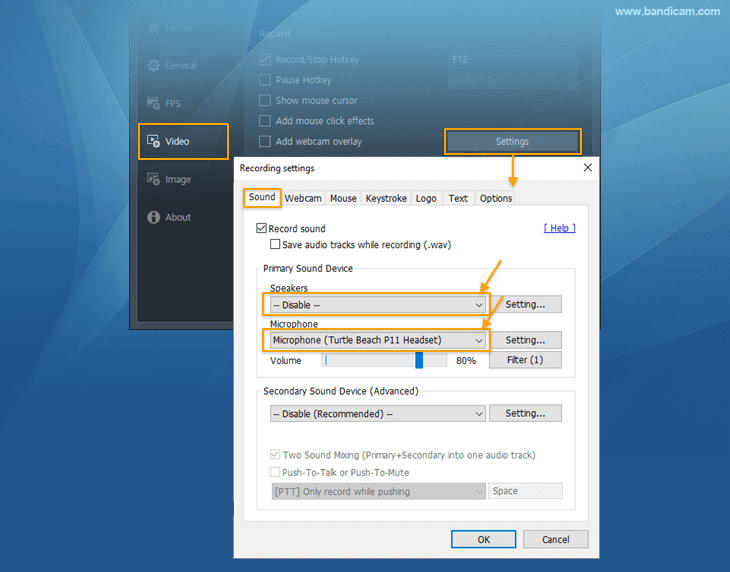
- If you select "Disable" for the Speakers and select your microphone for the Microphone, you’ll be able to record only the webcam and microphone sound without computer sound.

How to record Webcam + Microphone + Computer sound
- Start Bandicam, choose "Device Recording" mode, select the webcam device you want to record, and click the OK button.
- If you can't see the webcam screen, install proper webcam drivers and select another video size.
- If you can't see the webcam screen, install proper webcam drivers and select another video size
- If you select "(Default Output Device)" for the Speakers and "Your microphone device" for the Microphone, you can record the webcam and microphone sound with computer sound.

Additional Tips
1. What if you don't have a webcam device, but want to record?
If you don't have a webcam device, install the IRIUN or DroidCam application on your PC and smartphone. It will allow you to use your smartphone or iPhone camera as an external webcam device.
» Use your phone as a webcam on a PC - Iriun
» Use your Android or iOS device as a webcam – DroidCam

2. How to put your webcam on one corner of your video
If you want to put your webcam on one corner of your gameplay or tutorial video, check the "Add webcam overlay to video" option under the Video tab.
» How to add a webcam in the corner of your gameplay or video tutorial
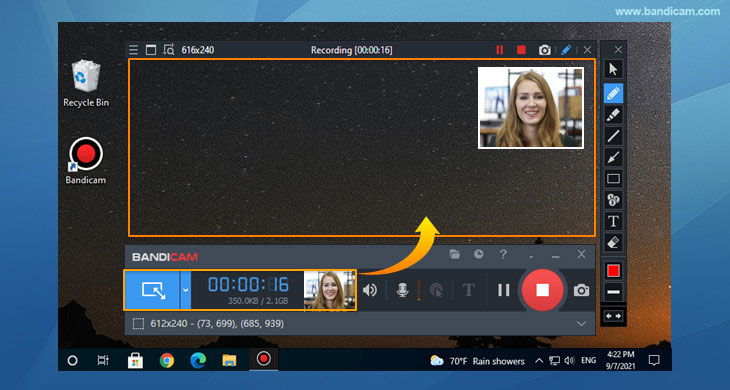
3. How to Record Multiple Webcams/Cameras at once
If you execute multiple Bandicam programs by copying and pasting the Bandicam installation folder, you can record multiple webcams at once.
» How to Record Multiple Webcams/Cameras on Windows

FAQs
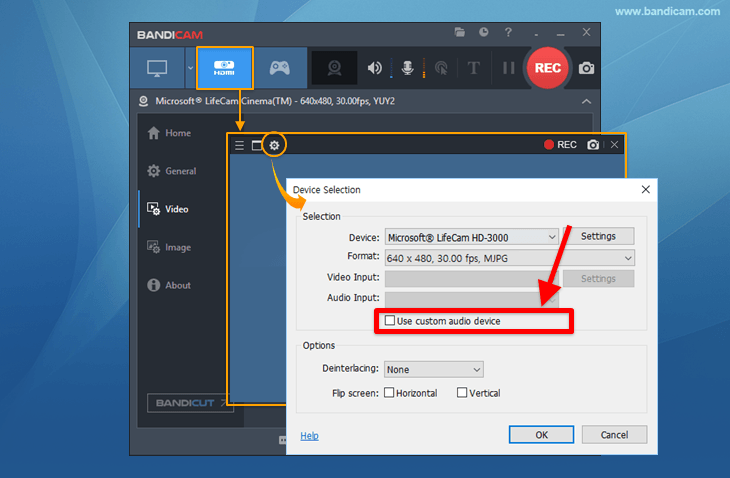
1. If you see an error message that says "Failed to initialize the video capture device,"
- Select another video size from the format selection menu, or
- Turn off the “Use custom audio device” option and try again.
- Please uninstall/exit the other webcam program, and reinstall the latest webcam driver.
- If you still see an error message, please send a screenshot of
the format selection menu to bandicam@bandicam.com
2. If you have a USB webcam device, please plug the device into a USB 3.0 slot.
3. If the video and audio are out of sync, please visit https://www.bandicam.com/faqs/audio-sync-delay/
Last Updated on